

Master Your Reflexes by Reducing Xbox Input Lag
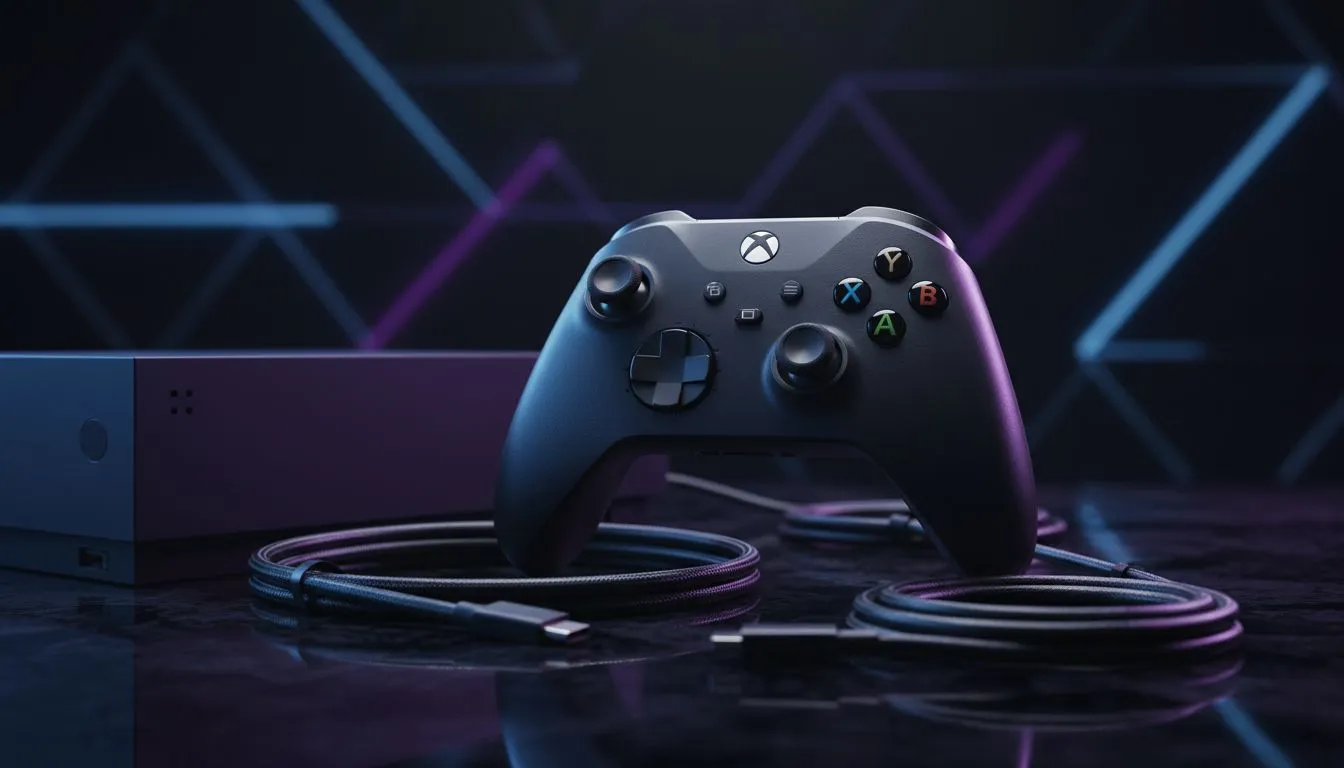
Ever felt like your Xbox is playing catch-up? You pull the trigger in Call of Duty or Halo, but the action happens a split second too late. In the competitive South African gaming scene, that delay is the difference between a win and a trip back to the lobby. If you want to reduce input lag on Xbox, you need to optimise your entire signal chain from the thumbstick to the screen pixels. ⚡
Optimise Your Display Settings for Speed
The most common source of delay isn't actually your console... it is your television. Modern 4K TVs perform heavy image processing to make movies look pretty, but this adds massive latency to gaming. To fix this, always ensure "Game Mode" is enabled in your TV settings. This bypasses post-processing to deliver the raw signal as fast as possible.
If you are still rocking an older screen, it might be time to upgrade. Many local gamers are moving toward high-refresh monitors that support Variable Refresh Rate (VRR) and Auto Low Latency Mode (ALLM). These features ensure your Xbox and screen are perfectly synced, cutting down those micro-stutters that ruin your aim.
The HDMI 2.1 Advantage ⚡
Ensure you are using the high-speed HDMI cable that came with your Xbox Series X. If you plug into an HDMI 2.1 port on a compatible display, you can unlock 120Hz gaming. This effectively halves the frame time, making the entire experience feel significantly more responsive than standard 60Hz play.
Upgrade Your Controller for Faster Response Times
While wireless tech has improved, a wired connection is still the gold standard for stability. If you are looking for the absolute pinnacle of speed, the Razer Wolverine V3 Tournament Edition 8K offers incredible polling rates that traditional controllers simply cannot match.
For those who prefer different ergonomics or extra remappable buttons, you can explore a massive variety of gaming controllers at Evetech to find your perfect fit. A pro-grade controller often features mechanical switches rather than membrane buttons... this provides tactile feedback and a much faster actuation point.
Fine-Tune Your Xbox System Preferences
Inside the Xbox dashboard, there are a few "hidden" tweaks to help you reduce input lag on Xbox even further. Head to your Display options and ensure your resolution matches your screen's native output. Forcing a console to upscale or downscale can occasionally introduce a tiny amount of overhead.
Also, consider the brand of your peripherals. Many pros swear by specific ecosystems for their reliability. If you want to stick with a premium name, browsing the latest Razer gaming controllers is a great way to ensure your hardware isn't the bottleneck during a heated match in Apex Legends. 🚀
Clear the Airwaves
If you must play wirelessly, keep your console in an open area. South African homes often have thick walls or cabinets that can interfere with the 2.4GHz signal. Keep mobile phones and routers at least a metre away from your Xbox to prevent signal interference... this ensures your controller inputs reach the console without being dropped or delayed. 🔧
Ready to Eliminate the Lag? Don't let hardware limitations hold your K/D ratio back. From ultra-fast monitors to professional-grade peripherals, we have the gear to help you dominate the leaderboard. Explore our massive range of gaming controllers and find the perfect tool to sharpen your competitive edge.











