Reduce voice chat latency: Quick wins
South African gamers, tired of fuzzy comms and late replies? Want to reduce voice chat latency and stay in sync with your squad? This short guide gives practical steps you can apply tonight — router tweaks, headset choices, and Windows settings — so your pings match your aim. Let's fix laggy voice chat and keep the clutch calls crisp. 🔧⚡
Reduce voice chat latency: Network basics everyone can do
Start by isolating the problem. Test voice latency with and without your Wi‑Fi. If wired ethernet removes the delay, your router or Wi‑Fi congestion is the culprit. Prioritise your gaming device with Quality of Service or a simple port forward for your voice app. If you’re on a capped mobile plan, try switching to a stable home fibre line where possible; stable throughput beats occasional high peak speeds for voice clarity.
Small router changes often help immediately:
- Use a 5GHz band for low interference.
- Enable QoS and set your PC or console as high priority.
- Move the router away from other electronics and thick walls.
Reduce voice chat latency: Hardware fixes and headset tips 🚀
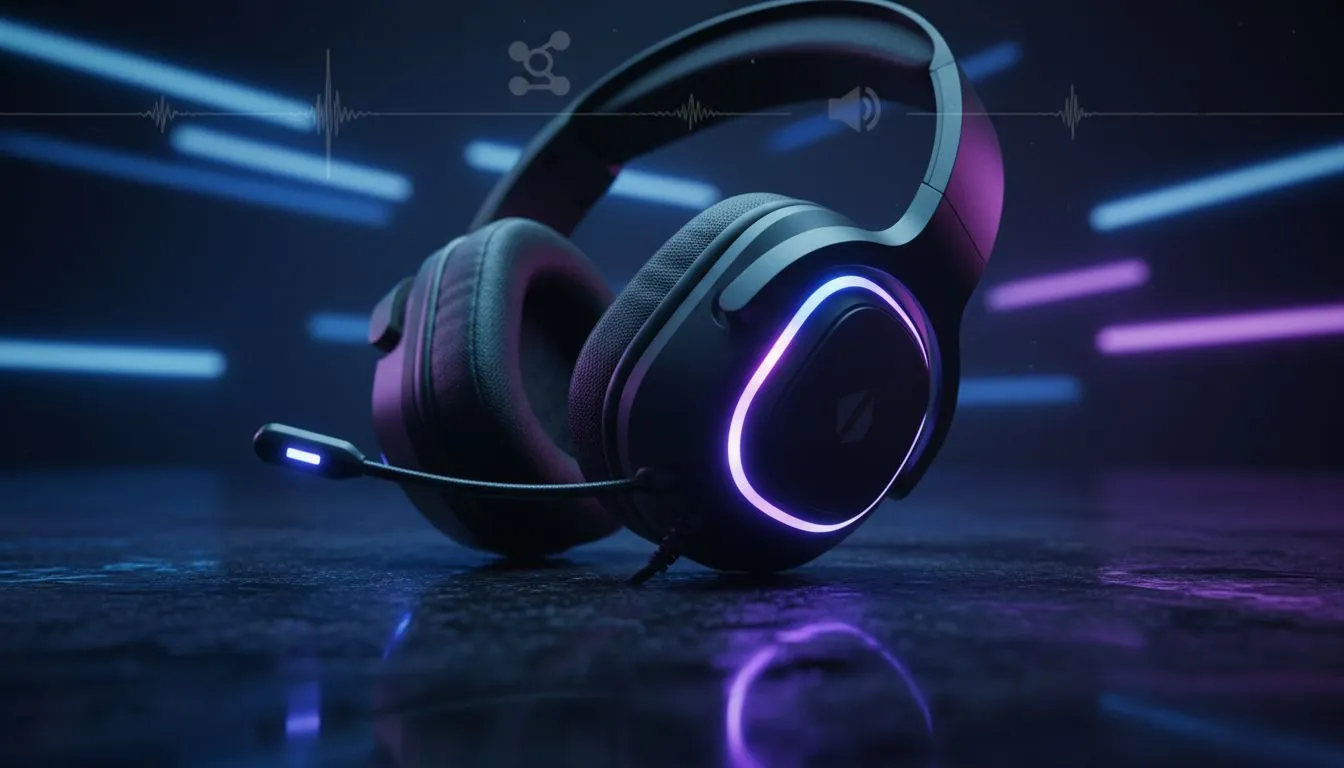
A low-latency headset or a wired connection can shave noticeable milliseconds. Consider headsets that favour a dedicated wireless dongle or USB audio path over generic Bluetooth for lower jitter. If you want a compact, gaming-ready option, check the Razer Barracuda X Chroma wireless headset — it’s built for low-latency wireless play and shows how a dedicated dongle works in practice: https://www.evetech.co.za/razer-barracuda-x-chroma-wireless-headset-phantom-white/best-deal/24367.
If you prefer browsing options, Evetech lists Razer headsets with specs so you can compare connectivity and mic features: https://www.evetech.co.za/PC-Components/razer-headphones-headsets-105. Plugging straight into USB usually beats a headset jack adapter for consistent voice timing.
Pro Tip ⚡
For best consistency, use a wired connection for tournaments and switch to your dongle only for comfort during casual matches. Disable any “enhancements” in Windows sound settings to avoid extra processing latency.
Reduce voice chat latency: Software, settings and troubleshooting
On Windows, disable exclusive mode enhancements and make sure your voice app is allowed through the firewall. Update your audio drivers from your motherboard or USB DAC vendor. If you use Discord, Teamspeak, or in‑game voice, try changing the input/output device manually — sometimes the OS picks the wrong sample rate, which adds buffering.
When to swap hardware? If you’ve exhausted network and driver tweaks and still hear delayed speech or clipping, it’s time to upgrade your headset or USB sound device. Browse a wider selection of headphones and headsets at Evetech to find models with better mic clarity and wired/USB paths that suit competitive play: https://www.evetech.co.za/components/headphone-headsets-100. ✨
Reduce voice chat latency: Final checklist before play
- Test wired vs wireless.
- Prioritise device in router settings.
- Use a USB/2.4GHz dongle headset for reliable low latency.
- Disable Windows audio enhancements.
- Update drivers and firmware.
Good voice comms are often a combination of tweaks, not a single purchase. Start with the network fixes, then upgrade hardware if needed. Ready to sound like the squad leader you are?
Ready to Find Your Perfect Match? The Mac vs Windows debate is complex, but for maximum power, choice, and value in South Africa, Windows is hard to beat. Explore our massive range of laptop specials and find the perfect machine to conquer your world.