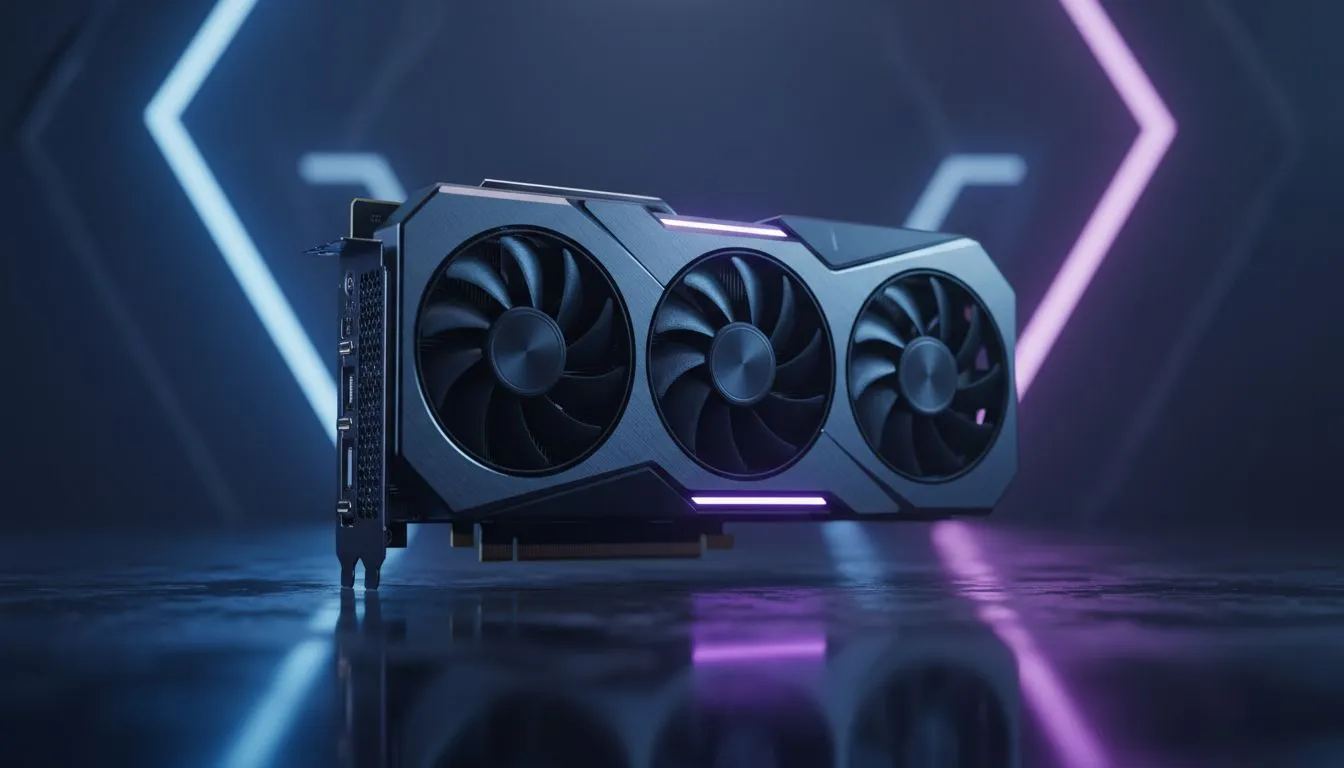
Optimising Your RTX 5060 Rocket League Settings
Rocket League is a game of split-second decisions. On the new RTX 5060, you want frames, but you also need to see the ball clearly across the pitch. Whether you are grinding ranked in Johannesburg or playing casual with mates, getting your RTX 5060 Rocket League settings right for max visibility is the difference between a save and a goal. Let's dial in your performance. 🔧
Finding the right NVIDIA graphics cards to power your rig is only the first step. Once you have the hardware, the software configuration dictates your success on the pitch. The goal is to remove visual clutter that hides your opponents or the ball's trajectory.
Video Settings for Maximum Visual Clarity
Most professional players turn off everything that looks "pretty" but distracts from the gameplay. To achieve the best RTX 5060 Rocket League settings for max visibility, start by disabling Motion Blur and Weather Effects. These settings add unnecessary "noise" to your screen... making it harder to track the ball during fast aerials.
If you are using high-end components like MSI graphics cards, you might be tempted to max every slider. Resist that urge. Set "World Detail" to Performance and "Texture Detail" to High Quality. This keeps the cars looking crisp while removing distracting grass and crowd animations. ✨
Visibility Pro Tip ⚡
Turn off 'Lens Flares' and 'Light Shafts' in the video settings. While they make the stadium look cinematic, they can literally blind you when the ball is high in the air near the stadium lights. Clean visuals lead to better aerial touches and more consistent clears.
Balancing Performance and Aesthetics
While the RTX 5060 handles the game with ease, some players prefer different hardware ecosystems. You might be considering Intel Arc graphics cards or even AMD Radeon graphics cards for your next build. Regardless of the chip, the goal remains the same... clear lines of sight.
Even if you are using workstation graphics cards for a dual-purpose setup, Rocket League's engine scales well. Just ensure "Transparent Goalposts" is always enabled. This is the single most important setting for defenders... it allows you to see through the posts when you are sitting deep in the net.
The Importance of Stable Frame Times
High FPS is great, but stable frame times are better for competitive play. The RTX 5060 provides incredible stability at 1080p and 1440p. Set your in-game frame rate limit to match your monitor's refresh rate... or slightly above. If you have a 144Hz screen, capping at 240 FPS often reduces input lag without causing screen tearing. 🚀
By prioritising visibility over cinematic fluff, you give yourself a massive advantage. You will spot the 50/50 challenges earlier and read the bounce off the backboard with much more precision.
Ready to Dominate the Pitch? Getting your settings right is half the battle, but having the right hardware is the foundation. Whether you are looking for a budget-friendly upgrade or a top-tier beast, we have the stock you need. Explore our massive range of graphics card specials and find the perfect machine to conquer your world.