

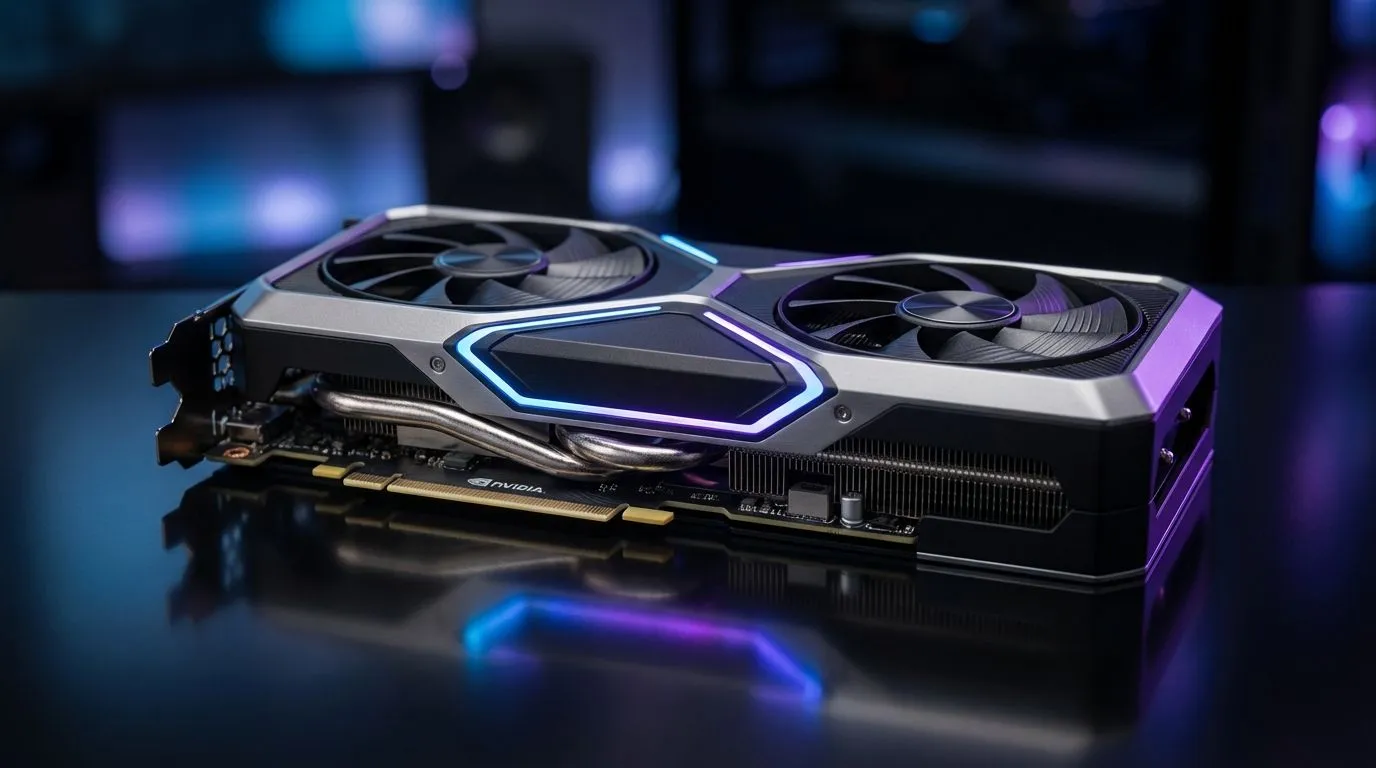
Master Your View with RTX 5060 Ti Best Visibility Settings
You just dropped into a high-stakes match in Warzone or a tense round of Valorant. Every millisecond counts. An RTX 5060 Ti gives you plenty of power... but default settings often hide enemies in murky shadows. To dominate South African leaderboards, you need the RTX 5060 Ti Best Visibility Settings. Let’s tweak your Blackwell architecture to ensure your rivals have nowhere to hide.
Optimise Your Frames for Competitive Clarity
Clarity is often more important than raw beauty in competitive gaming. When browsing the latest NVIDIA graphics cards, you see the potential for incredible visuals. However, for the best visibility, you must reduce visual noise. Start by setting "Effects Quality" to low. This prevents massive explosions from completely obscuring your line of sight.
Set "Shadow Quality" to medium rather than ultra. This keeps the world looking grounded without creating pitch-black corners where campers love to hide. High-end MSI graphics cards handle these adjustments with ease... providing stable frame rates even when the action gets chaotic.
Visibility Pro Tip ⚡
Use the 'Sharpening' filter in the NVIDIA Overlay (Alt+Z). Set it to roughly 20% to define player edges without adding visual grain. This makes long-distance targets in titles like PUBG much easier to track against complex South African bushveld textures.
Balancing Performance and Visual Fidelity
Choosing the right hardware is the first step toward victory. Some players might prefer the raw rasterization value found in AMD Radeon graphics cards. Others might be curious about the evolving driver support for Intel Arc graphics cards. But the RTX 5060 Ti offers DLSS 3.5... a massive advantage for visibility.
Always set DLSS to "Quality" mode at 1440p. This keeps the image sharp while boosting your FPS. Avoid "Ultra Performance" as it can make distant enemies look like blurry pixels. Ensure "NVIDIA Reflex Low Latency" is set to "On + Boost". This reduces the time it takes for your mouse click to register on your screen.
Professional Tweaks for Every Gamer
If you use your PC for high-end rendering, you might own one of our workstation graphics cards. But for the RTX 5060 Ti user, the NVIDIA Control Panel is your best friend. Navigate to "Adjust Desktop Colour Settings". Increase "Digital Vibrance" to around 65% or 70%.
This small change makes colours pop. It helps you distinguish a player model from a grey concrete wall or green foliage. Disable "Motion Blur" and "Depth of Field" immediately. These settings look cinematic but ruin your ability to spot movement while turning quickly. With these RTX 5060 Ti Best Visibility Settings, you are ready to climb the ranks.
Ready to Find Your Perfect Match? The right GPU settings are only half the battle... you need the hardware to back it up. For maximum power and the best tech value in South Africa, Evetech has the gear you need. Explore our massive range of NVIDIA graphics cards and find the perfect machine to conquer your world.








