

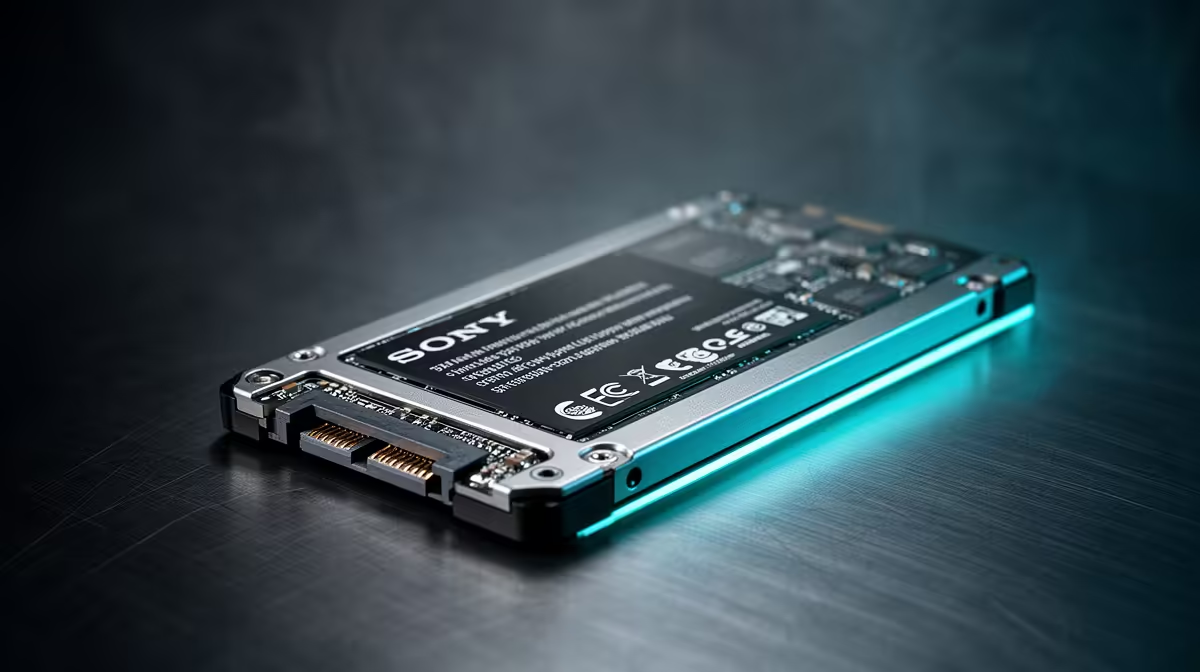
SATA SSDs Improve System Responsiveness vs HDD: Why Your PC Feels Snappier ⚡
If your gaming PC takes forever to boot, load maps, or launch your launcher… you’re not imagining it. In South Africa, where power cuts and upgrades are daily talk, storage speed matters more than people think. SATA SSDs Improve System Responsiveness vs HDD because they reduce delays at the exact moments you notice most. Think: faster Windows startup, quicker game launches, and smoother overall “time-to-play” between matches. ⚡
SSDs vs HDDs: The real-world difference you’ll feel 🚀
HDDs rely on moving parts to read data. That’s why they’re slower at random access, especially when Windows and games juggle lots of files. SATA SSDs, on the other hand, store data on flash memory and access it electronically. The result is lower latency. That’s what makes a system feel responsive… even if your CPU or GPU didn’t change.
What changes with SATA SSDs
- Boot and app load times improve because storage responds faster.
- In-game stutter can reduce when assets stream from disk.
- Multitasking feels easier since the system waits less for disk reads.
If you’re building or upgrading in SA, you’ll also like the practical side: SATA SSDs are widely compatible and usually cheaper than NVMe drives, while still delivering a noticeable upgrade.
Buying guidance for South Africans (SATA SSDs Improvement Focus) 🔧
Before you buy, match your SSD to your motherboard connections. Many desktops and some laptops support SATA 2.5" SSDs, while newer systems prefer M.2 slots.
Choose a form factor first
For the easiest upgrades, look for SATA SSDs in the common 2.5" format. If your board supports M.2, you may get higher performance. But if your goal is “less waiting” today, SATA is often the fastest path.
- If you want solid SATA options: start here: Explore solid-state drives from Evetech
- Prefer a specific brand? You can filter quickly: Shop ADATA SSDs
- Or go with a household favourite: Shop Kingston SSDs
Pick the right M.2 option if you’re upgrading a newer build
If you’re on an M.2-capable system, check the exact slot size. For example, 2280 is common: Find M.2 2280 drives
And if you want future-friendly speeds, look at interface generation options too: Compare drives by interface generation
Productivity Pro Tip ⚡
Productivity Pro Tip ⚡
On Windows, do a clean install after cloning to your SSD and then check Drive Optimisation (taskbar search “Defragment and Optimise Drives”). For SSDs, Windows should manage settings automatically, but it helps to confirm Trim is enabled so performance stays consistent over time.
Quick recommendation for gamers who want results today ✨
If you currently run Windows and key games on an HDD, a SATA SSD is usually the most obvious “feel the difference” upgrade. Start with your boot drive, then move game libraries if your budget allows. Even a modest SSD can shorten the gap between launching your PC and joining the squad.
For specs and options, Evetech’s SSD range makes it easy to compare capacities and compatible types before you commit.
Ready to Find Your Perfect Match? The Mac vs Windows debate is complex, but for maximum power, choice, and value in South Africa, Windows is hard to beat. Explore our massive range of laptop specials and find the perfect machine to conquer your world.











