

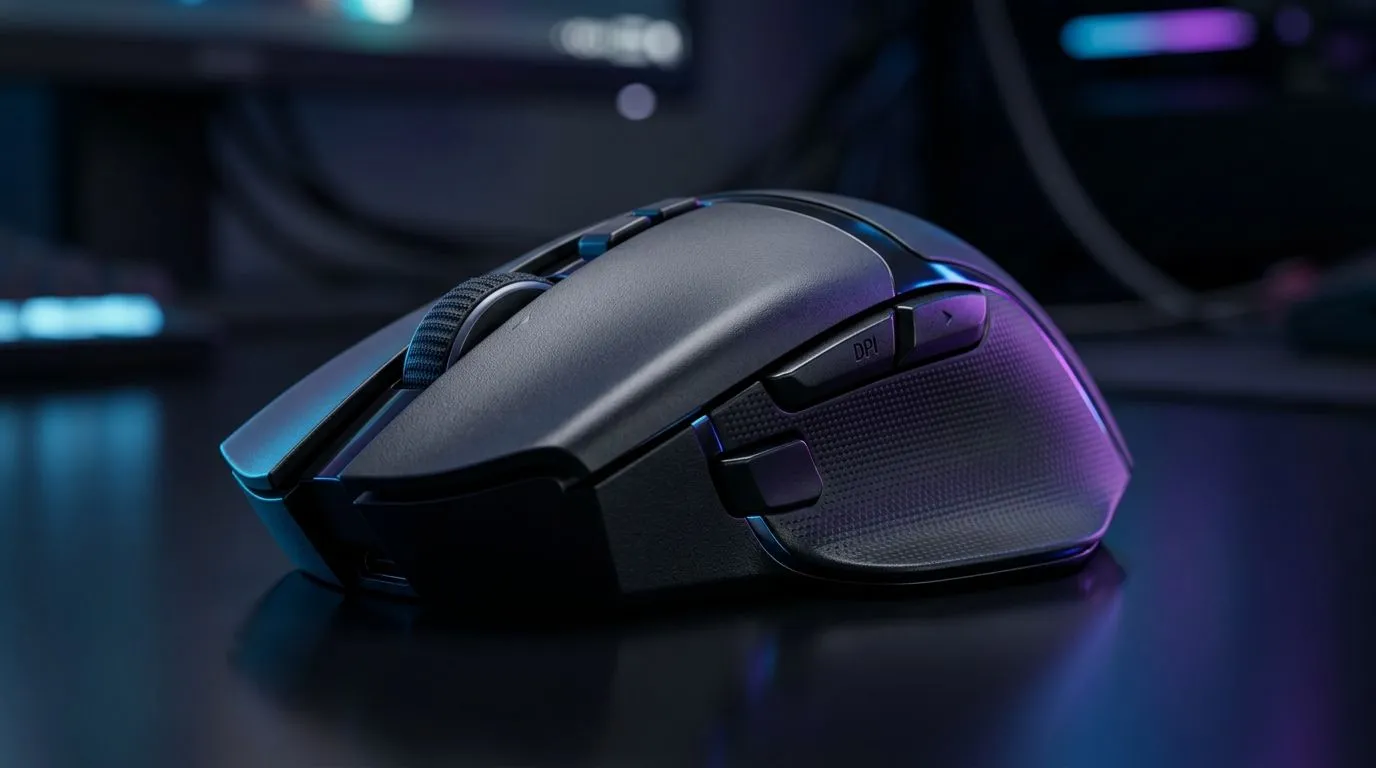
Side Button DPI Not Working: Quick Fixes That Get You Back Into Control 🔧
If your mouse side button DPI toggle is randomly changing or not responding, it’s more than annoying. In Valorant, CS2, or Apex legends, that micro-lag in your muscle memory can cost you aim consistency. You want smooth tracking, predictable sensitivity, and profiles that behave… every match. Let’s fix inconsistent DPI changes caused by side buttons, software conflicts, or settings that never quite save. ⚡
Diagnose Why Side Button DPI Not Working (Often Software, Not the Mouse) 🕵️♂️
Most DPI “mysteries” aren’t hardware failures. They’re usually a mix of mouse driver software, game settings, and Windows pointer options.
Try this order:
- Check if DPI switching is mapped correctly in your mouse software profile.
- Remove conflicting profiles. Some mice let you store DPI actions per profile, per game, or per app.
- Test in a fresh environment: reboot, then test the side button in Notepad or a browser. If it fails there, it’s likely software or the button assignment.
- Disable “enhancement” features in Windows pointer settings. These can alter how movement feels.
Evetech sells a lot of wired and wireless mice, and the best advice is simple: the right mouse plus a stable software workflow. If you’re shopping for a replacement, compare your options carefully before you buy.
Wired or Wireless? It Changes the Setup Checklist
Wireless setups can add power-saving behaviours. Wired setups avoid most of those surprises, but driver conflicts still happen. If your DPI toggles are only flaky on wireless, try:
- switching USB ports
- fully charging (or using fresh batteries if applicable)
- turning off any “low power” mouse features in the manufacturer software
Side Button DPI Not Working: Step-by-Step Fix in Windows 🔧
- Update your mouse software/firmware (if the manufacturer provides updates).
- Item
- Item
- Item
Productivity Pro Tip ⚡
On Windows, use PowerToys FancyZones to keep your settings panels visible while you test DPI toggles. Place your mouse software and the game (or a Notepad window) side-by-side, then switch DPI using the side button and confirm the changes immediately.
Mouse Profiles: A Tiny Change That Causes Big Aim Drift
Here’s the common micro-story: you set DPI in your mouse app, it saves… but the side button is still pointing to an old profile. Then you join a match and your crosshair suddenly feels “sticky” or too fast. The fix is usually re-saving the DPI action and confirming the active profile.
If you’re building a cleaner setup, start by choosing a mouse style that fits your workflow.
Choose the Right Mouse for Stable DPI Switching (South Africa Edition) 🚀
If you’ve already tried software resets, your mouse may simply not be the best fit for dependable DPI switching. If you’re shopping, start with the basics:
- Do you want wired stability or wireless convenience?
- Do you need multiple DPI steps with fast side-button control?
- Will you store profiles onboard, or rely on software?
To browse solid options, check these Evetech pages:
- If you’re comparing side-button features across brands, start here: Gaming mouse accessories at Evetech
- Looking for a reliable wired setup for consistent control? Explore: Wired gaming mice
- Prefer wireless but want fewer setup surprises? See: Wireless gaming mice
- Want to solve this without overspending? These best gaming mouse deals can help you upgrade fast.
- For a specific category that focuses on gaming control, browse: Gaming mouse 117 series
Ready to Save Your Aim Consistency
Once DPI switching works again, aim becomes predictable. And predictable aim wins more fights than “almost right” settings ever will. 🔥 Try the checklist above, then only after that decide if you need a new mouse.
Ready to Find Your Perfect Match? The Mac vs Windows debate is complex, but for maximum power, choice, and value in South Africa, Windows is hard to beat. Explore our massive range of laptop specials and find the perfect machine to conquer your world.











