

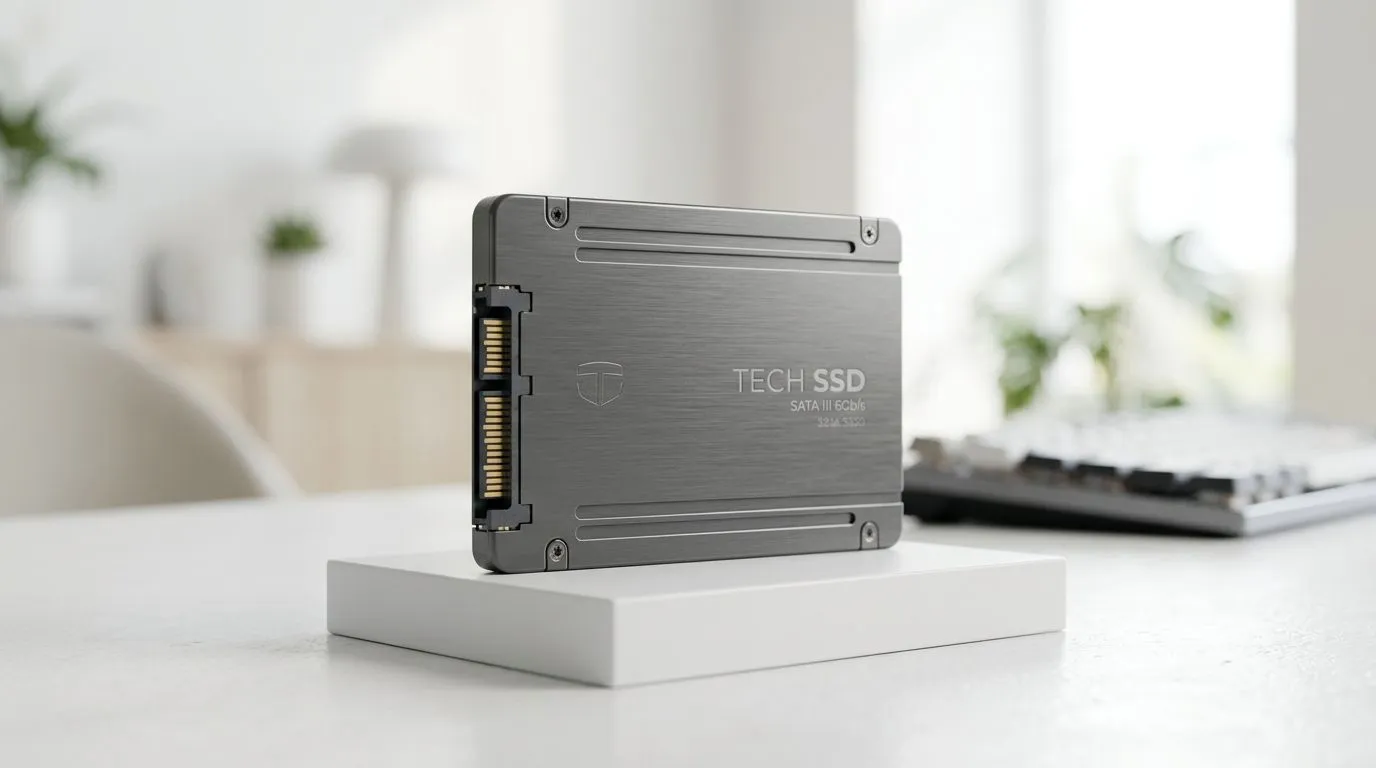
Slow Boot Times With a SATA SSD? Fix It Fast: Quick Diagnosis for South African PCs ⚡
Booting takes forever, your game library feels like it’s “loading” even when you’re not… and that brand-new SATA SSD is suddenly acting suspicious. If you’ve got slow boot times with a SATA SSD, don’t immediately assume the drive is faulty. More often than not, it’s a setting, firmware, or a caching behaviour you can correct fast... usually without spending a cent. 🔧
Slow Boot Times With a SATA SSD? Fix It Fast: The 5 causes we see most often 🕹️
Here’s the short list that explains the majority of “my SATA SSD is slow” reports, especially on mixed upgrades (HDD to SSD, then a bunch of tweaks).
1) Boot order and legacy settings
If your BIOS still prioritises the old HDD, the SSD might not be used for boot at all. Switch boot order so the SSD is first. Also check whether the BIOS is in Legacy/CSM or UEFI mode. If your Windows install is set up for one mode, mismatch can slow things down.
2) SATA mode is set incorrectly (AHCI vs RAID/Compatibility)
Many boards have a SATA controller setting. For SSD performance and stable boot, AHCI is the usual best choice unless you’re intentionally using RAID.
3) SSD firmware needs an update
SSD controllers sometimes improve boot behaviour and power states through firmware updates. If you upgraded drives recently, check the SSD manufacturer’s support page for firmware notes.
4) Too many “startup” tasks
A fast SSD can still feel slow if Windows is busy starting services. The boot screen might pass quickly, but the desktop becomes usable late. This is where the SSD looks guilty even though Windows is the bottleneck.
5) Windows power settings and sleep/hibernate leftovers
If the PC wakes from sleep slowly or “boots” into a half-warmed state, power settings matter. Make sure fast startup and hibernate behaviour match how you use the machine.
Productivity Pro Tip 🔧
On Windows, open Task Manager → Startup apps and disable anything you do not need at launch. Then restart. If your boot feels faster but games still stutter, also check your storage health and run a quick malware scan, because background agents can hammer disk access even on SSDs.
Slow Boot Times With a SATA SSD? Fix It Fast: What to check next (and what not to do) ⚡
Start with the simplest tests:
- Time it: measure from power button to desktop usable state. That tells you whether the BIOS stage is slow or Windows stage is slow.
- Disconnect extra drives: if you have multiple HDDs, temporarily unplug non-boot drives. If boot improves, it’s likely drive timeouts or indexing work.
- Check Storage health: look for warnings and ensure TRIM is enabled. On SATA SSDs, TRIM helps long-term performance.
If your SSD is ageing or you’re bottlenecked during updates, moving to a faster interface can help. Consider reviewing Evetech’s SSD options and choosing the right form factor for your build:
- Need SATA SSDs? Browse solid state drives here: Buy solid state drives
- Prefer a specific brand to match your current system? Try ADATA SATA/SSD options
- Or compare with Kingston SSDs
- If your board supports M.2, you may want the right size: M.2 2280 SSDs
- Want to plan for the latest speeds when you upgrade your platform? Explore Gen 5 (NVM…) SSDs
Not every “slow boot” is fixed by hardware, but pairing a clean BIOS setup with a drive that matches your motherboard is often the fastest win. 🚀
Slow Boot Times With a SATA SSD? Fix It Fast: When it’s time to upgrade (and how to choose) ✨
If you’ve tried BIOS and Windows checks and boot is still painful, upgrading the storage can make a noticeable difference in load screens and overall system responsiveness. When choosing a replacement, focus on:
- Compatibility (SATA vs M.2, and M.2 size)
- Reliability (known brands and appropriate warranty)
- Capacity for your library and future patches (especially if you’re juggling AAA installs)
And yes... it’s worth getting the right SSD for the slot. A mismatch is an expensive way to learn.
Ready to Find Your Perfect Match? The Mac vs Windows debate is complex, but for maximum power, choice, and value in South Africa, Windows is hard to beat. Explore our massive range of laptop specials and find the perfect machine to conquer your world.











