

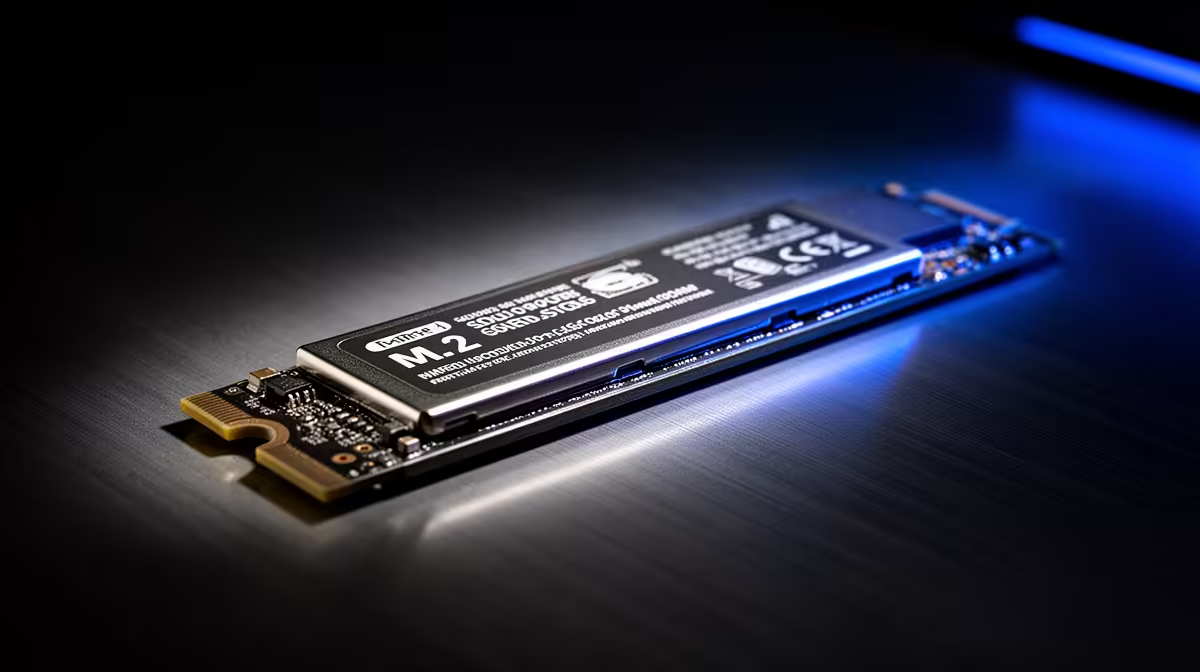
Is your gaming rig feeling a bit... sluggish? You dropped some serious ZAR on a shiny new SSD, but those load screens in Warzone still feel like an eternity. The secret isn't just having an SSD; it's unlocking its true power. This pro guide to SSD optimization in South Africa will show you exactly how to get the blistering speeds you paid for, turning frustrating waits into instant action. Let's get your drive flying. 🚀
Why SSD Optimisation Matters for SA Gamers
In South Africa, where internet speeds can be unpredictable, fast local storage is your best friend. An optimised Solid State Drive (SSD) means quicker game loads, faster texture streaming, and a snappier Windows experience overall. The difference between a default setup and a tuned one can be night and day.
But SSD optimisation isn't a one-click fix. It's about ensuring your system's settings are correctly configured to work with your drive, not against it. From ensuring the right communication mode is active to keeping its firmware fresh, these small tweaks add up to a massive performance boost. Whether you're a competitive esports player or a creative professional, getting maximum SSD speed is crucial. Understanding the fundamentals is the first step to mastering the world of modern storage drives.
Quick Wins for Maximum SSD Speed
Ready to roll up your sleeves? These straightforward checks and fixes are the foundation of proper SSD care and will give you the most significant performance gains. 🔧
Enable the TRIM Command
Think of TRIM as a janitor for your SSD. It proactively tells the drive which data blocks are no longer in use and can be wiped, making future write operations much faster. Windows 10 and 11 should enable it by default, but it's always worth a check.
- Open Command Prompt as an Administrator.
- Type:
fsutil behavior query DisableDeleteNotify - If the result is
0, TRIM is active. If it's1, it's disabled. To enable it, typefsutil behavior set DisableDeleteNotify 0.
Update Your Drive's Firmware
Firmware is the built-in software that controls your SSD. Manufacturers often release updates that improve performance, fix bugs, and enhance stability. Check your SSD manufacturer's website (e.g., Samsung Magician, Crucial Storage Executive) for a utility that handles this automatically. This is especially important for blazing-fast NVMe SSDs, as firmware updates can unlock even more speed.
Pro Tip: Over-Provisioning for Longevity
Leave 10-15% of your SSD's space unformatted (unallocated). This 'over-provisioning' gives the drive extra room to manage data, dramatically improving write performance and endurance, especially when the drive is nearly full.
Advanced SSD Optimisation Techniques
Once you've nailed the basics, a few more advanced tweaks can squeeze out every last drop of performance. These steps are for users who want to push their hardware to the absolute limit. ✨
Tweak Your Power Plan
By default, Windows uses a "Balanced" power plan which can sometimes put your SSD into a low-power state to save energy. For a gaming PC, this is unnecessary.
Switching to the "High Performance" or "Ultimate Performance" power plan ensures your components, including your SSD, are always ready for action. You can find this setting in the Control Panel under Power Options. This simple change can reduce micro-stutters and improve system responsiveness.
Disable Scheduled Defragmentation
This is a critical one. Defragmenting is a process for traditional Hard Disk Drives (HDDs) and is not only useless but actively harmful to an SSD's lifespan. Windows is usually smart enough to disable it for SSDs, but it's essential to verify.
Search for "Defragment and Optimize Drives" in the Start Menu. Ensure your SSD is listed and that "Scheduled optimisation" is turned on—Windows will correctly run TRIM, not a defrag. If it's trying to defragment, turn it off immediately! These principles apply to all drives, ensuring that even reliable 2.5-inch SATA SSDs serve you well for years.
Ready for a Real Speed Boost? Tuning your drive is smart, but nothing beats the raw power of a new upgrade. If you're ready to obliterate loading screens for good, check out the best SSD deals in South Africa for performance that leaves lag in the dust.











