Stop Accidental Stream Audio Leaks With Tap-to-Mute: the “oops” moment
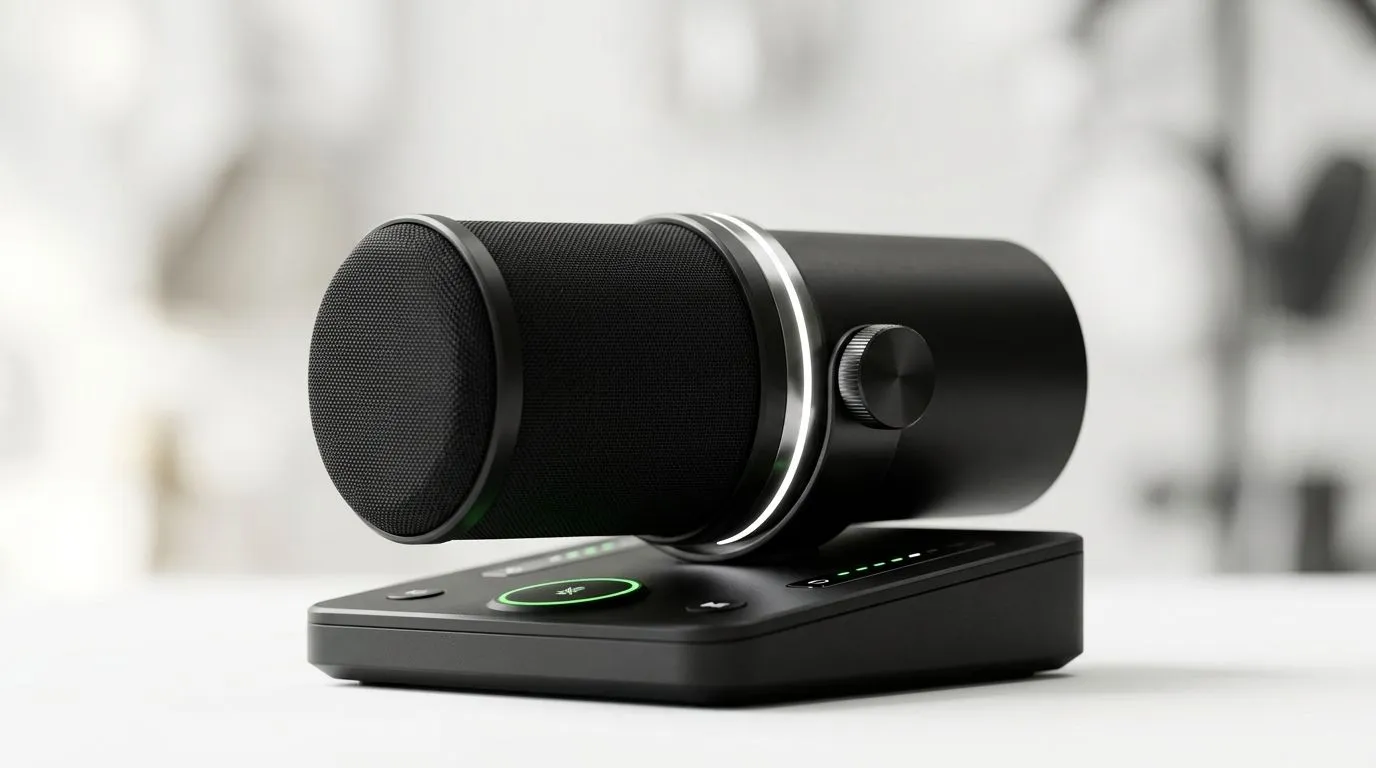
South African streamers know the feeling. You hit “Go Live”… and suddenly your desk mic is capturing everything. Friends, family, game chat, even the neighbour’s TV. 😅 If you stream on Twitch, TikTok, or YouTube, one accidental audio leak can turn a clean segment into a rewind moment. The fix is often simpler than you think: Stop Accidental Stream Audio Leaks With Tap-to-Mute so you can cut noise instantly, without hunting for software sliders.
Stop Accidental Stream Audio Leaks With Tap-to-Mute: why it happens
Most accidental leaks aren’t “broken gear”. They’re usually human timing. You forget you left your mic unmuted, or the audio routing changes when you switch apps. A tap-to-mute control helps because it’s physical and immediate… no menus, no latency, no guessing. 🔧
The common culprits
- Mic remains active after you change scenes or sources.
- Chat apps (Discord, WhatsApp calls) route audio unexpectedly.
- Webcam mic gets picked up when your main headset drops off.
If you rely on a webcam for face cam, that built-in mic can be a quiet wildcard. Consider pairing a webcam with a clear audio workflow, not just “whatever sounds loudest”. ⚡
Productivity Pro Tip ✨
your streaming PC runs Windows, create a simple “Mute Unmute” hotkey workflow: pick one audio device as the default in your conferencing software, then test scene switching with a short private stream. The goal is to confirm the tap-to-mute behaviour works every time, not just during first setup.
Stop Accidental Stream Audio Leaks With Tap-to-Mute: what to buy (and what to look for)
When you’re shopping in South Africa, focus on controls that are easy to reach mid-stream. You want a mute that you can feel, not one that requires you to alt-tab. Tap-to-mute is most useful when it’s:
- Close to your hand (not buried under the desk).
- Instant, with a clear indicator (LED or obvious feedback).
- Reliable across apps (so Discord and OBS both behave).
Stream-ready essentials to reduce audio chaos
Start with a solid streaming foundation. Browse Evetech’s essentials and build from there: Shop streaming essentials at Evetech
If you’re choosing branded headsets or mics for consistent controls, Evetech makes it easy to shop by brand: CORSAIR streaming essentials from Evetech
Lighting and cam setup matter too, because when you’re adjusting scenes constantly, you’re more likely to make mistakes. Pair stable gear with stable audio: Cololight streaming essentials on Evetech
And if face cam is your priority, check webcams that support a cleaner overall presentation (and consider how their mic might contribute): Browse Evetech webcams
Stop Accidental Stream Audio Leaks With Tap-to-Mute: set up in under 10 minutes
Do a quick “audio rehearsal” before your next session. Here’s a practical checklist:
- Pick your primary microphone in your streaming software.
- Disable competing inputs you don’t want live (like webcam mic, if applicable).
- Test a scene switch while recording locally.
- Do one deliberate mistake: unmute accidentally, then tap-to-mute. Confirm it actually cuts the stream output immediately.
That’s it. The win is confidence… and fewer “wait, why did they hear that?” moments.
Stop Accidental Stream Audio Leaks With Tap-to-Mute: lock it in and stream on
Once you’ve got tap-to-mute working, stick to a routine. Keep your audio devices consistent between sessions. That small habit saves you time, saves your chat’s trust, and keeps your stream looking professional even when life gets messy.
Ready to Find Your Perfect Match? The Mac vs Windows debate is complex, but for maximum power, choice, and value in South Africa, Windows is hard to beat. Explore our massive range of laptop specials and find the perfect machine to conquer your world.