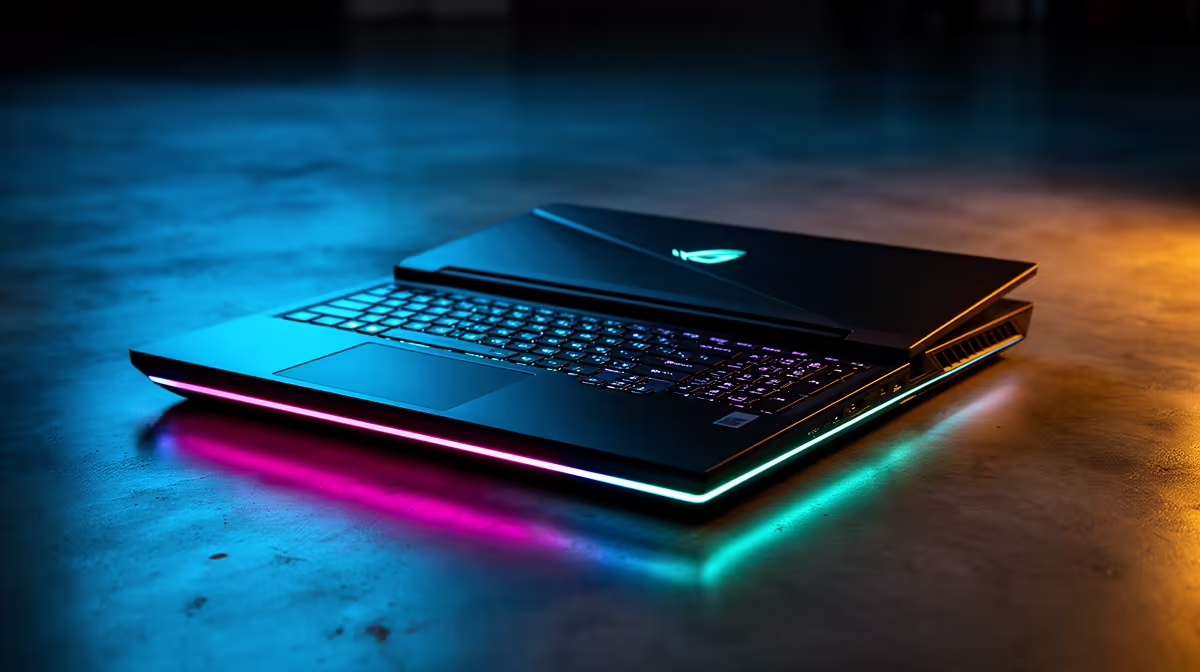
Your Lenovo gaming laptop, once a beast, now stutters during a simple team fight. What gives? Before you start pricing new rigs, take a breath. A Lenovo gaming laptop running slow is often just crying out for some TLC. From software gremlins to dust bunnies, we’ll walk you through the top reasons for the lag and, more importantly, the fixes that will get you back in the game, fast. 🚀
Uncovering the Culprits: Common Causes for a Slow Lenovo Gaming Laptop
Before you can fix the problem, you need to know what’s causing it. More often than not, a slow Lenovo gaming laptop is suffering from one of these four common issues.
Thermal Throttling (It's Getting Hot in Here)
Gaming pushes your laptop's CPU and GPU to their limits, generating a serious amount of heat. If the cooling system can't keep up, the components automatically slow themselves down to prevent damage. This is called thermal throttling, and it’s a primary cause of sudden frame drops and stuttering. Dust buildup blocking the vents is a major offender here.
Outdated Drivers & Software
Think of drivers as the instruction manual that tells your hardware how to talk to your games. Outdated graphics drivers (from NVIDIA or AMD) are a classic performance killer, as new game releases are often optimised for the very latest driver versions. The same goes for your Windows OS… pending updates can cause system-wide sluggishness.
Background Bloatware
Is your laptop slow from the moment you boot it up? Unnecessary applications launching at startup and running in the background can eat up your precious RAM and CPU cycles. Antivirus scans, cloud syncing, and manufacturer-installed utilities can all contribute to a system that feels sluggish before you even launch a game.
A Nearly Full Storage Drive
Whether you have a speedy NVMe SSD or a traditional hard drive, performance degrades significantly when it gets close to full. Your operating system needs free space to function efficiently for tasks like writing temporary files and managing virtual memory. A drive that's over 90% full is a recipe for slow loading times and system instability.
Reclaiming Your Speed: Practical Fixes for Your Lenovo
Ready to fight back? These fixes will help you speed up your Lenovo gaming laptop and are easy for anyone to try. Let's get your machine running smoothly again.
Tame the Heat 🌡️
A cooler laptop is a faster laptop. Start with the basics:
- Give it space: Never use your gaming laptop on a soft surface like a bed or couch. Always place it on a hard, flat surface to ensure the air vents underneath aren't blocked.
- Clean the vents: Use a can of compressed air to blow dust out of the intake and exhaust vents. Do this while the laptop is off!
- Consider a cooling pad: A good laptop cooling pad can actively improve airflow and lower temperatures by a few crucial degrees.
Lenovo Vantage Pro Tip ⚡
Your Lenovo laptop likely comes with the Lenovo Vantage software pre-installed. Open it and look for thermal mode settings. Switching from 'Quiet Mode' to 'Performance Mode' or 'Balanced Mode' can give you an instant performance boost by allowing the fans to spin faster and the CPU to draw more power.
Update Your Digital Engine
This is non-negotiable for any gamer.
- Graphics Drivers: Go directly to the NVIDIA GeForce Experience or AMD Software: Adrenalin Edition app to download and install the latest drivers. Don't rely solely on Windows Update for this.
- Windows Updates: Go to
Settings > Update & Security > Windows Updateand install any pending updates. A quick restart can solve a surprising number of performance issues.
Declutter and Optimise Your System ✨
Let's get rid of the junk slowing you down.
- Manage Startup Apps: Right-click the taskbar, open Task Manager, and go to the "Startup" tab. Disable any non-essential programs from launching when you turn your PC on.
- Uninstall Unused Programs: Go to
Settings > Appsand uninstall any old games or software you no longer use. Every gigabyte counts! - Run a Disk Cleanup: Type "Disk Cleanup" into the Windows search bar and run the utility. It’s a safe way to remove temporary files and other system clutter.
Is it a Software Snag or a Hardware Bottleneck?
If you've tried all the fixes above and your Lenovo gaming laptop is still slow, it might be time to consider if the hardware itself is the bottleneck. As games become more demanding, older components simply can't keep up.
For example, if your machine is a few years old, like some of the capable but aging Lenovo IdeaPad Gaming 3 models, it might struggle with the demands of titles like Helldivers 2 on higher settings. This is where newer hardware with improved cooling and more efficient processors, like those found in the accessible Lenovo LOQ lineup, really makes a difference.
For gamers who refuse to compromise on performance and want the absolute best framerates with ray tracing cranked to max, the premium Lenovo Legion series is built for exactly that purpose, offering top-tier GPUs and CPUs. Deciding can be tough, which is why it helps to browse our full range of Lenovo gaming laptops to compare specs and find a deal that fits your budget and gaming ambitions.
Ready for a Flawless Gaming Experience? Sometimes the best fix is an upgrade to a machine built for modern titles. If you’re tired of tweaking settings and just want to play, Evetech has your back. Explore our massive range of laptop specials and find the perfect rig to conquer your favourite games.