

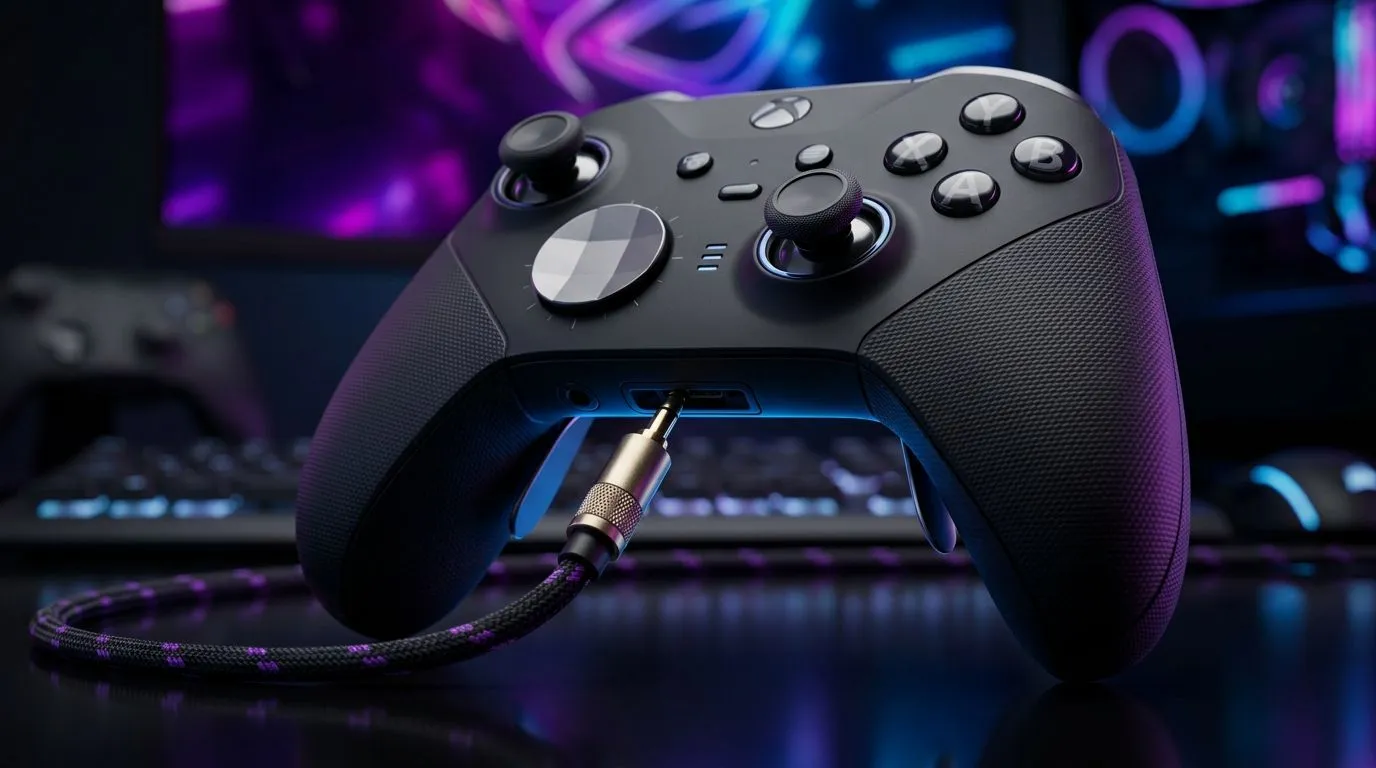
3.5mm Controller Voice Chat Setup: Get Clear Comms in 60 Seconds 🔊
Ever lost a clutch round because teammates “couldn’t hear you”? On PC and consoles alike, it usually comes down to mic setup… not your aim. A 3.5mm Controller Voice Chat setup can be a simple win: plug in, select the right input, and keep your audio clean so calls cut through gunfire. Here’s how to maximise in-game comms without turning Discord or your game menu into a maze.
3.5mm Controller Voice Chat Basics: Choose the Right Audio Path ⚡
Most wired controller voice chat relies on two things:
- the correct audio input device, and
- the correct output device (so you hear the game clearly).
Start with your platform’s sound settings:
- Windows: Settings → System → Sound → Input (pick the controller/headset mic) and Output (pick headset/speakers).
- Game audio: In Voice Chat settings, ensure the mic is set to the same device Windows uses. Otherwise, you end up talking to silence.
If your game supports separate “Mic Device” and “Voice Output,” set both deliberately. It sounds obvious, but it’s the #1 reason players feel “the mic is broken” when it’s really a selection mismatch.
Productivity Pro Tip 🔧
On Windows, open Sound settings and verify the controller mic is selected under Input. Then go to the game’s Voice Chat menu and confirm the mic device matches the same name. Small mismatch equals “no voice” problems.
3.5mm Controller Voice Chat: Reduce Noise So Calls Cut Through Gunfire ✨
Clear calls are less about volume and more about consistency:
- Keep your mic gain moderate. Too high = more background noise.
- Talk slightly closer than usual. A few centimetres helps a lot.
- Use push-to-talk if your game supports it, especially in open-plan homes.
A quick reality check from what’s common in controller audio: 3.5mm paths can pick up hum or room noise if the cable or port is loose. If your comms flicker, test by reseating the 3.5mm connector and trying a different controller port (if available).
3.5mm Controller Voice Chat: Pair It With the Right Controller (Yes, It Matters) 🎮
Not all controller headsets handle voice the same way. If you’re serious about comms, pick a controller built for competitive use and stable audio. If you want to go straight to a proven option, check out:
If you’re still browsing, start here:
And if you specifically prefer Razer:
3.5mm Controller Voice Chat Troubleshooting: The “Why Can’t They Hear Me?” Checklist 🚀
When comms fail, don’t panic. Run this fast checklist:
- Mic input set correctly (Windows + game).
- Headset output selected so you can hear yourself in voice tests.
- Controller volume is not muted in Windows mixer.
- In-game voice mode is correct (push-to-talk vs open mic).
- Test in a party with one friend. If your mic works in-party but not in match, the issue is voice channel permissions or game chat settings.
If you’re buying fresh hardware for South African night sessions, spend the extra time matching mic and output devices. It saves hours of “tweaking” later.
CALLTOACTION
Ready to Find Your Perfect Match? The Mac vs Windows debate is complex, but for maximum power, choice, and value in South Africa, Windows is hard to beat. Explore our massive range of laptop specials and find the perfect machine to conquer your world.








