

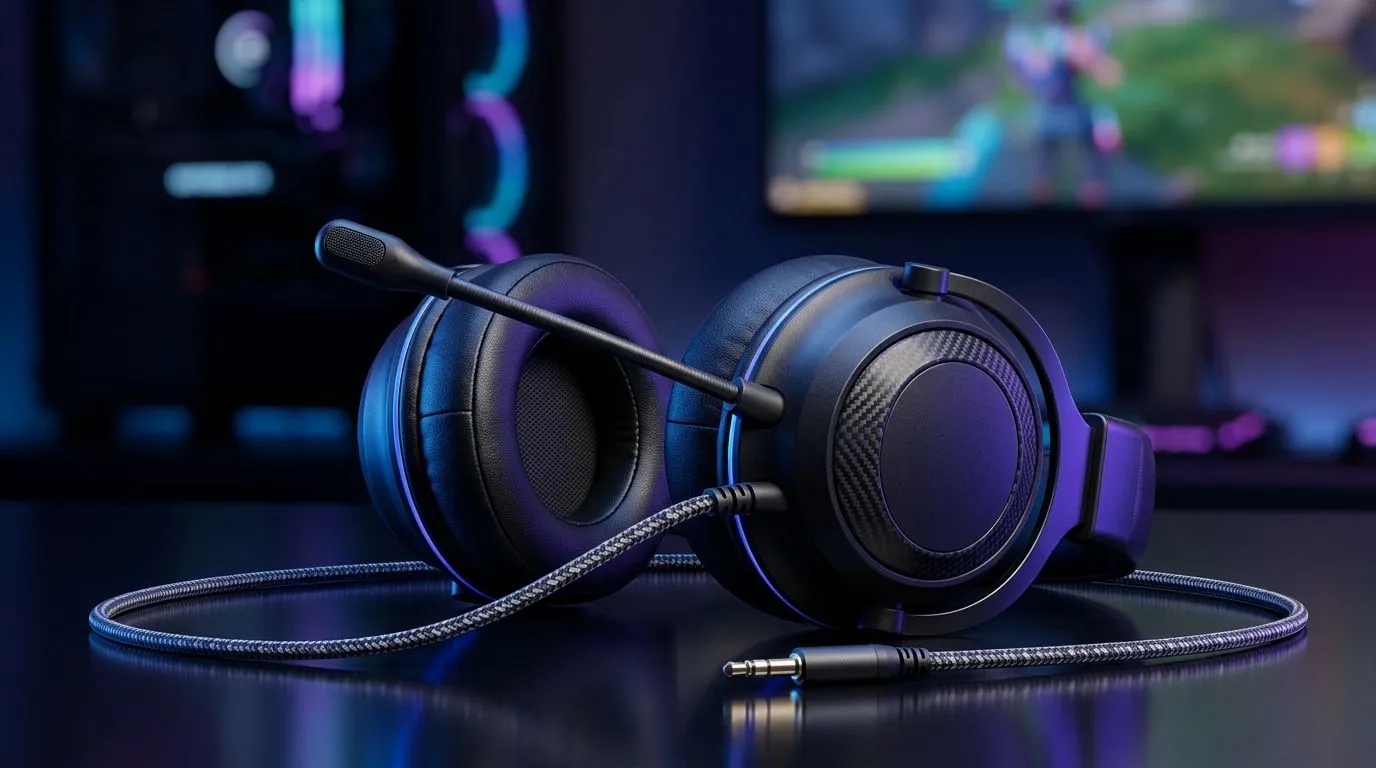
3.5mm Gaming Headset Setup for Switch, PC, and Mobile: First-Fit Wins for South African Gamers
So you’ve bought a solid 3.5mm headset… but it refuses to cooperate across your Switch, your PC, and your phone. Sound cuts out. Mic won’t register. Or chat audio plays… but game audio is missing. Happens more often than you’d think. 🔧
The good news? A clean, repeatable setup takes minutes. Here’s how to get reliable audio and a working mic on each device, with the kind of settings you’ll actually remember. 🚀
3.5mm Gaming Headset Setup for Switch, PC, and Mobile: Switch Audio and Chat Without the Guesswork
On the Nintendo Switch, the goal is simple: make sure the system recognises your headset as a wired audio device, then confirm your output and mic permissions.
Quick Switch checklist
- Plug in fully: a partial insertion is a classic cause of “no mic” moments.
- Open System Settings → Sound and select the right output for wired headphones.
- If you use party chat, ensure the headset is set for microphone input within the chat interface.
If you also want a dependable headset option for long sessions, check Evetech’s curated range here: https://www.evetech.co.za/components/headphone-headsets-100 ✨
3.5mm Gaming Headset Setup for Switch, PC, and Mobile: PC (Windows) Steps for Game + Chat Balance
PC setups are where 3.5mm headsets shine… once Windows is told which jacks to use. Usually, you’ll see separate Playback (speakers/headphones) and Recording (microphone) devices.
Windows audio settings that actually matter
- Right-click the speaker icon → Sound settings
- Under Output, pick your headset for playback.
- Under Input, pick the headset mic for recording.
- In App volume and device preferences, route Discord, Steam, or the game to the same headset output.
If you’re shopping specifically for PC headsets, Evetech groups a lot of options here: https://www.evetech.co.za/PC-Components/razer-headphones-headsets-105
Productivity Pro Tip ⚡
On Windows, open Control Panel → Sound, then set your headset as the default Playback and Recording device. This prevents games and Discord from grabbing the wrong device after sleep mode or driver updates.
3.5mm Gaming Headset Setup for Switch, PC, and Mobile: Mobile Audio and Mic (What Changes)
On mobile, the biggest difference is support. Many phones accept a single 3.5mm combo jack, but not every headset mic will work perfectly. Also, some headsets show up as “Headphones” without a microphone.
Mobile setup that avoids frustration
- Test in the app you’ll actually use (Discord, WhatsApp, or voice notes), not just your phone’s audio player.
- If the mic doesn’t work, try changing permission settings for that app in Phone Settings → Privacy/Microphone.
- If your phone supports it, prefer “wired headset” mode when prompted.
A wireless headset won’t help here if you’re strictly using 3.5mm… but if you want an easy upgrade path later, you’ll find deal-ready headset options like the Barracuda X Chroma in Evetech’s specials: https://www.evetech.co.za/razer-barracuda-x-chroma-wireless-headset-phantom-white/best-deal/24367
3.5mm Gaming Headset Setup for Switch, PC, and Mobile: Common Problems (And Fast Fixes)
“I hear audio, but no one hears me”
- Check the plug type: some headsets are TRRS (mic+audio), others are TRS (audio only).
- On PC, confirm the Recording device is the headset mic.
- On Switch and mobile, ensure the mic permission is enabled for the relevant chat/app.
“Mic works, but game audio is quiet”
- Lower in-game voice volume so you’re not “ducking” audio.
- On PC, use App volume and device preferences to keep the game on headset output.
“Both mic and audio are crackly”
- Reseat the plug.
- Try a different 3.5mm port if your device has one.
- Inspect the cable for kinks near the connector.
Ready to lock in a headset setup that just works?
If you want less fiddling and more queue-ready gaming, start with the right headset model for your devices. Headsets aren’t all the same, especially when the mic support differs across Switch and phones.
Ready to Find Your Perfect Match? The Mac vs Windows debate is complex, but for maximum power, choice, and value in South Africa, Windows is hard to beat. Explore our massive range of laptop specials and find the perfect machine to conquer your world.











