

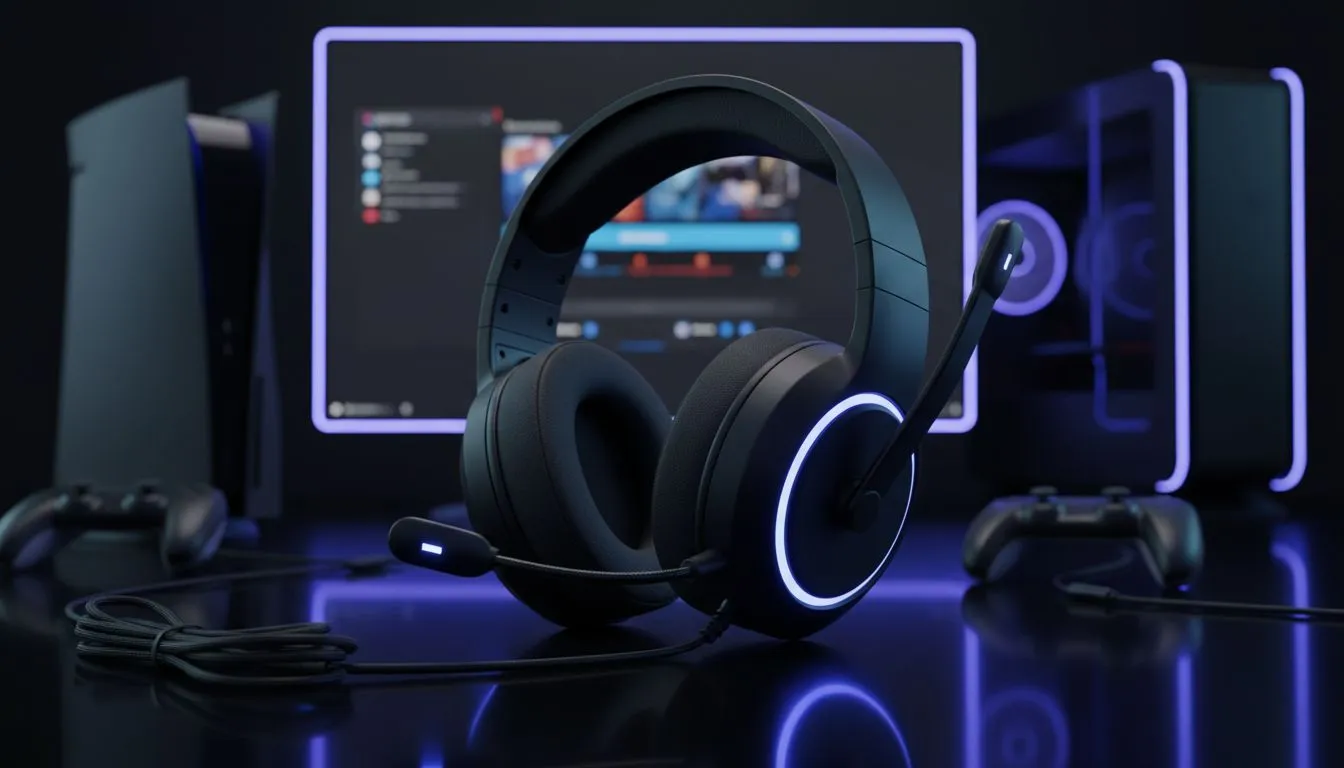
Getting high-quality audio on your PS5 doesn't always require a massive investment in proprietary wireless gear. Sometimes, the most reliable connection is the classic 3.5mm jack sitting right in your hand. Whether you are plugging into your DualSense controller or routing audio through your gaming monitor, setting up your 3.5mm headset on PS5 is a straightforward process that ensures zero latency and crystal-clear comms. ⚡
Connecting via the DualSense Controller
The most popular method in this 3.5mm Headset PS5 Setup Guide is the direct connection to the DualSense controller. This method is incredibly convenient because it allows for full freedom of movement while keeping the cable short and out of the way. Simply plug your 3.5mm jack into the port at the bottom of the controller. The PS5 should automatically detect the device and switch audio output.
If you want a headset that handles both wired and wireless duties with style, the Razer Barracuda X Chroma is a fantastic versatile choice for local gamers looking for that crisp White Edition aesthetic.
Adjusting Your PS5 Audio Settings
Once plugged in, you might need to fine-tune the levels. Navigate to the "Sound" menu in the PS5 Control Centre. Here, you can adjust the "Controller Speaker" and "Headphones" volume. For the best experience, ensure that "Output to Headphones" is set to "All Audio" rather than just "Chat Audio." This ensures you hear the beautiful scores of South African favourites like Elden Ring or God of War in full detail.
For those who prefer a specific brand aesthetic or high-performance drivers, checking out the full range of Razer headphones and headsets will give you plenty of 3.5mm compatible options to suit your setup.
PS5 Audio Pro Tip ⚡
If your mic sounds too quiet to your friends, head to Settings > Sound > Microphone > Adjust Microphone Level. Most 3.5mm headsets benefit from a slight boost here to ensure you are heard clearly during intense matches in Apex Legends or Warzone.
Using Monitor or TV Options
If you play at a desk, you might prefer plugging your headset into your monitor or TV instead of the controller. This is a great way to keep your controller lightweight and cable-free. Most modern gaming monitors feature a 3.5mm out port that passes audio from the HDMI signal. However, keep in mind that using the monitor's jack often disables the ability to use the headset's built-in microphone on the PS5.
You can browse through the entire headphone and headset collection at Evetech to find a pair that fits your budget and comfort needs, whether you are looking for R500 entry-level gear or premium audiophile kits. 🎧
PC and Capture Card Integration
For the streamers in the community, routing 3.5mm audio can be a bit more complex. If you are using a capture card, you might need a "Chat Link" cable. This allows you to plug your 3.5mm headset into the controller while simultaneously sending a copy of that audio to your PC's line-in port. This ensures your stream hears everything you do... from the footsteps of an enemy to the banter in your party chat. 🚀
Ready to Level Up Your Audio? Finding the right balance between comfort and performance is essential for those long South African gaming sessions. Explore our massive range of headset specials and find the perfect 3.5mm or wireless solution to dominate the leaderboard.











