

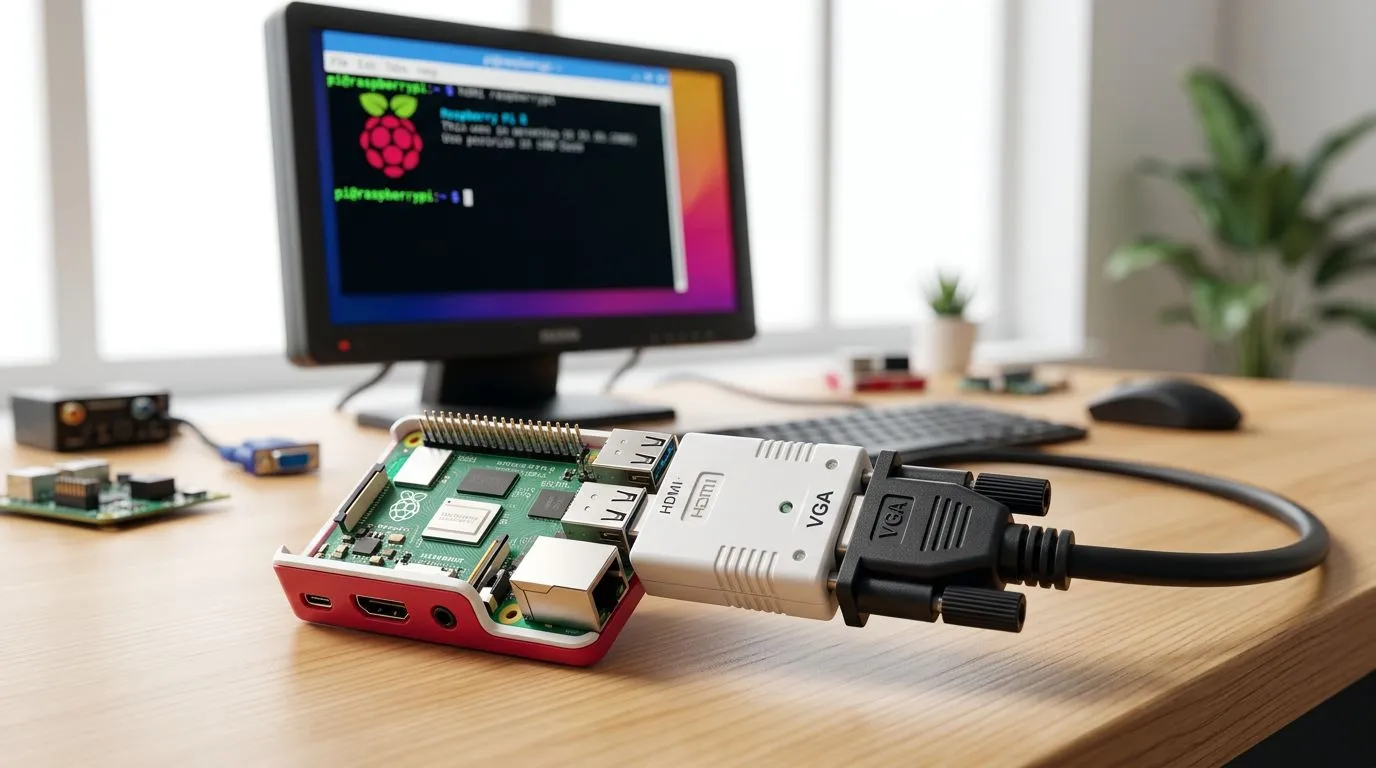
Connect a Raspberry Pi to a VGA Display With HDMI Adapter (Why it actually helps in SA)
If you’ve got an old VGA monitor lying around, don’t toss it yet. In South Africa, those office screens are everywhere… and they’re perfect for a Raspberry Pi setup at home, in the workshop, or even as a quick retro-gaming station. 🔧
But the Pi doesn’t always speak VGA directly. The fix is simple: use an HDMI-to-VGA adapter, then tune the display settings until it looks right.
In this guide, you’ll learn how to connect a Raspberry Pi to a VGA display with an HDMI adapter, avoid the common “blank screen” traps, and get a stable picture you can actually use.
Connect a Raspberry Pi to a VGA Display With HDMI Adapter (What you need before you start)
Before you plug anything in, gather the essentials. This saves time, frustration, and those “why isn’t it working?” moments.
Hardware checklist
- Raspberry Pi (any recent model with HDMI output)
- Micro HDMI to HDMI cable (if your Pi uses micro HDMI)
- HDMI to VGA adapter (choose one that supports VGA output properly)
- VGA cable (the usual blue connector cable)
- Power supply for the Pi (use a proper official or reputable PSU)
- Keyboard + mouse, or you’ll be guessing settings blind
Compatibility note (important)
Not every adapter behaves the same. Some cheap HDMI-to-VGA adapters work only at specific resolutions, and some take a while to “handshake” with the monitor. If you’ve ever seen a monitor that only wakes after the second try… that’s usually this.
Connect a Raspberry Pi to a VGA Display With HDMI Adapter (Wiring it correctly)
Let’s do this in a clean, reliable order. ⚡
- Power off the Raspberry Pi.
- Connect the micro HDMI cable from the Pi to the HDMI input on the adapter.
- Connect the VGA cable from the adapter’s VGA output to your monitor.
- Connect keyboard and mouse to the Pi.
- Now power on the Pi.
- If nothing shows, unplug power, wait 10 seconds, then try again.
Quick troubleshooting… before you dive into configs
- Try a different VGA monitor input (some monitors have multiple ports).
- Power cycle the Pi after everything is connected.
- Check the HDMI-to-VGA adapter is firmly seated. It sounds obvious, but it matters.
Productivity Pro Tip 🔧
On a Raspberry Pi display setup, keep a short “trial loop”: change one setting, reboot, confirm the picture, then move to the next. This prevents you from chasing multiple variables at once when the monitor is picky about resolution or refresh rate.
Connect a Raspberry Pi to a VGA Display With HDMI Adapter (Set the resolution so it displays properly)
Even with the correct wiring, VGA monitors can be fussy. You might get:
- A black screen
- A picture that’s squished
- Flickering
- Incorrect colours or overscan
The goal is to set a resolution that your VGA display supports. Many VGA monitors work well at 800×600 or 1024×768.
Practical approach
- Boot the Pi.
- If you can see anything, adjust resolution using the Raspberry Pi configuration tools.
- If you can’t see anything, you’ll need to edit configuration files and reboot to test another mode.
Because display compatibility varies by monitor and adapter, start conservative (lower resolution). If you jump to a high resolution and the screen can’t sync, you’ll be back to the drawing board.
Connect a Raspberry Pi to a VGA Display With HDMI Adapter (Common problems and fixes)
Here are the issues SA gamers and tinkerers run into most often… and the fixes that usually work.
Problem: “No signal”
Most likely causes
- Adapter handshake takes time
- Wrong resolution set on the Pi
- Adapter not compatible with your monitor refresh support
Fix
- Power cycle everything.
- Reset to a known resolution (start at 800×600 or 1024×768).
Problem: picture appears but is cut off
Most likely cause
- Overscan or aspect ratio mismatch
Fix
- Change resolution and re-check.
- Stick to classic VGA-friendly resolutions.
Problem: flicker or unstable image
Most likely cause
- Refresh rate mismatch from the adapter
Fix
- Use a lower resolution and retest.
- If your adapter offers only one output mode, you may have limited control.
Connect a Raspberry Pi to a VGA Display With HDMI Adapter (Build it into a tidy desk setup)
Once it’s working, you can make the setup feel purposeful. Keep cables short, label connections, and tuck the adapter somewhere it won’t get pulled.
If you’re also building a small gaming or tinkering space, you might want accessories that match the vibe: clean peripherals, extra cables, and monitor-friendly gear. Check out gaming accessories deals and bundles for things that actually get used daily. ✨
Shop practical gaming accessories for your setup
Grab gaming accessories deals that fit your budget
More gaming accessories to complete the build
Connect a Raspberry Pi to a VGA Display With HDMI Adapter (Ready for the next step?)
Now that you’ve got the Pi speaking VGA through an HDMI adapter, you can use that screen for:
- Retro game builds
- A home media hub
- A basic retro workstation
- Lightweight coding and testing
Want a clean, reliable setup without wasting time on mismatched parts? Choose your accessories and cables carefully… and you’ll thank yourself later. 🚀
Ready to Find Your Perfect Match? The Mac vs Windows debate is complex, but for maximum power, choice, and value in South Africa, Windows is hard to beat. Explore our massive range of laptop specials and find the perfect machine to conquer your world.











