

Bandwidth Explained: What SA Buyers Need to Know
Bandwidth Explained: What Buyers Need to Know. Plain-English explanation of what it means, why it matters & how it affects your buying decisions in SA.
Read more- Quick pairing steps - Bluetooth troubleshooting - Controller compatibility tips Connect wireless controller to Nintendo Switch, PC, and Android with step-by-step pairing, troubleshooting, and compatibility notes. 🎮✨
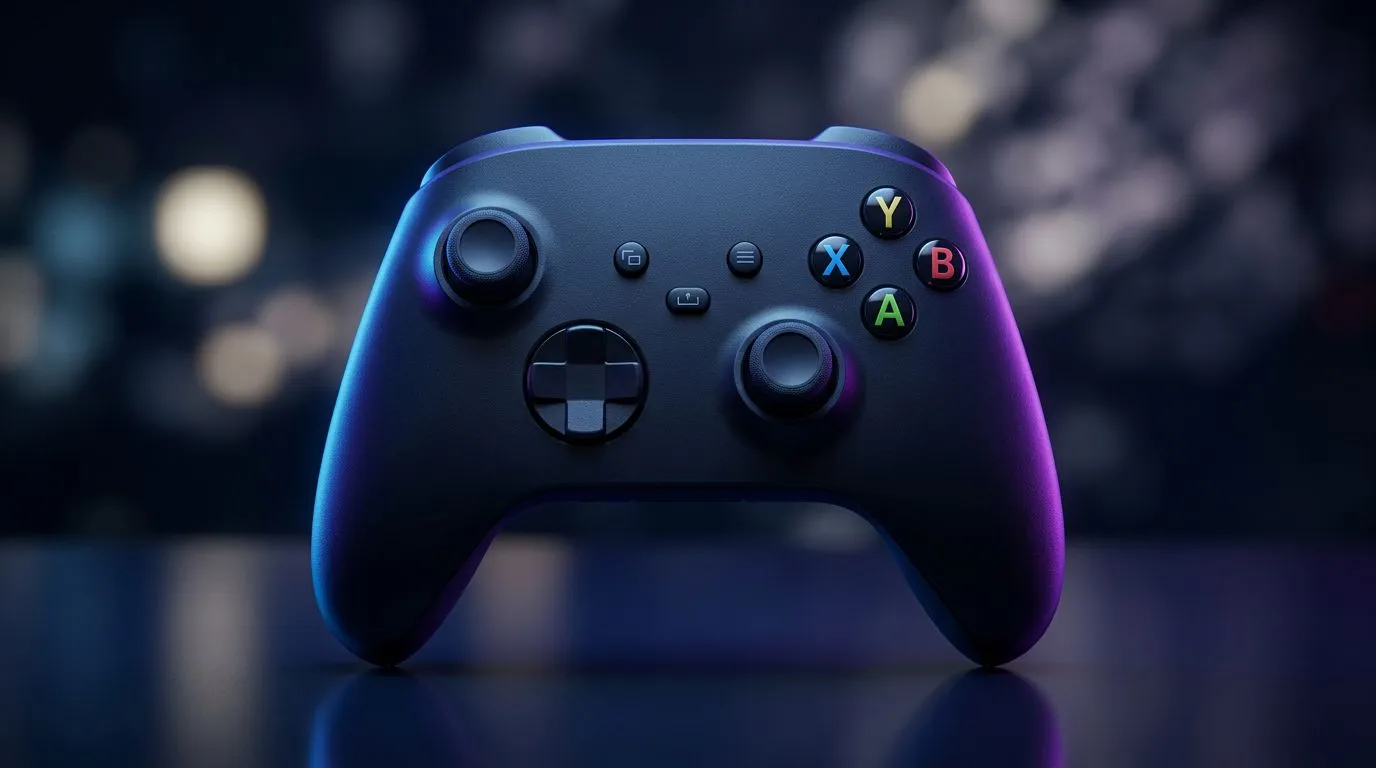
South African gamers: tired of fiddling with cables mid‑match? Whether you're on a commute, LAN night, or couch session, knowing how to Connect Wireless Controller to Switch, PC & Android saves time and keeps focus on the game. This guide gives clear, local‑friendly steps, tips from EVETECH support, and links to the exact controllers and accessories to buy in South Africa. 🚀
Start with the console in handheld or docked mode. To pair a Bluetooth controller, open System Settings > Controllers and Sensors > Change Grip/Order, then put your controller in pairing mode. Official Joy‑Con and Pro Controller pairing is plug‑and‑play; third‑party options may need a firmware step. If you want a premium wired/wireless fight stick, check this Razer tournament option available at Evetech for comfort and build quality: Razer Wolverine V3 Tournament Edition at Evetech. For Switch compatibility notes, Nintendo's official support pages are a good crosscheck.
Windows 10/11 supports XInput and Bluetooth HID controllers. For the smoothest experience, use the controller’s wired USB mode for low latency, or pair via Bluetooth in Settings > Devices > Add Bluetooth or other device. Steam's controller support also helps map buttons automatically in Big Picture mode. If you’re shopping for controllers or want a one‑stop category, browse Evetech’s controller range here: buy gaming controllers at Evetech. Pro tip: update controller firmware with the manufacturer app for best compatibility.
To reduce input lag on PC, prefer a wired USB connection for competitive play. If you must go wireless, use a dedicated USB dongle where possible rather than generic Bluetooth — it often halves latency and improves per‑game consistency.
Most Android phones and tablets support standard Bluetooth controllers. Turn on pairing in Android Settings > Connected devices. For older titles, use USB OTG to connect a wired controller — your phone must support OTG; a short USB‑C to USB‑A adapter usually works. For mapping older games, apps like “Panda Gamepad Pro” exist, but check Play Store compatibility and permissions. Looking for a Razer controller on special? Evetech’s Razer filter helps you find models ready for mobile and PC: Razer controllers on Evetech.
Buy locally to keep warranties simple and avoid international shipping delays. Look for Evetech listings with return policies and local support. Want a recommendation? Competitive players favour wired or dongle‑based wireless controllers for latency reasons, while casual gamers can enjoy full Bluetooth convenience.
Ready to Find Your Perfect Match? The Mac vs Windows debate is complex, but for maximum power, choice, and value in South Africa, Windows is hard to beat. Explore our massive range of laptop specials and find the perfect machine to conquer your world.
Open Home > Controllers > Change Grip/Order, press the controller's sync button, and follow on-screen prompts to connect wireless controller to Nintendo Switch.
Yes. Pair via Android Settings > Bluetooth or use a USB-C adapter. Many phones support Xbox, DualShock, and DualSense controllers.
Turn on Bluetooth or plug a USB receiver, then go to Settings > Bluetooth & devices and add the controller. Windows often auto-installs drivers.
Common fixes: recharge battery, update firmware, move away from interference, restart devices, and retry pairing to resolve wireless controller not connecting issues.
Many third-party Bluetooth controllers work but compatibility varies. Check the maker's instructions before you attempt to connect third-party controller to Switch.
Windows may need Steam or additional drivers for full DualShock/DualSense support; Xbox controllers usually work natively without extra drivers.
Press the Pro Controller sync button until the lights flash, then select Change Grip/Order on Switch to finish pairing.
Bandwidth Explained: What Buyers Need to Know. Plain-English explanation of what it means, why it matters & how it affects your buying decisions in SA.
Read more
Set Up RX 7800 XT for Competitive Gaming. Step-by-step instructions with SA-specific tips, common pitfalls to avoid & expert recommendations.
Read more
Can the Ryzen 5 9600X Handle 4K Gaming Without Bottlenecking Detailed answer with SA data, expert analysis & practical recommendations for local buyers.
Read more
Why Is Ping So High in South Africa for Gaming Detailed answer with SA data, expert analysis & practical recommendations for local buyers.
Read more
Can a 1200W PSU Handle the RX 9070 XT? Power. Plain-English explanation of what it means, why it matters & how it affects your buying decisions in SA.
Read more
How Does Altitude Affect PC Cooling in Gauteng Detailed answer with SA data, expert analysis & practical recommendations for local buyers.
Read more
AMD RX 9050 XT: Rumoured Specs, Price & Release. SA-focused analysis with local pricing data, real-world insights & actionable buying advice.

Can RTX 4080 Super Run AI Workloads for SA Developers Detailed answer with SA data, expert analysis & practical recommendations for local buyers.

Can RTX 4090 Run AI Workloads for SA Developers Detailed answer with SA data, expert analysis & practical recommendations for local buyers.

Top Settings for Intel Arc B580 at Ultrawide 1440p picks evaluated on performance, value & SA availability with current Rand pricing from Evetech.

RTX 4060 CS2 Low Settings at 1080p: FPS Results. Real-world benchmark data, FPS numbers & performance analysis. What SA gamers can actually expect.

Visual Artifacts: Possible GPU Issue Issue #1. Diagnosis steps, proven fixes & when to seek professional help. SA-specific support info included.

Can the RTX 4090 Handle 1440p 144Hz Gaming. Performance testing verdict with real data & practical recommendations for SA buyers.

Top ASUS GPU Under R15000 picks evaluated on performance, value & SA availability with current Rand pricing from Evetech.

GTA 6 Max Settings on RTX 5070. Tested & verified settings for best FPS and visual quality on SA hardware budgets.

Cyberpunk 2077 Max Settings on RTX 5080. Tested & verified settings for best FPS and visual quality on SA hardware budgets.

Starfield Max Settings on RTX 5070 Ti. Tested & verified settings for best FPS and visual quality on SA hardware budgets.

Top RTX 5090 Under R5000 picks evaluated on performance, value & SA availability with current Rand pricing from Evetech.