Quick Answer
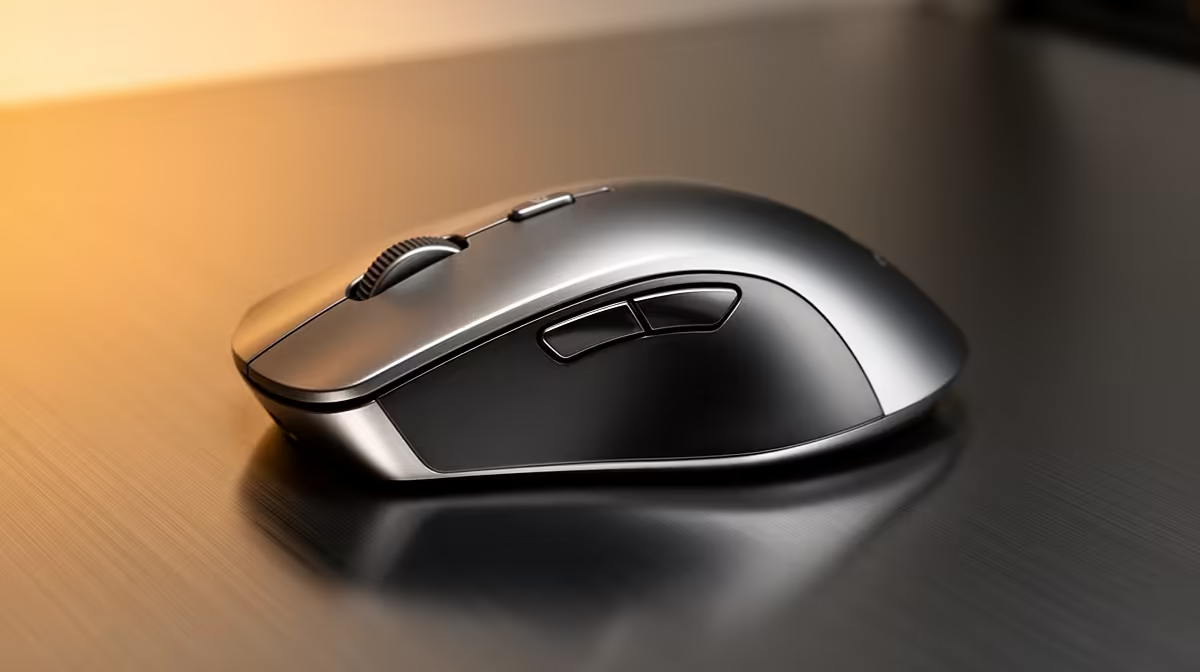
Wireless mice connect via three methods: proprietary 2.4GHz (dongle-based, lowest latency), Bluetooth 5.0 (dongle-free, multi-device), or dual-mode (both). For office-only use, 2.4GHz is best. For hybrid work across multiple devices, dual-mode wins. Pure Bluetooth suits ultrabook users who need to save USB ports.
Proprietary 2.4GHz: The Reliable Workhorse 📡
A 2.4GHz proprietary receiver is a dedicated USB nano-dongle pre-paired to the mouse at the factory. Plug it into any USB-A port and the mouse connects immediately, no pairing steps required. The private radio channel delivers polling rates from 125Hz to 8,000Hz and latency below 1ms in quality models. The dongle must be inserted for the mouse to function, occupying one USB port permanently. If the dongle is lost, the mouse becomes non-functional unless the manufacturer sells a replacement. Some platforms, notably Logitech's Logi Bolt system, allow one receiver to handle up to six compatible devices including keyboards, which offsets the port cost.
Bluetooth 5.0: The Port-Free Option 🔵
Bluetooth 5.0 uses the radio already built into your laptop or desktop. No additional hardware is needed. Pairing takes 30 to 60 seconds on first setup and reconnects automatically after that. Latency is 8 to 15ms under typical conditions, well within the imperceptible range for office tasks. The practical benefits for hybrid workers are clear: the mouse connects to a home laptop without a dongle, pairs to an office machine equally simply, and switches via profile selection. Bluetooth 5.0 also supports simultaneous pairing to multiple devices, making it ideal for anyone who moves between a Windows laptop and a tablet for reference work.
Dual-Mode: The Hybrid Worker's Best Tool 🔄
Dual-mode mice include both a 2.4GHz dongle and a Bluetooth 5.0 radio in the same unit. The user assigns the dongle to the highest-priority machine for minimum latency and the Bluetooth channel to secondary devices. For a South African hybrid worker who uses a corporate desktop at the office and an ultrabook at home, dual-mode provides 2.4GHz performance at the office and dongle-free Bluetooth at home. Models with full dual-mode support in South Africa range from R700 to R1,300 at Evetech.
Store Your Dongle in the Mouse When Travelling ⚡
Many wireless mice include a small storage slot in the battery compartment or base specifically for the USB receiver. Always store the dongle there when removing it from the PC. A lost receiver makes a 2.4GHz mouse unusable, and replacement receivers are not universally available for every model. This single habit prevents the most common hardware loss among wireless mouse users.
FAQ
Is USB-C or USB-A more common for 2.4GHz mouse receivers in 2026?
USB-A nano-receivers remain the most common format for 2.4GHz mice. Some newer models ship with a USB-C receiver, and USB-A to USB-C adapters are sometimes included. Check the product listing if your laptop has USB-C ports only.
Can Bluetooth mice connect to a desktop that does not have built-in Bluetooth?
Desktops without onboard Bluetooth require an external USB Bluetooth adapter, available from around R150 to R300. Once installed, any Bluetooth mouse pairs normally. Alternatively, a 2.4GHz mouse requires no adapter beyond the included receiver.
Does the wireless connection type affect the mouse's battery life?
Yes, slightly. 2.4GHz radios draw modestly more current than Bluetooth at idle. The bigger battery determinant is sensor polling rate and sleep timing, not connection type alone.
Need to understand which wireless standard fits your desk before you buy?
Browse Evetech's wireless mouse range, where every product listing specifies the connection type, compatibility, and battery format to help you choose with confidence.