

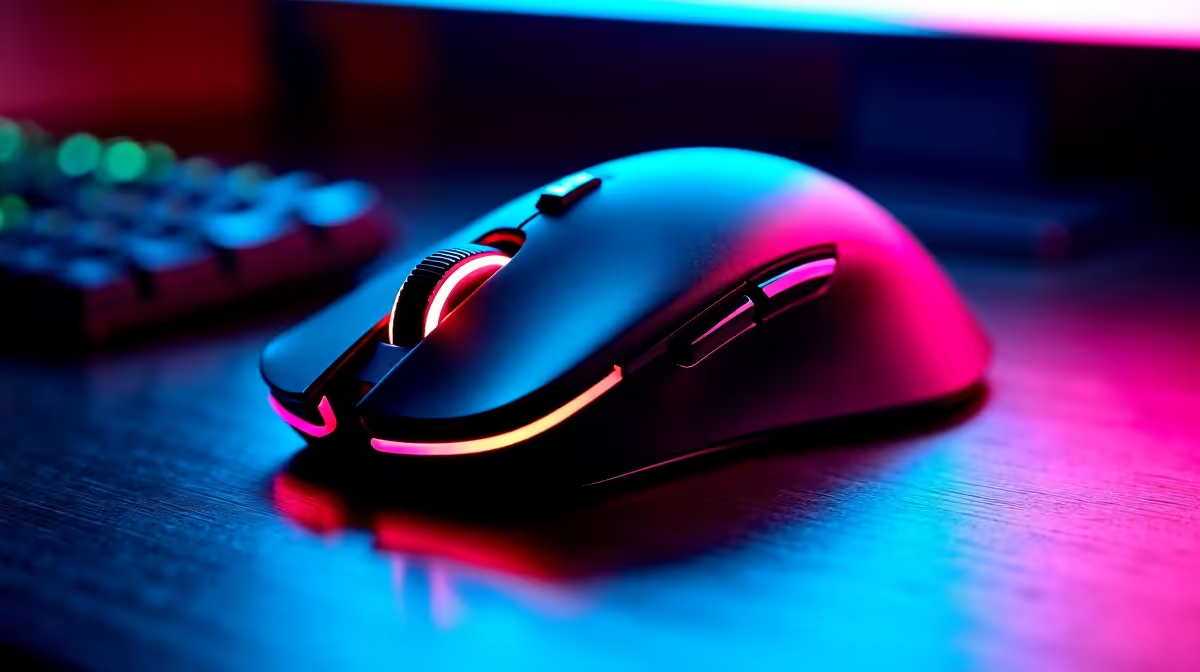
Load shedding just suspended... you finally boot up your rig for a ranked match... and nothing happens. Your cursor is completely frozen. Trying to fix a mouse not detected error is incredibly frustrating for any South African gamer. Before you panic and think your hardware is completely fried... take a deep breath. We have some quick local support tips to get you back in the game.
Why Your PC Cannot Detect Your Mouse
When you need to fix a mouse not detected issue, you must first find the root cause. Sometimes the solution is as simple as a loose USB cable. Other times... Windows driver updates might clash with your hardware. If you are using one of our modern high-performance laptops, a quick restart often resets the USB hub controllers and restores functionality immediately.
Step-by-Step South Africa Support Guide
Let us walk through the best troubleshooting steps to fix your mouse not detected error and optimise your setup.
1. Inspect Your Ports and Cables 🔧
Dust is a massive problem in South Africa. A dusty USB port can easily block the connection. Try plugging your peripheral into a different port. If you recently bought from our pre-built PC deals, try using the direct motherboard ports at the back rather than the front panel. These rear ports connect directly to the mainboard for a more stable signal.
2. Check Wireless Connections and Batteries
If you use a wireless device... ensure the battery is fully charged. Load shedding often interrupts our charging routines. A low battery will cause the sensor to drop connection randomly. If you use a Bluetooth model... try unpairing it and pairing it again. Wireless interference from routers can also cause detection drops.
3. Reinstall Your Drivers
Corrupted drivers are a common culprit. You can still use your keyboard to navigate Windows. Hit the Windows key... type "Device Manager" and hit Enter.
Navigation Pro Tip ⚡
If your mouse is completely dead, use the Tab key and arrow keys to navigate Windows. Highlight your USB devices in Device Manager, press Shift + F10 to right-click, and select uninstall. A quick restart will automatically reinstall fresh drivers.
4. Test on Another Device
Plug your device into a friend's computer or a backup machine. If it still refuses to work... the hardware itself might have reached the end of its lifespan. Constant plugging and unplugging can wear out the delicate internal wires over time.
Upgrading Your Setup 🚀
Sometimes you simply cannot fix a mouse not detected error because the sensor or cable is permanently broken. If your gear has clicked its last click... it might be time to treat yourself. Upgrading does not have to cost thousands of ZAR.
You can browse our premium gaming mouse options to find a reliable replacement that fits your grip style. A fresh peripheral pairs perfectly with a system upgrade. If you want to overhaul your entire setup... explore our best gaming PC deals for unmatched performance. We constantly update our latest tech specials to ensure you get maximum value for your hard-earned Rands.
Ready to Find Your Perfect Match? Don't let faulty hardware keep you offline. For maximum precision, comfort, and value in South Africa, our peripheral range is hard to beat. Explore our massive range of gaming mice and find the perfect weapon to conquer your next match.











