

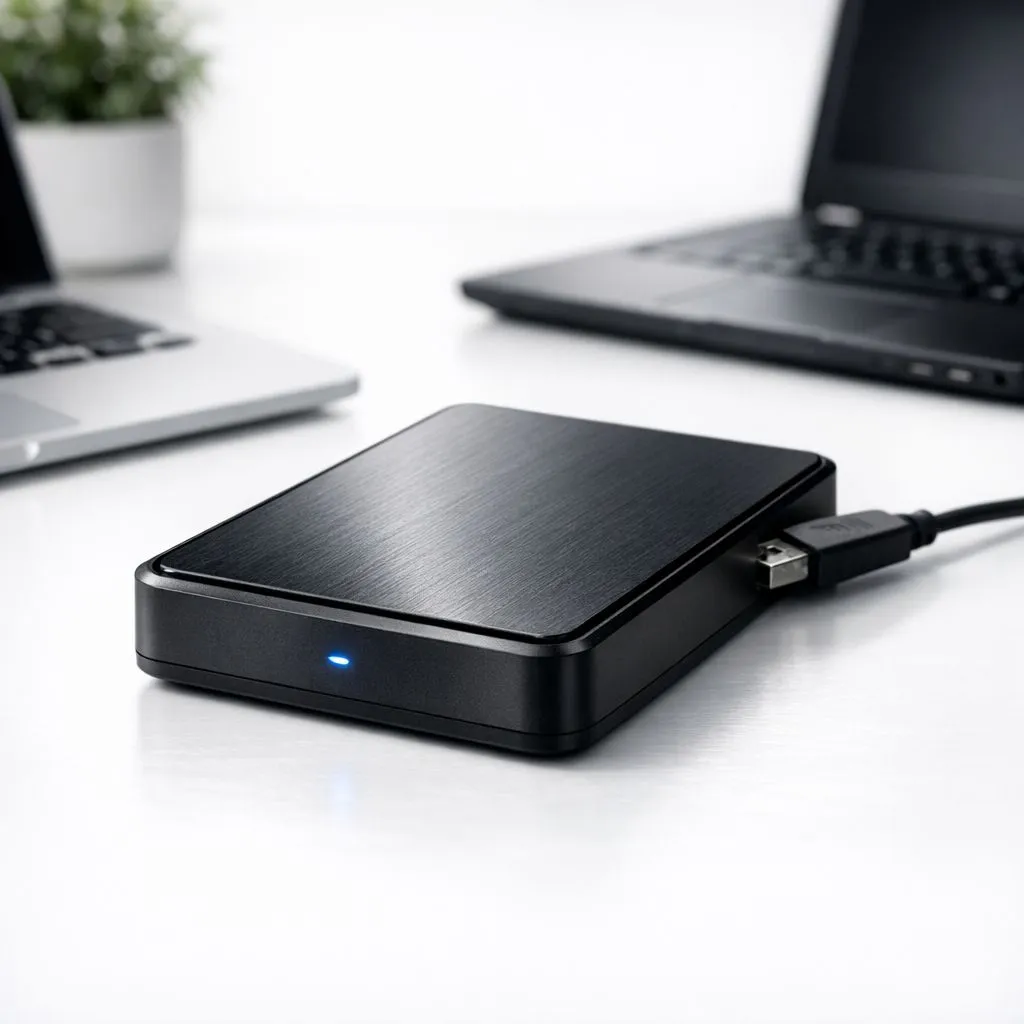
Ever tried to move a massive 4K video file from your gaming rig to your MacBook, only to find the drive "read-only"? It is a common headache for South African creatives and gamers. Whether you are swapping game assets or backing up photos, knowing how to format an external drive for Mac and Windows is essential for a seamless workflow. 🔧
Understanding File Systems for Cross-Platform Use
The secret to a drive that works everywhere lies in the file system. Windows usually prefers NTFS, while macOS uses APFS. Neither likes to talk to the other without help. To fix this, you need to choose a format that both systems recognise.
For most users, ExFAT is the best choice. It supports massive file sizes and works natively on both platforms. If you are looking to buy an external SSD, you will likely want to format it to ExFAT immediately to ensure total flexibility. It avoids the 4GB file limit of the older FAT32 system... making it perfect for modern gaming libraries or high-res video projects.
How to Format Your Drive on Windows
Formatting on a PC is straightforward. Plug your drive into a USB port. Open "This PC" and right-click your drive. Select "Format" and choose ExFAT from the dropdown menu.
If you are using high-performance ADATA storage solutions, the process takes only a few seconds. For those who prefer the reliability of Western Digital drives, the steps remain the same. Always remember to back up your data first... formatting erases everything on the disk. ⚡
Allocation Unit Size Tip ⚡
When formatting to ExFAT for mixed use, leave the "Allocation Unit Size" at "Default". This ensures the best balance between speed and storage efficiency across different operating systems. Choosing a size too large can waste space on smaller files, while too small can slightly slow down your transfer speeds on massive files.
How to Format Your Drive on macOS
Apple makes the process quite simple through Disk Utility. Press Command + Space and type "Disk Utility". Select your external drive from the list on the left. Click the "Erase" button at the top.
In the format dropdown, select ExFAT. For the "Scheme", always choose "GUID Partition Map". This ensures your Mac can boot from the drive if necessary. This is particularly useful if you are working with Gen 5 NVME speeds in an external enclosure... providing the fastest possible data rates for your creative projects in South Africa. 🚀
Choosing the Right Hardware for Your Workflow
Not all drives are equal. If you are constantly on the move between a home office and a studio, External form factor drives offer the best portability. They are small, light, and rugged enough to survive a commute in a laptop bag.
For those building a more permanent setup, choosing from a range of solid state drives allows you to customise your storage capacity. Whether you need 1TB for documents or 4TB for a massive Steam library, getting the format right from day one saves hours of frustration later. ✨
Ready to Find Your Perfect Match? The Mac vs Windows debate is complex, but for maximum power, choice, and value in South Africa, Windows is hard to beat. Explore our massive range of laptop specials and find the perfect machine to conquer your world.











