

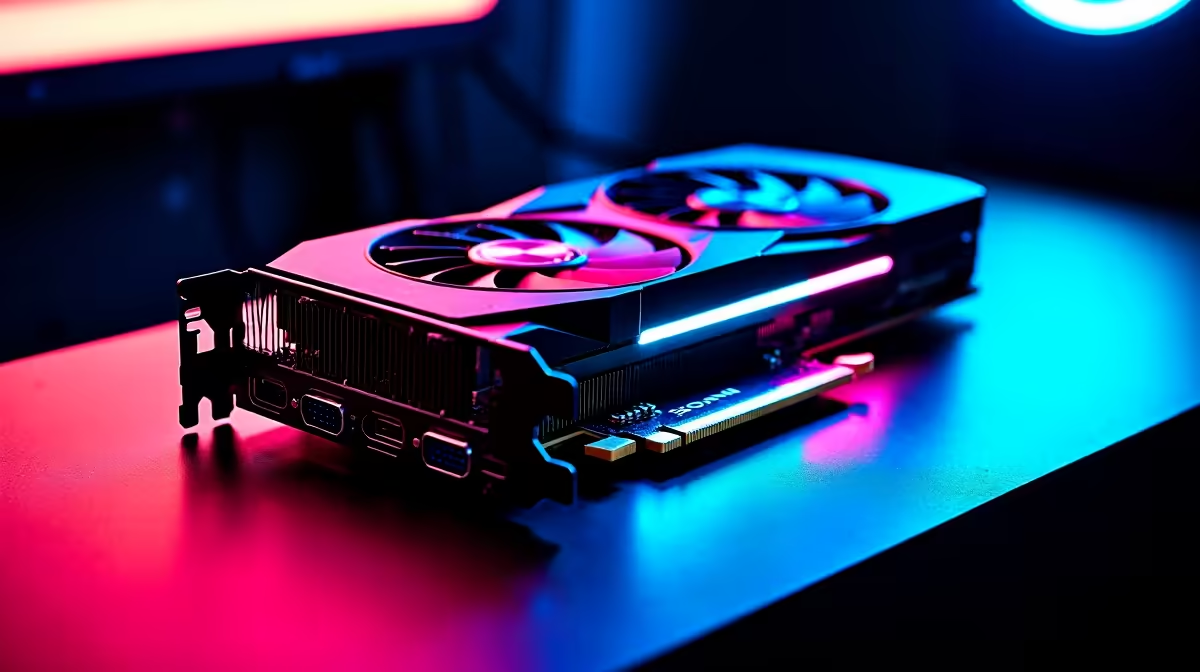
You finally survive a grueling loadshedding schedule. The power returns, you boot up your favourite title, and suddenly your screen looks like a glitchy 80s disco. Strange colours, flashing polygons, and weird checkerboard patterns are ruining your session.
Do not panic just yet. This GPU artifacting troubleshooting guide will help you identify the problem and figure out if your rig needs a quick software tweak or a hardware replacement.
What Causes Graphics Card Glitches? ⚡
GPU artifacting happens when your graphics card struggles to render images correctly. Sometimes it is a simple software clash. Other times, it is a hardware cry for help.
Heat is often the primary suspect in South Africa. Our scorching summer afternoons can push your thermals to the absolute limit. If your cooling cannot keep up, your silicon gets too hot and starts spitting out visual errors. Before you assume your hardware is dead, you need to isolate the root cause.
Step-by-Step GPU Artifacting Troubleshooting Guide
Let us walk through the most reliable fixes. Always start with the easiest solutions first.
1. Check Your Connections
A loose DisplayPort or HDMI cable can easily mimic severe hardware failure. Unplug your cables, blow out any dust, and plug them back in securely. Test a different cable if you have a spare laying around.
2. Monitor Your Temperatures
Download a monitoring tool to check your heat levels while under load. If your card is hitting 90°C or higher, you have a serious thermal issue. Clean out the dust from your fans. If you are playing on a portable machine, ensure your vents are completely clear. Speaking of portable power, if your current machine is constantly overheating, it might be time to look at modern laptops and notebooks for sale with vastly superior thermal designs.
3. Wipe and Reinstall Drivers
Outdated or corrupted software is a massive culprit for visual glitches. Use a dedicated uninstaller tool to completely wipe your current display drivers. Then install the latest version fresh from the manufacturer website.
Underclocking Pro Tip 🔧
If your out-of-warranty GPU is artifacting due to degraded VRAM, try underclocking the memory by 100MHz to 200MHz using a tuning utility. It can sometimes stabilise the card and buy you a few extra months of gaming while you save up ZAR for an upgrade.
When Is It Time to Upgrade? 🚀
If the artifacting persists after a driver wipe and thermal check, your VRAM chips might be physically failing. When memory degrades, the visual glitches become permanent. In that case, you will likely need to upgrade your graphics card to get back into the action.
Sometimes the issue is not just the GPU. An aging power supply can feed unstable voltage to your components... causing similar visual crashes. If your entire rig is showing its age, exploring the best gaming PC deals might actually be more cost-effective than buying single parts at a premium.
Building a PC is fun but troubleshooting dead components is highly stressful. If you want a guaranteed working system out of the box with a solid local warranty, browsing our pre-built PC deals is a very smart move.
Do not let hardware failures keep you offline. Keep an eye on our latest tech specials to find high-performance replacements that perfectly fit your budget.
Ready to Leave Glitches Behind? Dealing with dying hardware is frustrating, but upgrading should be exciting. Whether you need a fresh GPU or a completely new rig to handle the latest titles at maximum settings, Evetech has you covered. Explore our epic PC component specials and get back to flawless, high-framerate gaming today.











