


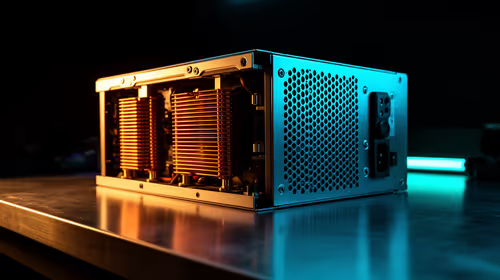
1000W PSU Planning for RTX 5090 Builds in SA
1000W for RTX 5090 needs a full-build check, not a simple yes. Review GPU guidance, CPU draw, transient load, connectors, PSU quality, and upgrade plans before deciding.
Read moreGPU Not Detected: Fix Your PC Not Recognising. Step-by-step instructions with SA-specific tips, common pitfalls to avoid & expert recommendations.

You press the power button, the fans spin up, but your monitor stays pitch black. Few things drop a gamer's stomach faster than seeing a "No Signal" message. South African power grids are notoriously unpredictable, and sudden trips can easily scramble your system's hardware recognition. Whether you just survived a brutal bout of load shedding or installed a fresh upgrade, dealing with a GPU not detected error is incredibly frustrating. Before you panic about replacing your hardware, let's walk through how to fix your PC not recognising your graphics card.
Sometimes the simplest answer is the right one. Heavy graphics cards can sag over time. This might cause the gold pins to lose contact with the PCIe slot on your motherboard. Turn off your power supply, unplug the machine, and open your case. Gently unclip your GPU and reseat it until you hear a satisfying click.
Next, check those PCIe power cables. Make sure you check the power supply unit (PSU) cables at both ends if you have a modular power supply. A cable that has slightly pulled out from the PSU side will starve your card of the power it needs to boot. A loose connector will definitely result in your GPU not being detected. If you are building a rig from scratch and suspect a faulty unit, you might want to browse reliable desktop graphics cards to see if a replacement is necessary.
Always plug your monitor directly into the graphics card ports rather than the motherboard. If you plug into the motherboard, your system might bypass your dedicated graphics entirely and give you a blank screen.
If the physical connections are solid, your motherboard might be the culprit. Sometimes an outdated BIOS simply refuses to see newer hardware. Grab a flash drive and update your motherboard to the latest BIOS version. While you are in the BIOS menu, ensure your primary display adapter is set to PCIe rather than integrated graphics.
Not comfortable messing with BIOS updates? We completely get it. That is exactly why many South African gamers prefer picking up pre-built desktop computers where all the setup, testing, and BIOS configuration is done by professionals.
If your PC boots but Windows shows a generic display adapter... or your screen resolution looks like a retro arcade game... you are likely facing a driver issue. Your PC not recognising your graphics card properly often comes down to corrupted software.
Download a free tool called Display Driver Uninstaller (DDU). Boot into Safe Mode, wipe your old drivers completely clean, and install the latest versions directly from Nvidia or AMD. This clean slate approach fixes the vast majority of detection issues.
Of course, if you are tired of wrestling with desktop components, switching to high-performance gaming laptops removes the hassle of seating GPUs entirely. Alternatively, if you want a guaranteed working desktop setup right out of the box, exploring some top-tier gaming PC deals is a smart move.
Sometimes a GPU not detected error means the hardware has simply reached the end of its lifespan. Power surges can fry components, and heavy use takes its toll. If you have tested your card in another system and it still fails, it is time to face the music.
Replacing a dead GPU hurts, especially when you factor in current ZAR exchange rates. Upgrading does not have to break the bank, though. You can always find incredible value by checking out our latest tech specials to get your rig back up and running without destroying your budget. Looking at it as an opportunity to boost your frame rates makes the process a bit sweeter.
Ready to Get Back in the Game? If troubleshooting didn't work and your hardware has finally tapped out, we have you covered. Explore our incredible graphics card deals and find the perfect upgrade to bring your rig back to life in South Africa.
GPU Not Detected: How to Fix Your PC Not available at Evetech.co.za with local warranty and fast delivery.
GPU Not Detected: How to Fix Your PC Not - check Evetech for latest stock and SA pricing.
Depends on your use case. GPU Not Detected: How to Fix Y offers good value at current Rand pricing.
1000W for RTX 5090 needs a full-build check, not a simple yes. Review GPU guidance, CPU draw, transient load, connectors, PSU quality, and upgrade plans before deciding.
Read more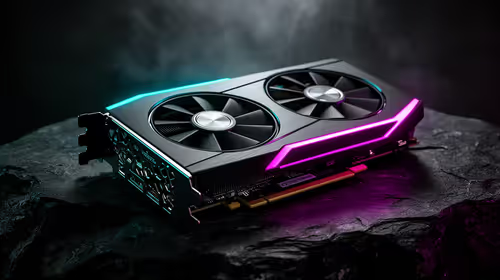
RTX 5080 Super with a 750W PSU is more comfortable than lower wattage if the unit is quality. SA builders should still confirm GPU guidance, CPU draw, connector type, airflow, and upgrade room.
Read more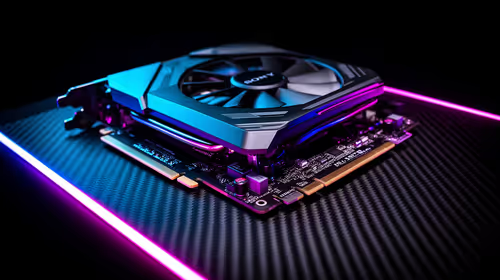
How to fix FPS drops after a RX 9070 XT starts with driver cleanup, chipset updates, thermals, and power checks. For SA gaming PCs, confirm PCIe seating, monitor refresh, frame caps, and per-game graphics settings before replacing parts.
Read more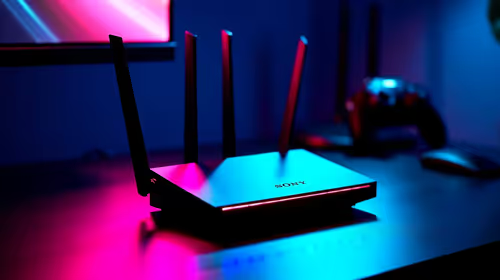
How to fix low FPS Windows 11 Wi-Fi 7 issues starts by checking whether the problem is frame rate or network lag. Test ping, drivers, power settings, Ethernet, and game FPS before adjusting visuals.
Read more
AM5 is smart for SA builders because it supports newer Ryzen CPUs, DDR5 memory, and a longer upgrade path. Compare board cost, cooling, gaming needs, and local part availability before choosing your next PC platform.
Read more
AM5 gives Randburg gaming builders a longer upgrade path. For SA buyers, DDR5 support, newer board features, and future CPU options can justify the platform. Weigh board cost, cooler support, BIOS maturity, and upgrade timing before choosing.
Read more
RTX 5090 on a 550W PSU leaves almost no practical room for OC plans. Treat the setup as constrained, with CPU draw, power spikes, cable quality, thermals, and stability checks more important than chasing extra clocks.
FPS drops on a Ryzen 9 9950X3D build often have a fixable cause. Check settings, drivers, thermals, background tasks, network conditions, and bottlenecks before assuming a part must be replaced.

The difference between PCIe 5.0 and PCIe 4.0 for SA gamers is mostly bandwidth headroom. Compare GPU slot needs, NVMe speed, motherboard support, and upgrade timing before paying extra for a newer platform.

Gaming PC stuck pixel checks in South Africa should confirm the monitor fault first. Use colour tests, screenshot comparison, cable swaps, display menu checks, and clear photos before deciding on support.

AMD's current driver now lists a Radeon RX 9050 4GB, while product coverage details a narrowed memory system. SA buyers should weigh the low VRAM ceiling against current local Radeon options.

Samsung Display has demonstrated a 16-inch 2.5K OLED laptop panel running at 300Hz. SA buyers should wait for a named notebook, full panel specifications and a local price before planning an upgrade.

Microsoft says some Windows 11 game crashes after recent updates are linked to RGB-related drivers. Affected SA gamers should confirm the update and driver before using the published registry workaround.

Thermalright's Fan Frame Vision-1 adds a 640x172 status screen to a standard 120mm fan. SA builders should check clearance, USB routing and local support before treating it as an easy upgrade.
1000W for RTX 5090 needs a full-build check, not a simple yes. Review GPU guidance, CPU draw, transient load, connectors, PSU quality, and upgrade plans before deciding.

Wi-Fi 6E vs Wi-Fi 6 matters for 4K video editing when files move across a network. The real-world difference between Wi-Fi 6E and Wi-Fi 6 for video editing in 4K depends on NAS access, cloud uploads, router range, and SA creator workflows.
RTX 5080 Super with a 750W PSU is more comfortable than lower wattage if the unit is quality. SA builders should still confirm GPU guidance, CPU draw, connector type, airflow, and upgrade room.
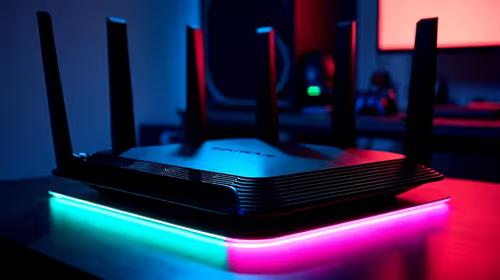
Wi-Fi 6E vs Wi-Fi 6 for Video Editing in 4K comes down to router support, latency, client devices, band support, and home network layout. SA buyers should match the choice to their setup instead of assuming one option always wins.