

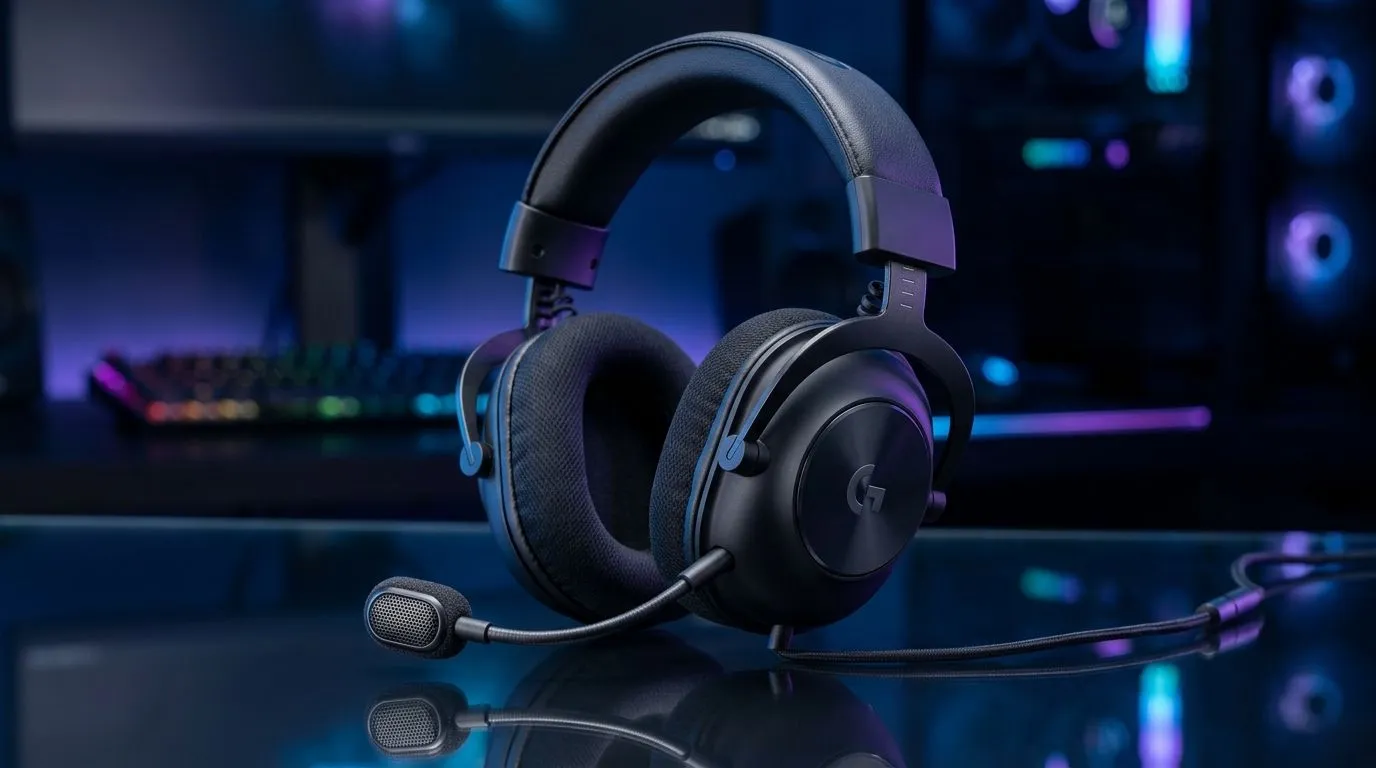
Why your headset mic sounds muddy (and how placement fixes it) 🔧
If your friends say you sound “far away” or like you’re speaking through a box of cereal… you’re not alone. In South Africa’s load-shedding-era gaming marathons and team-talk sessions, clear comms matter. One tiny change to where your mic sits can turn “meh” audio into crisp calls.
Let’s tackle the two usual culprits: placement and settings. Because if your headset mic isn’t sounding clear, it’s often fixable in minutes.
Headset Mic Not Sounding Clear? Start with placement, not software ✨
Before you touch any menus, check the physical setup. A mic that’s too far away or pointed wrong will struggle to pick up your voice clearly, even on good headsets.
Get the boom angle right
- Aim the mic toward the corner of your mouth, not straight at your lips.
- Keep it about 1–2 cm away.
- If your boom flips, return it to the position it was designed for (some headsets perform better with the mic oriented downward).
Avoid “keyboard blast”
- If the mic is facing your keyboard directly, you’ll get clicks and chatter.
- Tilt the mic slightly so it captures your voice, not the room.
Productivity Pro Tip ⚡
On Windows, use the built-in Sound settings to confirm the correct microphone device is selected, then test your mic in the “Test your microphone” panel before launching Discord or a game. This saves you from chasing the wrong settings when the headset is plugged in via USB dongle or 3.5mm adapter.
Adjust the settings that actually change clarity ⚡
Once placement is correct, settings usually decide whether your mic is bright and present… or dull.
Set the right input device
Many people connect a headset and then still have their “default microphone” set to a webcam or controller mic. In Windows, open Sound settings and pick your headset microphone as the input device.
Lower “mic boost” if it distorts
A common symptom: your voice sounds louder but also grainy. Turn down mic boost or any “enhancement” options. Start conservative, then retest.
Use push-to-talk if your background is noisy
If your room has fan noise, PC coil whine, or TV audio, push-to-talk can dramatically improve clarity. Team chat stays clean, and you stop feeding background noise to your squad.
Quick checks for common headset mic issues 🚀
If your mic still isn’t sounding clear, try these in order:
- Reconnect the headset (USB dongle or plug).
- Remove obstructions (hair, hoodie strings, tape covering the mic grille).
- Test in more than one app (Windows test + Discord).
- Try a different USB port (for wireless dongles).
If you’re shopping for a headset that reliably delivers clear comms, Evetech’s range is a solid place to start. The right model reduces your troubleshooting later. For example, you can check the Razer Barracuda X Chroma Wireless Headset deals here: Razer Barracuda X Chroma Wireless Headset Phantom White (best deal).
If you need a headset upgrade for clearer team chat ✨
Not all mics are built the same. Some headsets handle noise better, some have more consistent pickup patterns, and some simply sit closer to your voice by design.
Browse Evetech’s headset options here:
If you’re tired of fiddling with settings every match, a headset with clearer mic capture can genuinely make comms easier, especially when your setup changes between ranked, raids, and Discord.
Ready to Find Your Perfect Match? The Mac vs Windows debate is complex, but for maximum power, choice, and value in South Africa, Windows is hard to beat. Explore our massive range of laptop specials and find the perfect machine to conquer your world.











