

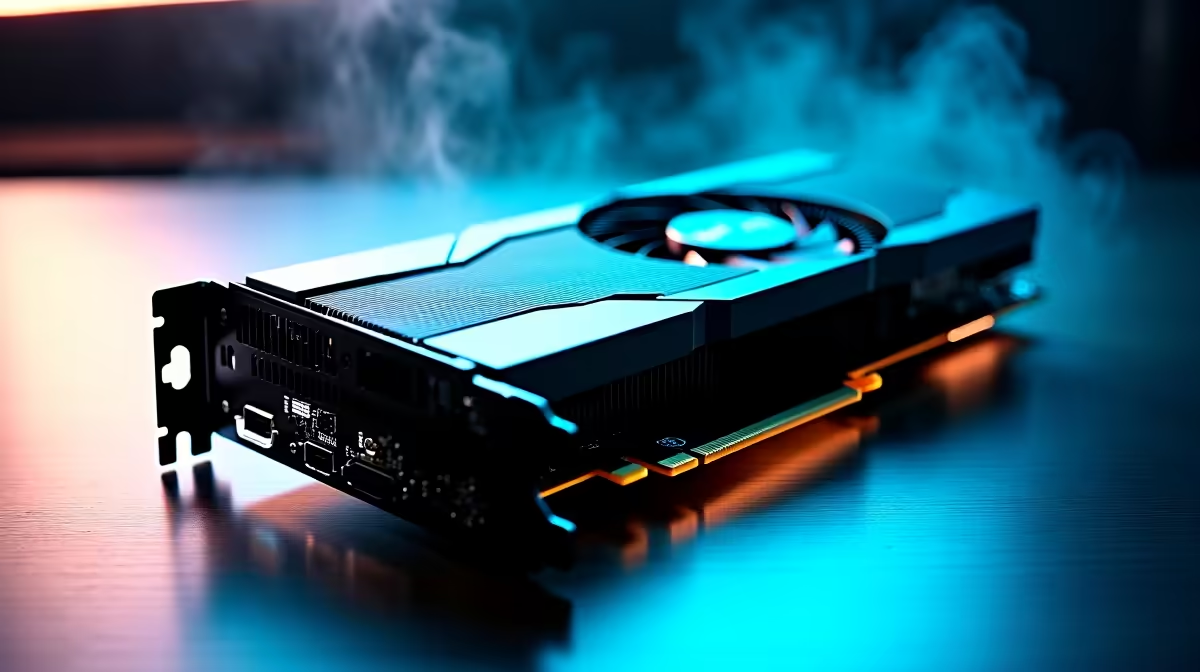
Why BIOS Flashing Your RTX 4060 Could Level Up Your Gaming Setup ⚡
South African gamers, want to squeeze every frame out of your RTX 4060? BIOS flashing is a neat way to optimise your GPU’s performance or fix compatibility quirks. It might sound daunting, but with the right steps, even beginners can safely update their BIOS and get faster, smoother gameplay without upgrading hardware immediately.
Before diving in, it’s wise to prep your system—close intensive apps, back up your settings, and ensure a stable power supply. This guide walks you through precisely how to BIOS flash your RTX 4060 step by step, boosting your rig’s potential with confidence.
Understanding BIOS Flashing for Your RTX 4060 🔧
BIOS flashing updates the firmware controlling your GPU’s core functions. This can improve stability, unlock better clock speeds, or fix bugs. However, a wrong flash risks bricking your card, so accuracy is key.
Start by identifying your card’s exact model and BIOS version. Tools like GPU-Z help you confirm your current BIOS before you update. Official manufacturer downloads, or trusted community firmware, provide the files you need.
Preparing Your PC and Files
- Download the latest BIOS version specific to your RTX 4060 model.
- Create a bootable USB or use manufacturer utilities for the flash.
- Save your current BIOS backup; this is a lifesaver if things go sideways.
- Ensure your motherboard BIOS and Windows are updated for smooth compatibility.
Wondering where to get quality graphics cards if you want to upgrade or replace? Check out the graphics cards range on Evetech for competitive pricing and assurance.
Step-by-Step RTX 4060 BIOS Flashing Guide 🚀
- Backup Your Current BIOS: Use GPU-Z or NVFlash tools to save your existing BIOS.
- Prepare Your Flash Utility: NVFlash is the standard for Nvidia cards—run it as administrator.
- Run the BIOS Update Command: Point NVFlash to your new BIOS file and execute with care.
- Follow On-Screen Instructions: The terminal or utility prompts guide you through the process.
- Restart and Test: Once finished, reboot and stress test your GPU with tools like 3DMark to confirm stability.
Need a gaming PC already tuned for optimal graphics? Evetech’s pre-built PC deals can drop you right into high performance without the hassle.
Pro Tip for Safe BIOS Flashing
Beware of power interruptions during flashing — even brief outages can brick your card. Use an Uninterruptible Power Supply (UPS) if possible.
Maximising Your RTX 4060 After BIOS Flash 🔥
Once your BIOS update is successful, tweak fan curves and voltages carefully to find a sweet spot between thermals and performance. Small changes can reduce noise and thermal throttling while boosting frame rates.
Keep AMD or Nvidia drivers current; sometimes newer drivers unlock additional firmware features or optimisations. For portable gaming and working on the go, explore South Africa’s latest laptops and notebooks built for high performance.
Keep Your Gaming Setup Fresh with Deals & Specials 🔥
EVP tech continually updates South African gamers with wallet-friendly specials suited to the latest hardware. From discounted GPUs to combos with fast fibre-ready motherboards, checking out Evetech specials keeps you ahead of the curve without overspending.
Building or upgrading? Don’t overlook fantastic gaming PC deals to grab entire systems optimised for your favourite titles and budget.
Upgrade Game Performance Today Ready to harness your RTX 4060’s full power? Shop now at Evetech for trusted hardware, expert advice, and deals that suit every South African gamer’s setup.











