

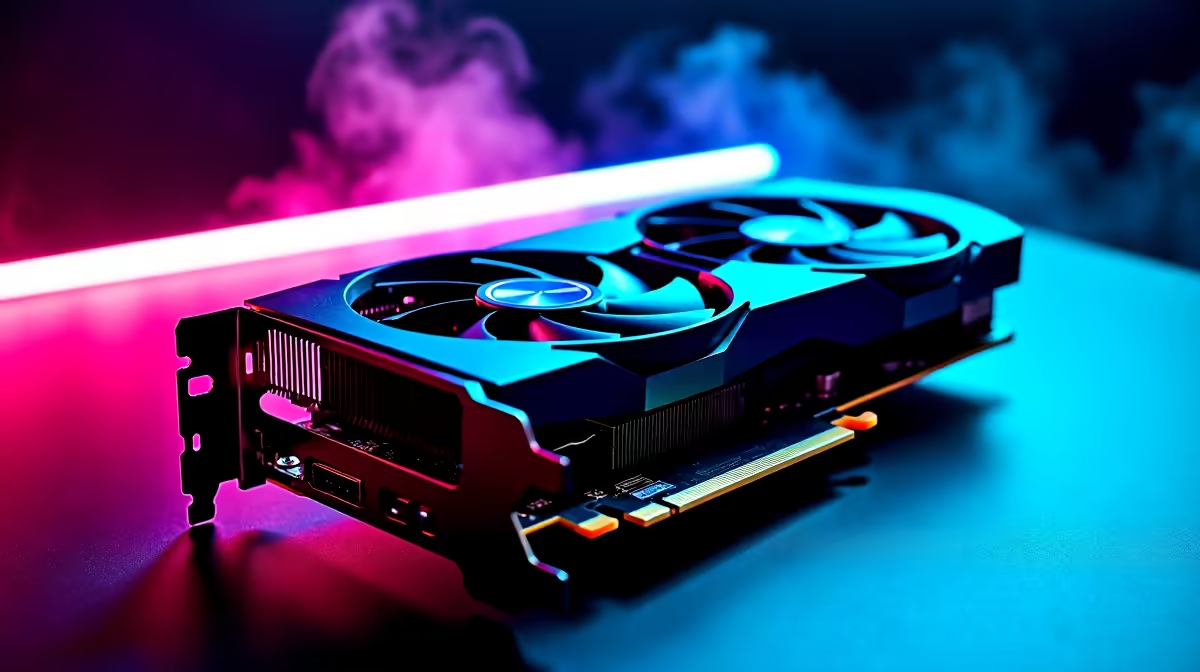
Summer in South Africa is brutal on your PC. When ambient temperatures hit thirty degrees... your graphics card feels the heat. If your fans sound like an aeroplane taking off during intense gaming sessions, you are not alone. Learning how to custom fan curve your RX 7800 XT is the ultimate trick to balance whisper-quiet performance with ice-cold temperatures. Let us dive right into this step-by-step guide.
Why Tweaking Your AMD GPU Matters 🌡️
The default AMD Adrenalin settings often wait far too long to ramp up fan speeds. While this keeps things quiet while browsing the web, modern gaming requires a much more aggressive approach. Just like upgrading your CPU coolers to manage processor heat, adjusting your GPU fans prevents annoying thermal throttling. If you have been browsing the best gaming PC deals recently, you know that protecting your expensive hardware investment is crucial.
How to Custom Fan Curve Your RX 7800 XT
Ready to take control? Open the AMD Software Adrenalin Edition. Navigate to the Performance tab and click on Tuning. Select Custom under the Manual Tuning section. Toggle Fan Tuning to Enabled and switch on Advanced Control. This reveals the interactive graph where the magic happens.
Whether you are fine-tuning a custom rig or optimising one of our pre-built PC deals, the software interface remains exactly the same. Even if you usually prefer the portability of gaming laptops, desktop GPU tuning offers unparalleled thermal control that every gamer should master.
Zero RPM Mode 🔧
AMD's Zero RPM feature is great for absolute silence... but disabling it and setting a constant 20% fan speed at idle can significantly lower your resting temperatures without adding noticeable noise to your room.
Setting the Perfect Temperature Points ⚡
A solid baseline for our warm local climate is to start your fans at 30% speed around 40 degrees Celsius. Ramp them up steadily to 50% at 60 degrees. By the time your hotspot hits 80 degrees... your fans should be pushing 80% to 100% to keep temperatures strictly in check. Before you check out our latest specials for a new chassis with better airflow, try these simple fan settings first. You might be surprised by the immediate cooling results.
Ready to Upgrade Your Gaming Experience? Pushing your hardware to the limit is great, but sometimes you just need more raw power to hit those high frame rates. Explore our massive range of graphics card specials and find the perfect GPU to conquer your favourite titles in maximum detail.











