

Can Your PC Run Kingdom Come: Deliverance 2? Quick Spec Check Guide
Can Your PC Run Kingdom Come: Deliverance 2?. Everything you need to know with SA pricing, step-by-step instructions & expert recommendations.
Read moreCustom Fan Curve Your RX 9070 XT: Guide. Step-by-step instructions with SA-specific tips, common pitfalls to avoid & expert recommendations.
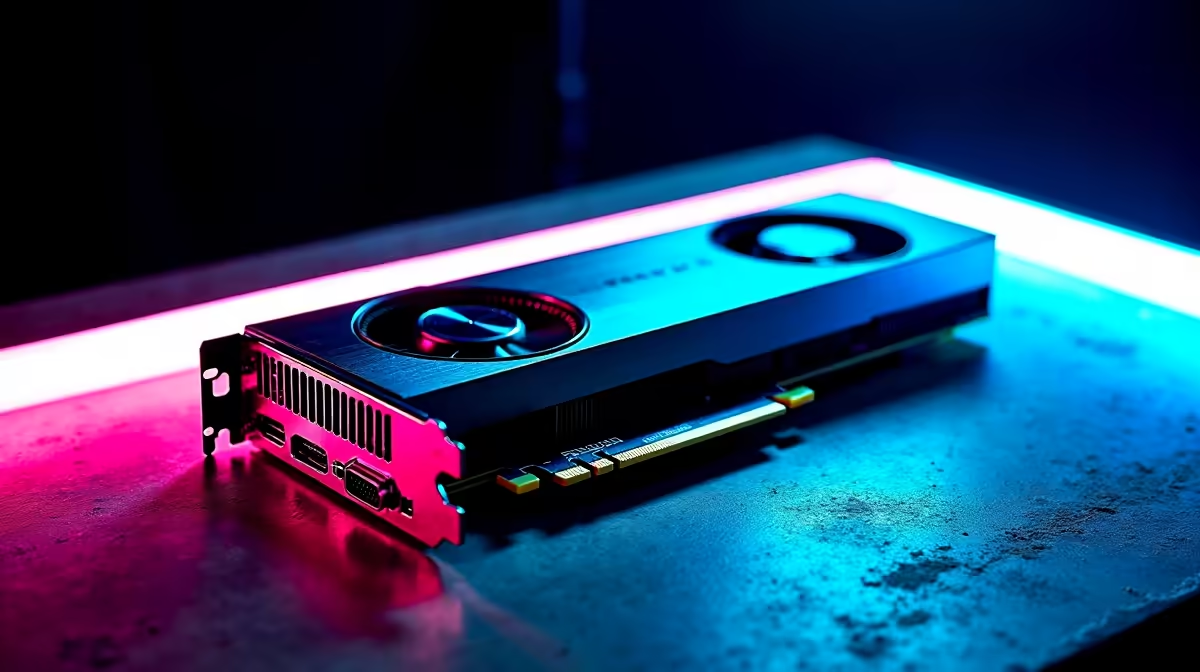
Summer in South Africa is brutal on your hardware. If you just dropped serious ZAR on AMD's latest powerhouse, keeping it cool is your top priority. You might be wondering how to custom fan curve your RX 9070 XT to balance blistering frame rates with whisper-quiet operation. Do not sweat it. We have the ultimate step-by-step guide to help you optimise your GPU thermals like an absolute pro.
Let us be honest... factory settings often play it too safe. Manufacturers usually keep the fans spinning lazily to reduce noise out of the box. This means your graphics card runs hotter than it actually needs to. When the December heatwave hits, your gaming room can quickly feel like a sauna.
If your graphics card gets too hot, it will automatically slow down to protect itself. This is known as thermal throttling. It causes sudden frame drops and stuttering right in the middle of a crucial competitive match.
Whether you are upgrading an older rig or browsing the latest gaming PC deals, proper airflow is vital. While a premium GPU handles its own heat well, pairing it with top-tier CPU coolers ensures your entire system breathes easily during intense gaming sessions.
Ready to take control? AMD's Adrenalin software makes tweaking your RX 9070 XT incredibly straightforward. You do not need to be an overclocking wizard to get this right. Even if you just grabbed one of our slick pre-built PC deals, learning this quick trick adds years to your hardware's lifespan.
Follow these simple steps to dial in your cooling:
Now comes the fun part. You want to set a baseline of 30 percent speed at 40 degrees Celsius. As the temperature rises, ramp the speed up. Aim for 60 percent fan speed when hitting 65 degrees. Finally, cap it at 80 percent speed for 75 degrees and above.
Keep your maximum fan speed around 80 percent unless your card hits 85 degrees Celsius. Going past 85 percent fan speed usually creates a loud vacuum noise without offering much extra cooling benefit for your graphics card.
Once you apply the new curve, you need to test it thoroughly. Boot up a visually demanding title. Use the Radeon overlay to monitor your temperatures in real-time. If the noise is too loud, drop the curve slightly. If it gets too hot, ramp it up a bit.
Remember that your graphics card does not operate in a vacuum. Your PC case needs good intake and exhaust fans to move that hot air out. Taking your gaming on the road instead? Desktop GPUs are incredible, but our range of high-performance laptops for sale come with their own built-in thermal profiles for easy cooling.
Always keep an eye on your temperatures no matter what you play on. If you are looking to upgrade your case fans or snag a new monitor to push those frames, check out our latest tech specials to save your hard-earned ZAR. A cooler PC means better performance... and better performance means more wins.
Ready to Upgrade Your Gaming Experience? Now that your GPU is running ice-cold, it might be time to elevate the rest of your setup. Explore our massive range of PC components and find the perfect hardware to conquer your world.
How to Custom Fan Curve Your RX 9070 XT: available at Evetech.co.za with local warranty and fast delivery.
How to Custom Fan Curve Your RX 9070 XT: - check Evetech for latest stock and SA pricing.
Depends on your use case. How to Custom Fan Curve Your R offers good value at current Rand pricing.
Can Your PC Run Kingdom Come: Deliverance 2?. Everything you need to know with SA pricing, step-by-step instructions & expert recommendations.
Read more
60FPS Unstable: Achieve. Step-by-step instructions with SA-specific tips, common pitfalls to avoid & expert recommendations.
Read more
Quantisation in AI? How It Lets You Run Models. Plain-English explanation of what it means, why it matters & how it affects your buying decisions in SA.
Read more
Protect Your 1TB SSD During Load Shedding. Step-by-step instructions with SA-specific tips, common pitfalls to avoid & expert recommendations.
Read more
What Import Duties Apply to PC Hardware. Practical breakdown of costs, regulations & whether it makes financial sense for SA buyers.
Read more
the MacBook Notch and Does It Affect Usage. Plain-English explanation of what it means, why it matters & how it affects your buying decisions in SA.
Read more
AMD RX 9050 XT: Rumoured Specs, Price & Release. SA-focused analysis with local pricing data, real-world insights & actionable buying advice.
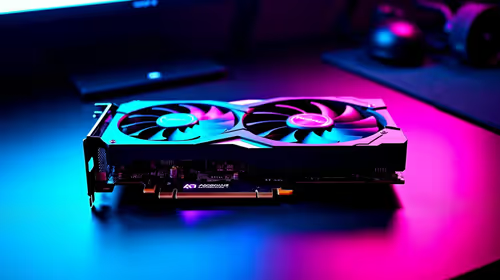
Can RTX 4080 Super Run AI Workloads for SA Developers Detailed answer with SA data, expert analysis & practical recommendations for local buyers.
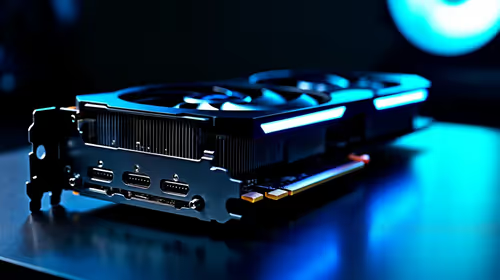
Can RTX 4090 Run AI Workloads for SA Developers Detailed answer with SA data, expert analysis & practical recommendations for local buyers.
Top Settings for Intel Arc B580 at Ultrawide 1440p picks evaluated on performance, value & SA availability with current Rand pricing from Evetech.
RTX 4060 CS2 Low Settings at 1080p: FPS Results. Real-world benchmark data, FPS numbers & performance analysis. What SA gamers can actually expect.
Visual Artifacts: Possible GPU Issue Issue #1. Diagnosis steps, proven fixes & when to seek professional help. SA-specific support info included.
Can the RTX 4090 Handle 1440p 144Hz Gaming. Performance testing verdict with real data & practical recommendations for SA buyers.
Top ASUS GPU Under R15000 picks evaluated on performance, value & SA availability with current Rand pricing from Evetech.
GTA 6 Max Settings on RTX 5070. Tested & verified settings for best FPS and visual quality on SA hardware budgets.
Cyberpunk 2077 Max Settings on RTX 5080. Tested & verified settings for best FPS and visual quality on SA hardware budgets.
Starfield Max Settings on RTX 5070 Ti. Tested & verified settings for best FPS and visual quality on SA hardware budgets.
Top RTX 5090 Under R5000 picks evaluated on performance, value & SA availability with current Rand pricing from Evetech.