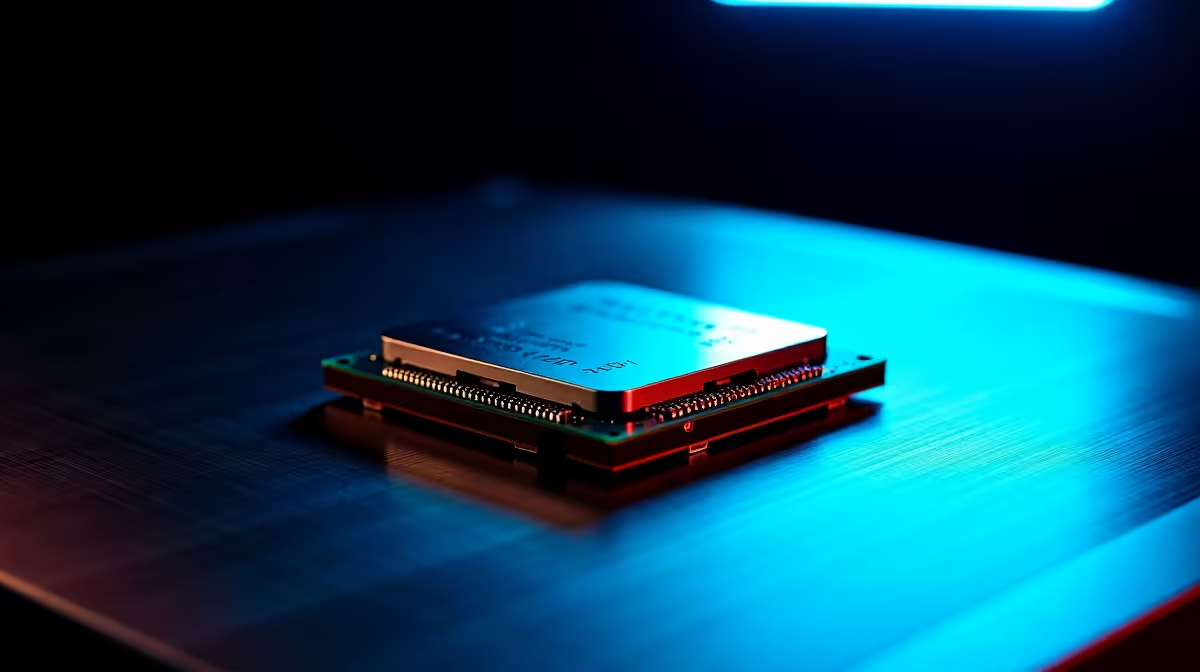
The Core i9-14900K is one of Intel's most powerful consumer CPUs, but it has been the subject of documented instability issues that led to Intel releasing microcode updates in 2024. If your 14900K is crashing in workloads, running hotter than expected, or throttling performance unexpectedly, the fixes are well-established and most can be applied in under 30 minutes without touching hardware. Addressing these issues systematically protects your CPU's long-term health and restores the performance you paid for.
Quick Answer
Most Core i9-14900K issues - including crashes, throttling, and instability under heavy workloads - are resolved by applying Intel's 0x129 or later microcode update via a BIOS update from your motherboard manufacturer, disabling Intel Baseline Profile or setting conservative power limits (PL1=125W, PL2=253W), and ensuring adequate cooling. These fixes are free and do not require hardware replacement.
🔄 Step 1: Apply the Latest BIOS Microcode Update
Intel released microcode update 0x129 (and subsequent revisions) in mid-2024 to address elevated operating voltage issues in the 13th and 14th generation Raptor Lake series that caused long-term CPU degradation and crash instability in demanding workloads. This is the single most important fix for any 14900K stability issue. Visit your motherboard manufacturer's support page (MSI, ASUS, Gigabyte, or ASRock), find your specific motherboard model's download section, and download the latest BIOS update that includes Intel's updated microcode. Flash via the BIOS update utility (most boards support USB-based flashing without a CPU installed, or Q-Flash/EZ Flash while booted). After updating, verify the microcode version in CPU-Z (CPUID tab, Revision field should show 0x129 or higher).
⚙️ Step 2: Set Conservative Power Limits in BIOS
After the microcode update, configure your BIOS power limits to match Intel's recommended Baseline Profile. Navigate to your BIOS performance or CPU power section and set PL1 (Power Limit 1) to 125W and PL2 (Power Limit 2) to 253W with a Tau (time limit) of 56 seconds. Many motherboard manufacturers ship with power limits unlocked ("performance enhancement" or "multi-core enhancement" enabled by default), which pushes the 14900K significantly beyond Intel's specification and compounds the instability that the microcode update targets. Disabling any automatic overclock or power limit removal features in your BIOS is essential alongside the microcode update - one without the other leaves the problem partially unresolved. For systems pairing the 14900K with a high-end GPU, also ensure your PSU is rated for the combined load with adequate headroom.
🌡️ Step 3: Verify Cooling and Thermal Throttling
The 14900K at stock Intel Baseline settings reaches 80–90°C under sustained all-core workloads - this is normal. Temperatures above 100°C under Baseline power limits indicate a cooling deficiency that will cause thermal throttling and reduce performance. Ensure your CPU cooler is properly seated with adequate thermal paste application (a pea-sized dot centred on the IHS). A 280mm or 360mm AIO liquid cooler, or a large dual-tower air cooler, is required for the 14900K at full workload. If thermals are correct and crashes persist after both the microcode update and power limit configuration, run Intel Processor Diagnostic Tool to test CPU integrity - a small number of units affected by the degradation issue before the microcode fix may require replacement under Intel's warranty replacement program for affected chips.
❓ FAQ
Q: Will the 14900K microcode update reduce performance?
A: Slightly, in some workloads. The update corrects elevated voltage behaviour that was artificially boosting performance beyond Intel's specification. Most users see 3–8% reduction in synthetic benchmarks under sustained all-core loads, but real-world gaming performance is largely unaffected because games rarely sustain 100% all-core load for the durations where the issue manifests.
Q: My 14900K crashes only in specific games - is this a CPU issue?
A: Game-specific crashes with a 14900K are frequently linked to the voltage instability issue, particularly in games with long sustained CPU workloads like open-world titles and simulation games. Apply the BIOS microcode update and set Baseline power limits first - if crashes stop after these changes, the CPU was the cause. If crashes persist with a single game but not others, investigate the game's own bug tracker and driver compatibility separately.
Q: How do I know if my 14900K has already been degraded?
A: Run a CPU benchmark (Cinebench R23 multi-core) and compare your score to the expected range for a stock 14900K (~35,000–38,000 points). Scores significantly below this range, combined with crash history, may indicate degradation. Intel's RMA program for affected units remains active - contact Intel support with your purchase details.
Evetech carries Graphics Card Deals and Evetech Best Sellers — check live stock and pricing before you buy.