


850W PSU Planning for RTX 5080 Super Builds in SA
850W for RTX 5080 Super needs a full-build check, not a simple yes. Review GPU guidance, CPU draw, transient load, connectors, PSU quality, and upgrade plans before deciding.
Read moreHow to fix FPS drops after a ultrawide monitor upgrade starts with resolution, refresh rate, cable, and driver checks. Use this SA gamer checklist to retest display mode, frame caps, upscaling, and thermals before replacing hardware.
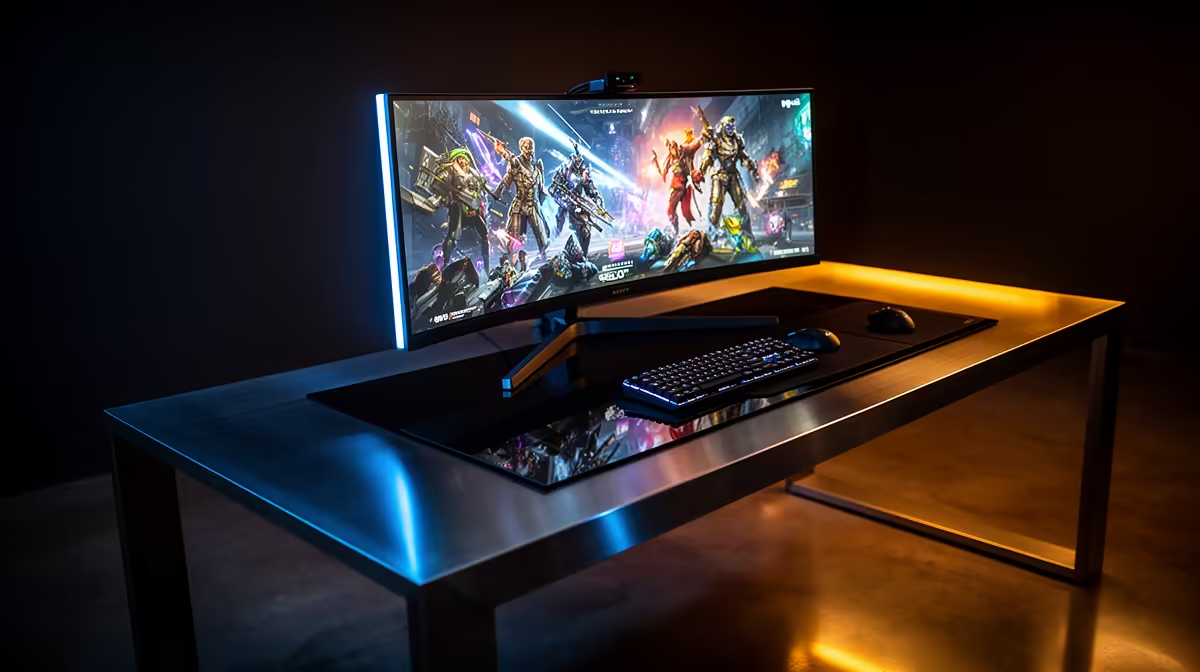
Most FPS drops on a ultrawide monitor setup come from refresh-rate mismatch, VRR state, cable bandwidth or a larger pixel load, not from a broken game. Prove it with RTSS, the monitor OSD and Windows Display settings; 60Hz is 16.7 ms, 144Hz is 6.94 ms and 240Hz is 4.17 ms.
Use one repeatable test scene and record average FPS, 1% lows and frame time. For ultrawide monitor setup, the useful tools are RTSS, the monitor OSD and Windows Display settings. Do not judge by feel alone: 60 fps equals 16.7 ms, 144 fps equals 6.94 ms, and 240 fps equals 4.17 ms.
For ultrawide monitor setup, start here: set the correct refresh rate, enable VRR, use DisplayPort bandwidth, cap FPS 3 fps below refresh, and compare fullscreen with borderless. Keep 3440x1440 ultrawide monitor in mind because its driver, firmware or control software can change how the system behaves after an upgrade. Use broad price context as a sanity check: gaming monitors range from about R3,000 to well above R20,000.
If the setup uses online play, separate network stutter from frame pacing. RTSS shows the frame-time graph; ping and jitter tools show the connection. A router change can affect online movement, but it should not reduce local benchmark FPS unless software or USB services changed too.
Confirm monitor refresh rate, in-game FPS cap, VRR or FreeSync/G-Sync state, and overlay recording. On GPU builds, check ReBAR, PCIe link width and driver state. On laptops or handhelds, match charger, TDP profile and performance mode to the FPS target.
The likely cause is refresh-rate mismatch, VRR state, cable bandwidth or a larger pixel load. Use RTSS, the monitor OSD and Windows Display settings so you can see whether the limit is GPU load, CPU scheduling, storage, USB, audio, thermals or network jitter.
No. Many fixes cost R0 because they come from drivers, firmware, FPS caps, refresh settings or power profiles. Buy hardware only after the same test proves the part cannot meet target.
Watch 1% lows and frame time, not only average FPS. A good fix makes the graph flatter: 144Hz should sit near 6.94 ms and a 60 fps cap near 16.7 ms.
Save one before-and-after result from RTSS or CapFrameX, then keep the setting that improves 1% lows without reducing image quality more than needed.
850W for RTX 5080 Super needs a full-build check, not a simple yes. Review GPU guidance, CPU draw, transient load, connectors, PSU quality, and upgrade plans before deciding.
Read more
FPS drops blamed on a wireless gaming headset often point to input, driver, USB, network, or system-load checks. Use a quick SA-friendly troubleshooting flow to isolate software, firmware, thermals, storage, and game settings before replacing
Read more
1440p is the sweet spot for Polokwane gamers because it balances sharper visuals with manageable GPU demand. Compare refresh rate, graphics card tier, monitor size, and game settings before choosing a display.
Read more
240Hz monitors are mainstream in SA esports because smoother motion and lower input feel matter in Sandton matches. See how GPU frame rates, panel choice, desk setup, and local budget decide whether 240Hz is a smart upgrade from 144Hz.
Read more
4K monitors still cost more for gamers because resolution, refresh rate, panel quality, and GPU demands raise the bar. Polokwane buyers should compare screen size, ports, adaptive sync, and whether 1440p is a better fit.
Read more
Edenvale gpu price pressure questions need cautious SA context because pricing can move with availability, exchange rates, specs, and warranty support. Treat the trend as a planning signal, not a fixed price promise.
Read more
Cyber Monday gaming chair is a cautious guide for seasonal tech deal planning. Compare spec priorities, timing, warranty support, and realistic SA price checks for SA buyers without assuming live prices, availability, or exact benchmark results.

Pre-Black Friday wired gaming mouse buying planning should focus on shape, specs, warranty, and usual price bands. Use this SA guide to shortlist sensible options before deal periods without assuming live discounts.

ATX 3.1 vs ATX 3.0 for Competitive Esports comes down to GPU power connectors, PSU quality, cable routing, headroom, and upgrade plans. SA buyers should match the choice to their setup instead of assuming one option always wins.

Wi-Fi 6E vs Wi-Fi 6 depends on Couch co-op gaming needs, platform limits, and budget fit. Compare compatibility, latency, upgrade path, and real setup constraints before choosing for an SA build.
How to fix FPS drops on AM5 motherboard starts with BIOS, chipset drivers, cooling, and memory stability. South African gamers can work through power, EXPO, refresh-rate, overlay, and game-setting checks before spending on new hardware.

RX 9070 XT build frame pacing issues needs a step-by-step check before replacing parts. Review drivers, settings, thermals, power, background apps, display limits, cables, and game options before changing hardware.

Low fps on rtx 5080 build in south africa usually needs a settings, driver, thermal, or power check first. Work through safe SA troubleshooting steps before replacing parts or assuming a full upgrade.
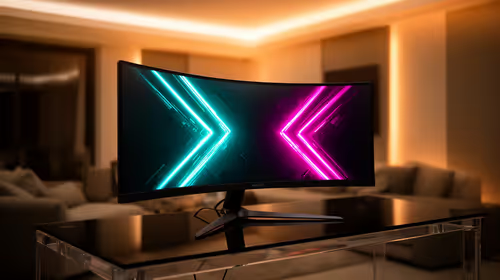
1440p is the sweet spot for Mbombela gamers because it sharpens detail without demanding 4K-level GPU power. SA buyers should weigh monitor refresh rate, graphics card tier, desk size, and game mix before moving up from 1080p.
850W for RTX 5080 Super needs a full-build check, not a simple yes. Review GPU guidance, CPU draw, transient load, connectors, PSU quality, and upgrade plans before deciding.
Bluetooth headset or 2.4GHz wireless headset decisions in SA hinge on latency, device support, battery, and dongle access. Gamers should match the headset to competitive play, couch use, calls, and platform ports.
FPS drops blamed on a wireless gaming headset often point to input, driver, USB, network, or system-load checks. Use a quick SA-friendly troubleshooting flow to isolate software, firmware, thermals, storage, and game settings before replacing
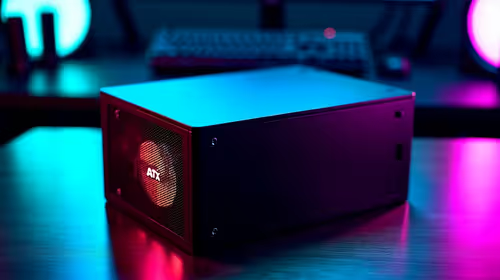
ATX 3.1 vs ATX 3.0 for streaming on Twitch and YouTube Difference explained is mostly about compatibility, budget, upgrade path, and setup fit. SA buyers should check device support and real needs before expecting a clear win from either option.