

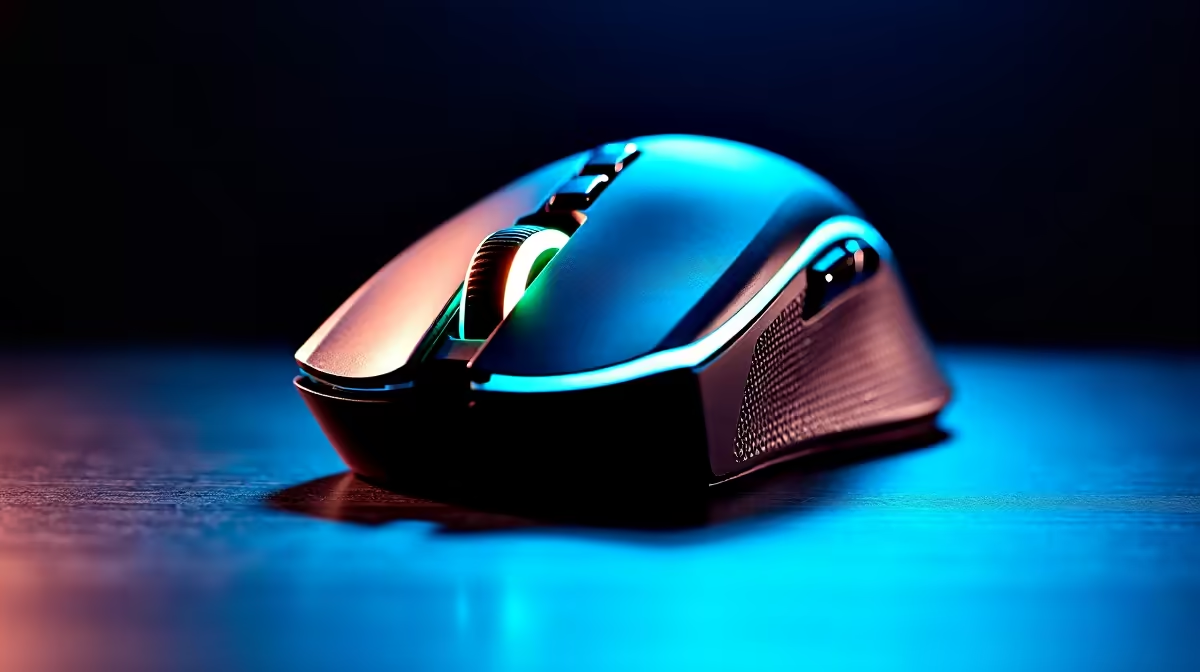
Troubleshooting Your Gaming Mouse Driver Issues in Windows 11 ⚡
If your gaming mouse isn’t performing like it should, especially on Windows 11, you’re not alone. South African gamers often face driver glitches that cause lag, button failures, or erratic cursor behaviour—serious distractions in crucial matches. Fixing these gaming mouse driver issues can be surprisingly straightforward. Let’s dive into clear, practical steps to get your mouse back on track and your gameplay flawless.
Why Gaming Mouse Driver Issues Occur in Windows 11
Windows 11 brought new features but also compatibility quirks with device drivers. Gaming mice rely heavily on manufacturer drivers for custom buttons, RGB lighting, and precise tracking. Without the right drivers, your mouse is like a fighter without a strategy—ineffective.
Some common causes include:
- Outdated or corrupted drivers
- Conflicts with Windows updates
- Incorrect mouse settings or USB port problems
Understanding these helps you tackle the problem faster.
Step-by-Step Fixes for Gaming Mouse Driver Issues
Update or Reinstall Your Mouse Drivers 🔧
First, check if your drivers are up to date:
- Press Windows key + X, select Device Manager.
- Find "Mice and other pointing devices," then your gaming mouse.
- Right-click and choose Update driver > Search automatically.
If Windows can’t find updates, visit the manufacturer’s site or grab newer drivers directly from Evetech’s selection of gaming mouse peripherals for guaranteed compatibility.
If updating doesn’t help, uninstall the device and reboot your PC to force fresh driver installation.
Check USB Ports and Power Settings
Sometimes USB power management messes with your mouse signal. Disable selective suspend by:
- Going to Device Manager
- Right-click your USB Root Hub > Properties > Power Management tab
- Uncheck Allow the computer to turn off this device to save power
Also, switch your mouse to a different USB port—preferably a USB 2.0 port if available.
Optimise Windows Settings for Smoother Mouse Performance
Windows 11’s new features can interfere with gaming peripherals. Disable pointer precision to improve accuracy:
- Open Settings > Bluetooth & devices > Mouse
- Click Additional mouse settings
- Under Pointer Options, uncheck Enhance pointer precision
For serious gamers eyeing high refresh rates and ultra-smooth input, consider investing in one of the best gaming PCs in South Africa—Evetech’s pre-built gaming PC deals come with hardware optimised for this.
Quick Fix for Laggy Mouse
If your mouse lags but buttons work, try lowering the USB polling rate via your mouse’s software. A 500 Hz setting often stabilises the connection without perceptible input delay.
When to Upgrade Your Setup
If you’ve tried all fixes and issues persist, your hardware might be the bottleneck. Consider upgrading your mouse or entire setup. Evetech offers a variety of quality gaming mice tailored for Windows 11 compatibility, plus awesome deals on gaming laptops for mobile gamers. Don’t overlook special offers too—they often bundle peripherals and rigs at unbeatable prices.
Looking to build or upgrade your entire rig? Check out our best gaming PC deals to combine performance and value effortlessly.
Ready for Lag-Free Gaming? Say goodbye to driver headaches and hello to ultra-responsive gaming peripherals. Shop now at Evetech for performance that leaves lag in the dust.











