

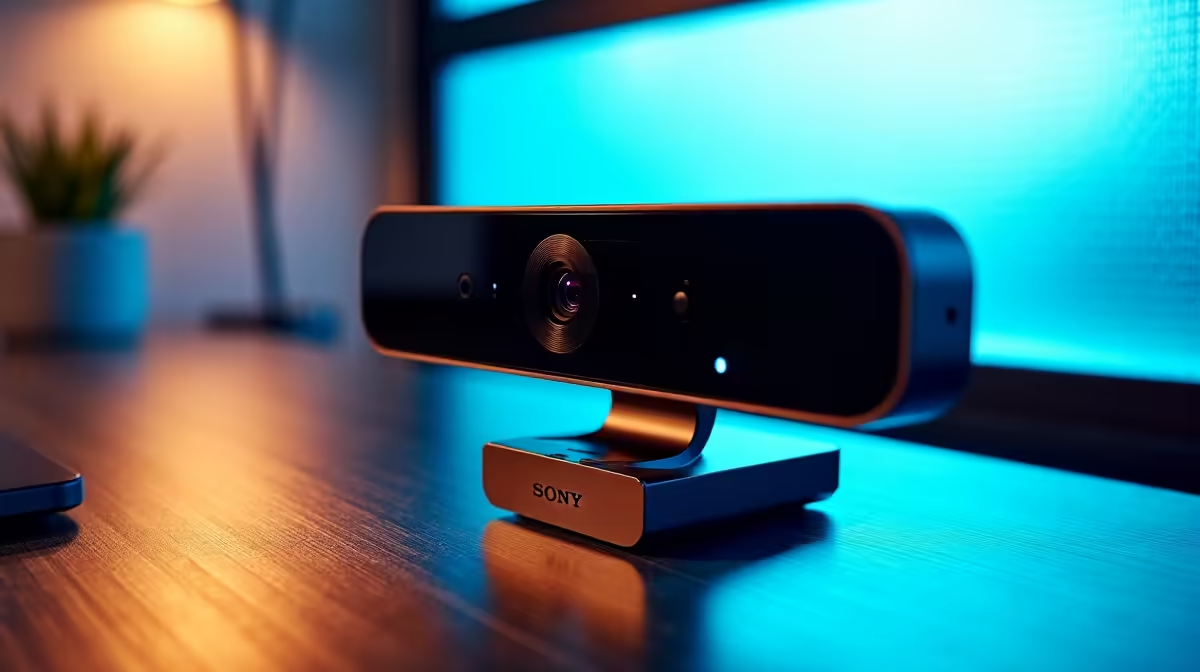
You sit down for a crucial Teams meeting or fire up OBS for your Twitch stream... and your screen is pitch black. Figuring out how to fix webcam compatibility issues is incredibly frustrating when the clock is ticking. Between unexpected loadshedding reboots and silent Windows updates, camera glitches happen to the best of us. Whether you are dealing with a corrupted driver or a software conflict, we have the exact steps to get your lens perfectly focused and rolling again.
Start With the Physical Connections
Before diving into complex software fixes, start with the hardware. A loose USB cable is often the hidden culprit. If you are plugging into a front panel port, try moving it directly to the motherboard at the back. Sometimes, external USB hubs simply do not supply enough power for modern high-resolution cameras. If you recently picked up one of our premium laptops and the integrated camera fails, a simple system reboot often clears the memory cache and restores full functionality.
Master Your Windows Privacy Settings 🔧
Windows takes your personal privacy seriously. Sometimes, it takes it a bit too seriously. If your lens is physically connected but the application shows a blank error, Windows might be blocking access at the system level. Navigate to Settings, then Privacy & Security, and check the Camera permissions tab. Ensure that desktop apps have the green light to use your recording device. This quick step is absolutely essential whether you are building a custom rig or just unboxing one of our reliable pre-built PC deals.
Quick Troubleshooting Pro Tip ⚡
Press the Windows Key + X and open Device Manager. If your camera has a yellow warning triangle next to it, right-click and select 'Update driver'. If that fails, uninstall the device completely and restart your PC to force Windows to install a fresh driver.
Resolve Annoying Software Conflicts
Your webcam can only talk to one application at a single time. If Discord is secretly running in the background, OBS Studio will not be able to grab the video feed. Close all unnecessary background apps from your system tray. For local streamers pushing their system to the absolute limit on our top-tier gaming PC deals, managing these software conflicts is a daily routine. Always launch your primary broadcast software first before opening any secondary voice chat applications.
Upgrade Your Hardware Capabilities ✨
Sometimes the issue is not just a simple compatibility bug. Modern 4K webcams require serious USB bandwidth and system processing power. If your computer stutters while applying background blur or virtual filters, your hardware might actually be the bottleneck. Offloading this intense video processing requires a solid GPU. Consider looking into our latest graphics cards to optimise heavy streaming loads effortlessly via software like NVIDIA Broadcast. If you are finally ready for a complete system overhaul, keep a close eye on our daily specials to score massive savings in ZAR.
Ready to Upgrade Your Streaming Setup? Don't let outdated hardware hold back your content creation or remote work. Explore our massive range of tech specials and find the perfect components to build a flawless, glitch-free system today.











