

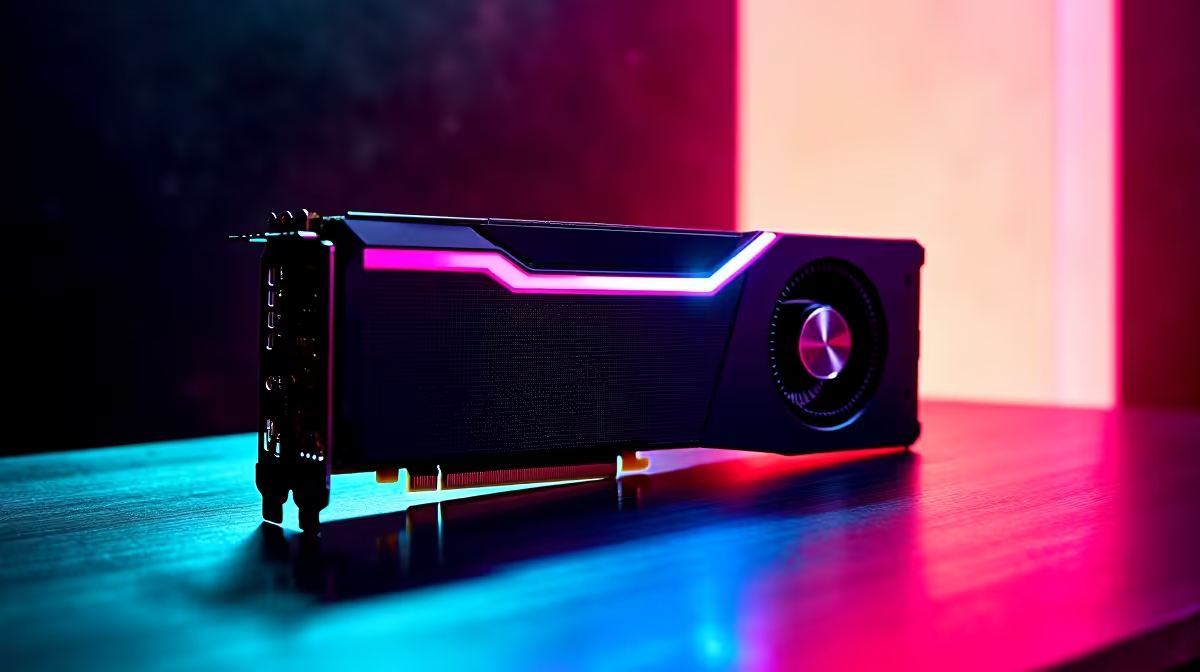
Let's talk about glorious overkill. You just dropped serious ZAR on a beastly new setup. You want to see those buttery frames. Now you are wondering exactly how to get 144Hz in League of Legends on RX 9070 XT hardware. Honestly... this pixel-pushing monster is absolute overkill for esports. It could probably run five instances of the game simultaneously.
But raw power is only half the battle. To secure that tear-free competitive edge on the Summoner's Rift, you still need to optimise your software.
Unleashing the RX 9070 XT 🚀
League of Legends is famously easy to run. When you pair it with one of the most powerful graphics cards on the market, your frame rates will naturally skyrocket. However... uncapped frames without proper syncing can actually introduce screen tearing or unnecessary system heat.
Locking in a stable 144Hz ensures perfect frame pacing. This means your mouse clicks register instantly. It is the ultimate advantage for landing those crucial skill shots. If you are hunting for a rig that can handle this with zero sweat, browsing the best gaming PC deals is a smart first step.
Step-by-Step Settings Guide 🔧
You want to configure your system to match your monitor perfectly. Follow these quick steps to optimise your League experience.
First... open your AMD Adrenalin software. Ensure Radeon Anti-Lag is enabled. This reduces input delay significantly. Next, jump into a custom game in League of Legends and press Escape to open your settings.
Navigate to the Video tab. Set your resolution to match your monitor natively. Even at maximum 4K resolution, the RX 9070 XT will barely utilise a fraction of its power. You can safely crank Character Quality and Environment Quality to the absolute maximum.
Scroll down to the Frame Rate Cap option. You can choose to cap it exactly at 144 FPS to keep your system cool and quiet. Saving electricity means saving ZAR... which is always a bonus. Alternatively... leave it uncapped if your monitor supports FreeSync Premium to eliminate tearing natively.
Turn off Vertical Sync. Standard V-Sync adds noticeable input lag. You want absolute precision when flashing away from a surprise gank.
Refresh Rate Pro Tip ⚡
Always ensure your monitor is actually set to 144Hz in Windows Display Settings. Right-click your desktop, go to Advanced Display Settings, and select 144Hz from the drop-down menu. You would be surprised how many gamers play at 60Hz by mistake!
Balancing Your Hardware
A massive GPU needs a highly capable processor. If your CPU is ancient, you might experience random frame dips during chaotic team fights around the Baron pit. Upgrading your core components is essential for stable performance. Keep an eye out for our latest tech specials to find the perfect processor match.
If you prefer a system that is ready to plug and play right out of the box... we have you covered. Exploring our pre-built PC deals guarantees you get a balanced machine with zero bottleneck issues. Every component is rigorously tested by our experts.
Maybe you travel often for LAN events or work. You do not have to sacrifice high refresh rates on the go. Modern gaming laptops pack desktop-tier performance into portable chassis. They easily push 144Hz in competitive esports titles.
Getting 144Hz is just the beginning. With the right hardware tweaks... your gaming experience transforms completely.
Ready to Dominate the Rift? Securing high frame rates is essential for competitive gaming in South Africa. Whether you are building from scratch or upgrading your current setup, we have the gear you need. Explore our massive range of PC components and find the perfect hardware to conquer your world.











