

Can Your PC Run Kingdom Come: Deliverance 2? Quick Spec Check Guide
Can Your PC Run Kingdom Come: Deliverance 2?. Everything you need to know with SA pricing, step-by-step instructions & expert recommendations.
Read moreOptimize RTX 5060 for Call of Duty Warzone 2. Step-by-step instructions with SA-specific tips, common pitfalls to avoid & expert recommendations.
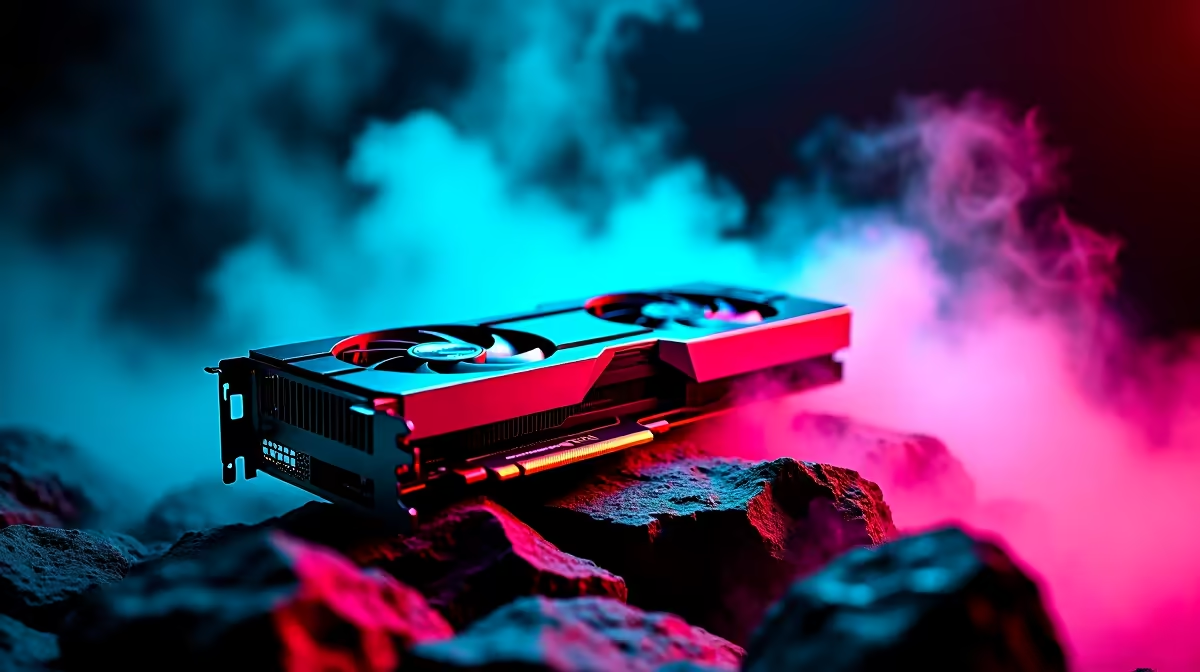
Dropping into Al Mazrah or Urzikstan with stuttering frames is a quick way to end up in the Gulag. If you recently picked up an RTX 5060, you already have serious firepower. But raw specs do not guarantee smooth gameplay in demanding titles. Let us look at exactly how to optimise your RTX 5060 for Call of Duty Warzone 2 so you can dominate local lobbies.
Warzone 2 is incredibly resource-heavy. Even with the latest tech, tweaking your settings is vital. Start by setting your display mode to Fullscreen Exclusive. This gives your GPU absolute control over your monitor. Next, turn off V-Sync... it introduces nasty input lag that costs you crucial gunfights.
If you are looking to upgrade your graphics card, the RTX 5060 is a brilliant sweet spot for 1080p and 1440p gaming. But to get the absolute most out of it, you must enable NVIDIA DLSS in your quality settings. Set it to 'Balanced' or 'Performance'. This renders the game at a lower resolution and upscales it. You get a perfect mix of sharp visuals and incredibly high frame rates.
Turn down shadow map resolution and volumetric quality. These settings drain your VRAM without offering much visual benefit. Keeping them on low or normal ensures your frames stay consistently high.
Your graphics processor is only as strong as the system supporting it. Always ensure your NVIDIA drivers are fully up to date. A fresh driver installation can resolve hidden performance bottlenecks instantly. Use the GeForce Experience app to keep everything current.
Also, remember to enable Hardware-Accelerated GPU Scheduling in your Windows graphics settings. This takes pressure off your processor and lets your RTX 5060 breathe. We see this configuration shine across our premium gaming PCs every single day. If you want a rig that comes perfectly tuned out of the box, exploring pre-built desktop solutions can save you hours of tedious troubleshooting.
Always enable NVIDIA Reflex Low Latency in your Warzone 2 graphics menu. Setting it to 'On + Boost' keeps your GPU clock speeds high in CPU-bound scenarios. This dramatically reduces system latency... giving you the ultimate edge in close-quarters combat.
Thermal throttling is the enemy of high frame rates. Whether you are running a desktop or one of the modern gaming laptops, keeping temperatures low is crucial. Ensure your fan curves are set aggressively using software like MSI Afterburner.
Additionally, navigate to the NVIDIA Control Panel on your desktop. Under 'Manage 3D Settings', find 'Power Management Mode' and change it to 'Prefer Maximum Performance'. This stops your card from downclocking during quiet moments in the match. You want full power ready when a squad pushes your building.
Building a cool, efficient setup does not have to cost 30,000 ZAR. You can often find incredible cooling gear and components in our latest tech specials to keep your rig running icy cold.
Ready to Dominate the Warzone? Optimising your current setup is great, but sometimes you need raw, unadulterated power to secure those Warzone victories. Explore our massive range of gaming PC deals and find the perfect machine to conquer your next lobby.
How to Optimize RTX 5060 for Call of Dut available at Evetech.co.za with local warranty and fast delivery.
How to Optimize RTX 5060 for Call of Dut - check Evetech for latest stock and SA pricing.
Depends on your use case. How to Optimize RTX 5060 for C offers good value at current Rand pricing.
Can Your PC Run Kingdom Come: Deliverance 2?. Everything you need to know with SA pricing, step-by-step instructions & expert recommendations.
Read more
60FPS Unstable: Achieve. Step-by-step instructions with SA-specific tips, common pitfalls to avoid & expert recommendations.
Read more
Quantisation in AI? How It Lets You Run Models. Plain-English explanation of what it means, why it matters & how it affects your buying decisions in SA.
Read more
Protect Your 1TB SSD During Load Shedding. Step-by-step instructions with SA-specific tips, common pitfalls to avoid & expert recommendations.
Read more
What Import Duties Apply to PC Hardware. Practical breakdown of costs, regulations & whether it makes financial sense for SA buyers.
Read more
the MacBook Notch and Does It Affect Usage. Plain-English explanation of what it means, why it matters & how it affects your buying decisions in SA.
Read more
AMD RX 9050 XT: Rumoured Specs, Price & Release. SA-focused analysis with local pricing data, real-world insights & actionable buying advice.
Can RTX 4080 Super Run AI Workloads for SA Developers Detailed answer with SA data, expert analysis & practical recommendations for local buyers.
Can RTX 4090 Run AI Workloads for SA Developers Detailed answer with SA data, expert analysis & practical recommendations for local buyers.
Top Settings for Intel Arc B580 at Ultrawide 1440p picks evaluated on performance, value & SA availability with current Rand pricing from Evetech.
RTX 4060 CS2 Low Settings at 1080p: FPS Results. Real-world benchmark data, FPS numbers & performance analysis. What SA gamers can actually expect.
Visual Artifacts: Possible GPU Issue Issue #1. Diagnosis steps, proven fixes & when to seek professional help. SA-specific support info included.
Can the RTX 4090 Handle 1440p 144Hz Gaming. Performance testing verdict with real data & practical recommendations for SA buyers.
Top ASUS GPU Under R15000 picks evaluated on performance, value & SA availability with current Rand pricing from Evetech.
GTA 6 Max Settings on RTX 5070. Tested & verified settings for best FPS and visual quality on SA hardware budgets.
Cyberpunk 2077 Max Settings on RTX 5080. Tested & verified settings for best FPS and visual quality on SA hardware budgets.
Starfield Max Settings on RTX 5070 Ti. Tested & verified settings for best FPS and visual quality on SA hardware budgets.
Top RTX 5090 Under R5000 picks evaluated on performance, value & SA availability with current Rand pricing from Evetech.