

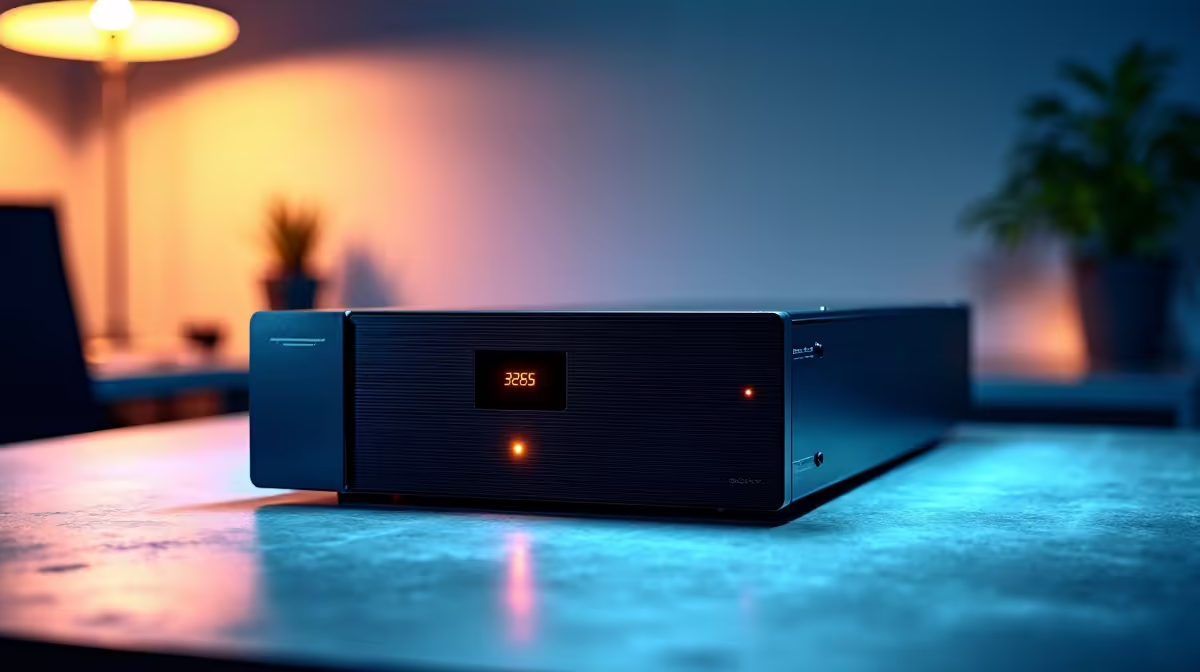
A UPS (Uninterruptible Power Supply) protects your PC from sudden outages, but without auto-shutdown configured, your computer will eventually crash when the battery drains completely. Setting up automatic shutdown means your system closes cleanly even if you're not at your desk when the power goes out.
Quick Answer
Use your UPS management software - typically via USB connection to your PC - to trigger an automatic shutdown when the battery reaches a set percentage or remaining runtime. Windows and Linux both support this natively once the UPS is detected.
Step 1: Connect Your UPS to Your PC 🔧
Most modern UPS units communicate with your computer over USB. Connect the USB data cable (not just the power cable) from the UPS to any USB port on your PC. Windows will detect it as a battery device within seconds. Open Control Panel → Power Options → Change plan settings → Change advanced power settings and look for the Battery section - your UPS will appear here alongside your main power settings.
For a UPS from Evetech, check the included documentation for the correct USB cable type, as some units use a proprietary interface rather than standard USB-HID.
Step 2: Configure Shutdown Thresholds 💡
In Windows Power Options under the Battery section, set Critical battery action to Shut down and Critical battery level to a percentage that gives your system enough time to close all applications - 20–30% is a safe starting point for most units. Adjust based on your UPS's actual battery capacity and your PC's power draw.
For more granular control, install your UPS manufacturer's management software. These tools let you set shutdown based on remaining runtime in minutes (e.g., shut down if less than 3 minutes remain), which is more reliable than percentage alone since it accounts for varying system load. Configure the software to save open documents before initiating the shutdown sequence.
Step 3: Test Your Configuration ⚡
Never assume your setup works until you've tested it. With your PC running and non-critical work open, disconnect the UPS from mains power and monitor behavior. The PC should switch to battery seamlessly. When the battery hits your configured threshold, the system should begin shutting down automatically. Reconnect mains power after confirming the shutdown starts correctly.
Repeat this test every six months - UPS batteries degrade over time and the actual available runtime shrinks, meaning your configured thresholds may need adjustment as the unit ages.
Frequently Asked Questions ❓
Q: My UPS isn't showing up in Windows Power Options - what's wrong? A: Check that the USB data cable is connected (not just the kettle plug power connection). Some UPS units require the manufacturer's driver software before Windows recognizes them as a battery device.
Q: Should I shut down at 20% or 30% battery? A: Set it at 30% if your PC takes more than a minute to shut down cleanly, or if you run applications that need time to save. 20% is fine for fast-shutting systems with SSDs.
Q: Does auto-shutdown work during sleep or hibernate? A: Windows will wake the PC from sleep to execute a critical battery shutdown. Hibernate is safer - the system saves RAM to disk before powering off completely.
Evetech stocks UPS & Power Backup and Graphics Card Deals — shop online with fast delivery across South Africa.
Ready to Find Your Perfect Match? Explore relevant Evetech options, compare current South African pricing, and choose hardware that fits your setup. Shop now











