

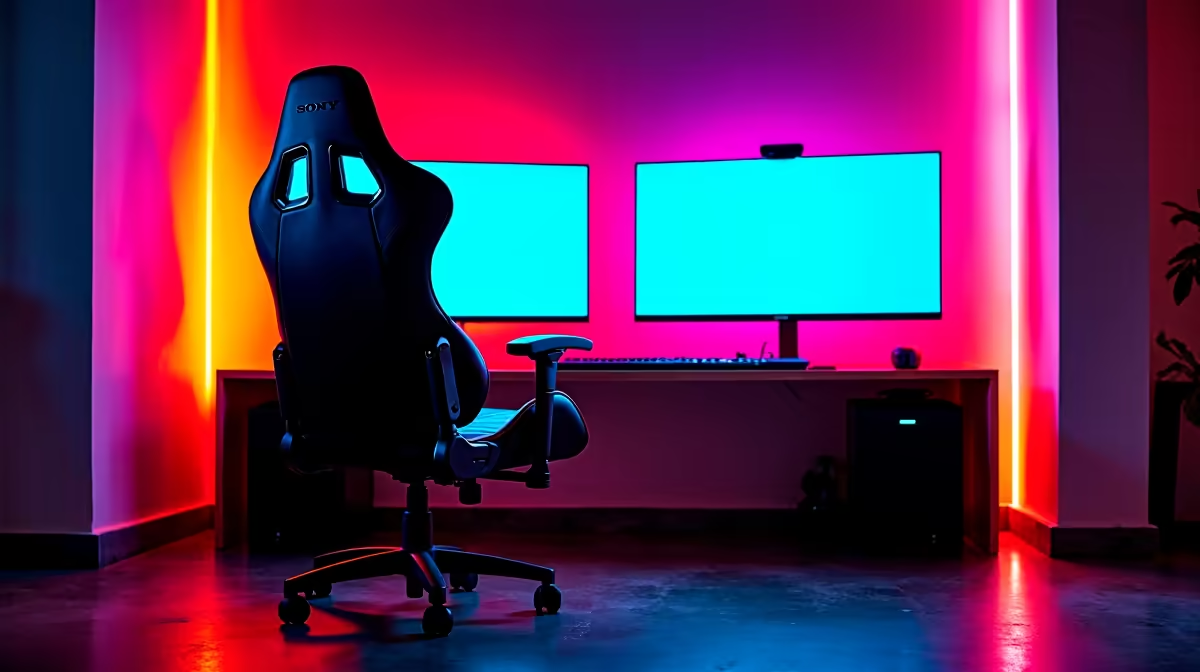
Setting up dual monitors transforms a gaming or work desk into a far more productive and immersive space, and when you pair it with a proper gaming chair, the ergonomics of your whole setup improve dramatically. For South African gamers and remote workers building a home station, here's exactly how to do it right.
Quick Answer
How do you set up dual monitors with a gaming chair in SA? Mount or position two monitors at equal eye level, connect via DisplayPort or HDMI to your GPU's outputs, configure display arrangement in Windows 11 Settings, and adjust your gaming chair's armrests and seat height so your eyes sit level with the top third of both screens - ideally at 60–70cm viewing distance.
🔧 The Physical Setup: Monitors + Chair Ergonomics
Monitor positioning: Place both monitors side by side with the bezels as close as possible. Angle each monitor inward 15–20 degrees so the outer edges face you slightly - this reduces neck strain when looking to the side. The centre point between the two monitors should align with your natural forward gaze.
Height: The top of both monitors should be at or just below eye level when seated in your gaming chair at your correct posture. Adjust chair height first, then adjust monitor height (via stand or monitor arm) to match. Most gaming chairs have seat height adjustment - dial this in before touching the monitors.
Distance: Sit approximately 60–80cm from the screens. For 24" monitors, 60cm is comfortable. For 27" monitors, 70–80cm is more appropriate.
Monitor arms: A dual monitor arm mount is highly recommended. It frees up desk space, allows precise height and angle adjustment, and keeps cable clutter behind the screens. These are widely available in SA and make a significant quality-of-life difference.
📊 Cable and Connection Guide
| Connection | Max Resolution | Max Refresh | Use Case |
|---|---|---|---|
| DisplayPort 1.4 | 4K | 144Hz | Primary gaming monitor |
| HDMI 2.1 | 4K | 144Hz | Secondary or 4K TV |
| HDMI 2.0 | 4K | 60Hz / 1440p 144Hz | Secondary monitor |
| USB-C (DP Alt) | 4K | 144Hz | Laptop setups |
For dual monitor gaming, use DisplayPort for your primary gaming screen (lower input latency than HDMI in most implementations) and HDMI for the secondary screen used for chat, Discord, or browsing.
Most NVIDIA and AMD GPUs have 3 display outputs - two DisplayPorts and one HDMI. This accommodates dual monitors easily.
💡 Windows 11 Configuration and Chair Adjustment Tips
Windows 11 Display Settings: Right-click desktop → Display Settings. Windows will detect both monitors. Click "Identify" to label which is display 1 and display 2. Drag the monitor icons to match their physical layout on your desk. Set your primary monitor (the one you face directly) as the main display.
Refresh rate per monitor: Set each monitor to its native maximum refresh rate independently. You can have a 144Hz primary gaming monitor and a 60Hz secondary productivity monitor - Windows handles mixed refresh rates well.
Gaming chair adjustment for dual monitors:
- Set seat height so feet are flat on the floor and knees at 90 degrees
- Adjust lumbar support to match your lower back curve
- Set armrests to elbow height when your arms rest naturally at your sides
- Recline slightly (100–110 degrees) for extended sessions - straight upright (90 degrees) causes more fatigue than slight recline
Cable management: Route cables behind your desk with cable clips or a cable tray. SA gaming chair designs typically have armrests that route forward - keep cables clear of the base and wheels to avoid tangling.
❓ Frequently Asked Questions
Do I need a special GPU for dual monitors? No - virtually all modern GPUs support dual monitor output. Even integrated graphics on Intel and AMD chips support two displays. However, for gaming across two monitors simultaneously (stretched or multi-monitor game view), a dedicated GPU with at least 8GB VRAM is recommended.
What is the best desk size for dual monitors and a gaming chair in SA? A desk at least 120cm wide is recommended for two 24" monitors. For 27" monitors, 140cm+ is more comfortable. Standard SA office desks (120cm) work for 24" setups; you may need a wider desk or L-shaped setup for larger panels.
Can I use my gaming chair's armrests while typing with dual monitors? Yes - set armrest height to elbow level when your hands are resting on the keyboard. Adjustable armrests (height, angle, and lateral position) offer the most flexibility. Many gaming chairs include 4D armrests that allow side-to-side adjustment, which is particularly useful when split-focusing between two monitors.
Shop All Monitors and Gaming Chairs at Evetech for fast delivery across South Africa.
Ready to Find Your Perfect Match? Shop at Evetech











