

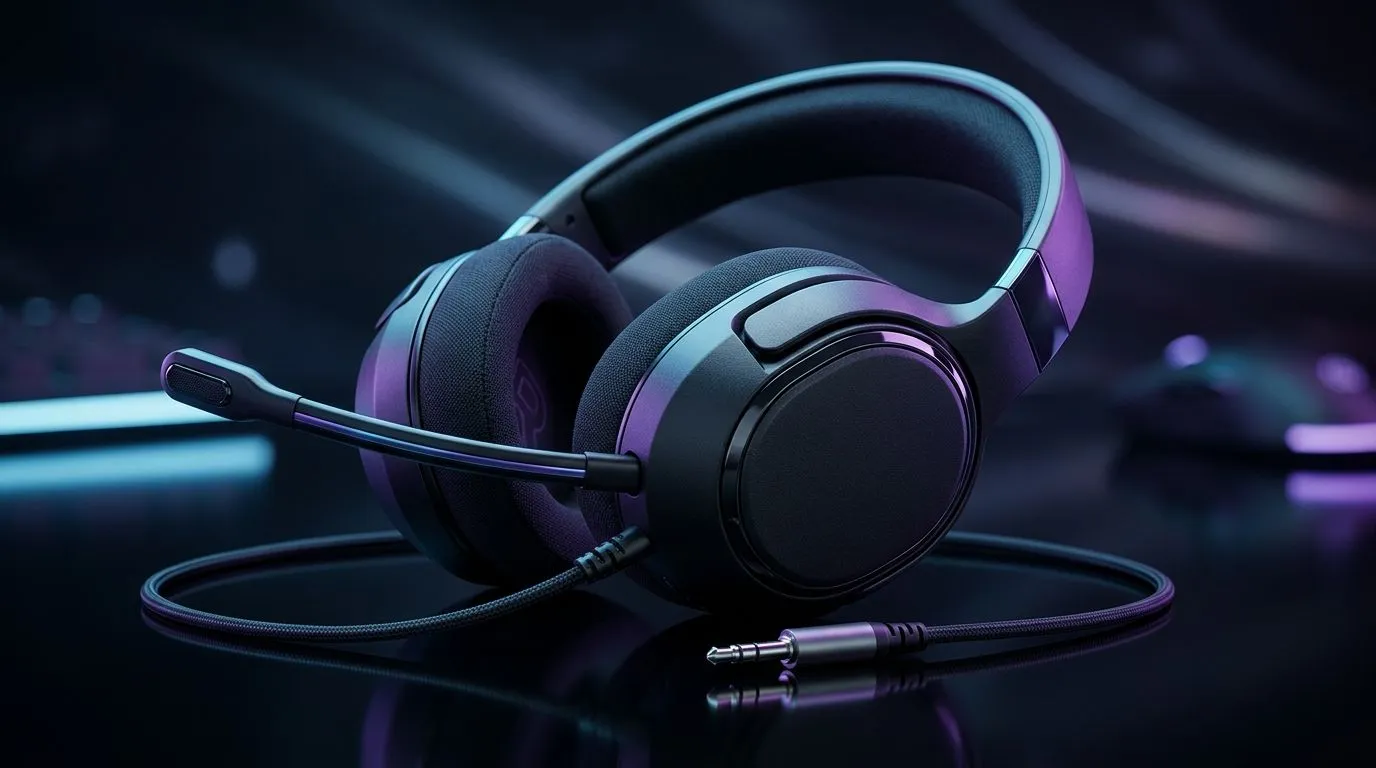
Low Volume Troubleshooting: Fix Low Volume on 3.5mm Gaming Headsets (South Africa edition) 🎧
Ever plug in your 3.5mm gaming headset and think, “Why is everything so quiet?” In South Africa, it usually happens after a Windows update, a game audio setting reset, or a jack that’s not fully seated. The good news… you don’t have to buy new headphones. 🔧
Let’s walk through the most common causes, plus quick tests you can do in minutes to get your headset volume back where it should be.
Fix Low Volume on 3.5mm Gaming Headsets: Start with the simplest checks 🔧
Before you touch drivers or menus, do these:
1) Reseat the 3.5mm plug (and check the cable)
A 3.5mm connection can get slightly loose even if it “seems” connected. Unplug, wipe the plug gently, then plug in fully. If your headset has a mic plug and separate audio plug, make sure each went into the correct coloured port.
2) Test your headset on another device
Plug the headset into a phone, tablet, or another PC. If it’s still low volume elsewhere, the headset (or cable) may be the issue.
3) Confirm Windows isn’t applying reductions
On Windows, open Sound settings and check:
- Output device is your headset
- Volume isn’t set low
- Enhancements aren’t sabotaging audio (disable them temporarily to test)
4) Test in more than one place
If Discord is quiet but YouTube is fine, the problem is likely app settings. If both are quiet, it’s likely system-level output settings.
Productivity Pro Tip ⚡
On Windows, open Sound settings and toggle Disable audio enhancements for your headset, then test again in a game and in YouTube. This helps isolate whether software processing is reducing loudness.
Fix Low Volume on 3.5mm Gaming Headsets: Adjust game and chat settings ⚡
Many games have independent sliders for:
- Master volume
- Voice chat volume
- “Headset” or “Stereo” profiles
Also check your in-game audio mode (some “night mode” profiles compress dynamics). If you’ve ever switched headphones mid-session, some games remember the last output device and carry settings over.
Quick micro-test in-game
Join a match or tutorial and do this:
- Raise in-game master volume
- Lower voice/chat volume
- Play a short segment with explosions or gunfire
If explosions are still faint, go back to Windows output settings.
Fix Low Volume on 3.5mm Gaming Headsets: When it’s the hardware (or the wrong pair)
If your headset is consistently quiet, the drivers won’t magically fix a weak 3.5mm amp, damaged cable, or worn jack connection.
If you’re shopping, consider a headset model with stronger on-board tuning and better build for long South African gaming sessions. These Evetech pages can help you find alternatives quickly:
- Looking at something wireless and comfy for long sessions? See the Razer Barracuda X Chroma Wireless here: https://www.evetech.co.za/razer-barracuda-x-chroma-wireless-headset-phantom-white/best-deal/24367
- Want to browse multiple Razer headphone options at once? Start with this category page: https://www.evetech.co.za/PC-Components/razer-headphones-headsets-105
- Or compare across the full lineup in Evetech’s headphone headsets selection: https://www.evetech.co.za/components/headphone-headsets-100
If you’re unsure what to buy, think about your use case first:
- Mostly FPS with positional audio
- Lots of Discord chat
- Competitive tournaments (long-term comfort matters)
Fix Low Volume on 3.5mm Gaming Headsets: Final 60-second checklist 🚀
Do this in order:
- Reseat plug fully
- Set Windows output to the headset
- Disable audio enhancements to test
- Raise in-game master volume
- Check voice/chat sliders
- Test on another device to confirm headset health
If you still hear low volume after all six… it’s usually hardware or a mismatched output setting. That’s when upgrading becomes the fastest fix.
Ready to Find Your Perfect Match? The Mac vs Windows debate is complex, but for maximum power, choice, and value in South Africa, Windows is hard to beat. Explore our massive range of laptop specials and find the perfect machine to conquer your world.











