

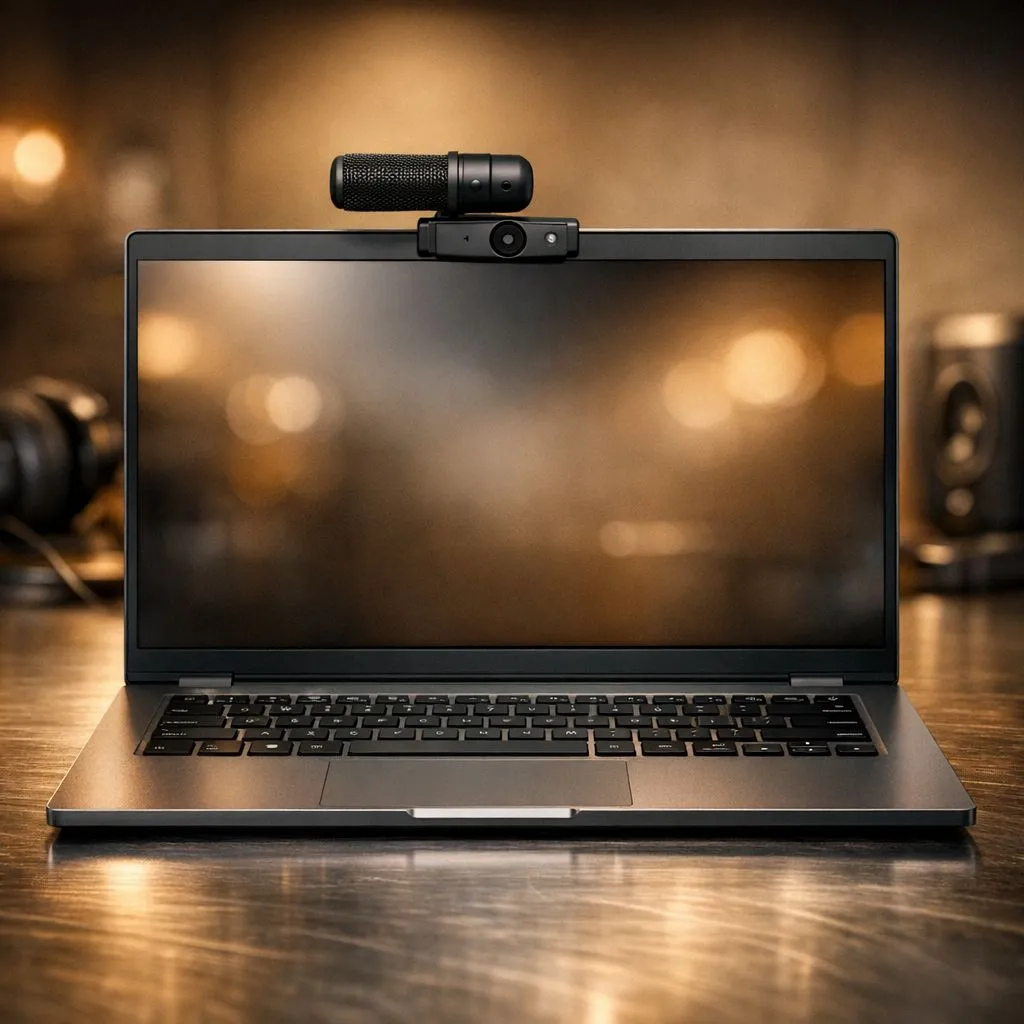
JOHANNESBURG – You’re nailing a presentation when a colleague types the dreaded words: "Sorry, we can’t hear you properly." Sound familiar? In our world of remote work and online classes, a fuzzy camera or crackly mic isn't just annoying… it's unprofessional. The good news? You don't always need a new machine. Let's show you how to quickly optimize your laptop audio and camera for Zoom and go from glitchy to glorious. 🚀
Optimising Your Laptop's Camera for Flawless Video
Before you blame your hardware, let's fix the biggest culprit of poor video quality: lighting. You don't need a fancy ring light. Simply facing a window so natural light illuminates your face works wonders. Avoid sitting with a bright window behind you, as this turns you into a silhouette.
Once your lighting is sorted, dive into Zoom's settings:
- Enable HD: Go to
Settings > Videoand tick the "HD" box. This uses more bandwidth but dramatically improves clarity if your webcam supports it. - Adjust for Low Light: Right below the HD option, you'll find an "Adjust for low light" setting. Set it to
Autoand let the software do the work. - Touch Up My Appearance: A little digital magic that smooths your skin tone. It’s a subtle but effective confidence booster!
For those who demand the sharpest image and smoothest background effects, the webcams built into modern GeForce RTX gaming laptops are often a significant step up from older models.
Mastering Your Laptop's Audio for Crystal-Clear Calls 🔧
"Can you hear me now?" should be a relic of old TV ads, not your daily reality. Achieving clear audio is often easier than you think. Start by minimising background noise—close doors, turn off the TV, and maybe convince the dog that the postman isn't a mortal enemy.
Next, explore Zoom's powerful built-in tools:
- Noise Suppression: In
Settings > Audio, you'll find "Audio Profile". Setting this to "High" uses more CPU power but does an incredible job of filtering out background hums, clicks, and chatter. Most powerful Intel laptops can handle this without breaking a sweat. - Test Your Mic: Use the "Test Mic" feature in the same audio settings panel to hear yourself as others do. Is the volume too low? Are you too far away? This simple check can solve most issues.
Audio Pro Tip 💡
If you have an NVIDIA RTX graphics card, download the free NVIDIA Broadcast app. It uses AI to provide world-class noise removal, turning even a noisy room into a quiet studio. You can select it as your microphone directly within Zoom—it's a massive upgrade over standard solutions.
Advanced Tweaks for the Ultimate Zoom Experience
If you've nailed the basics and still want more, a few extra steps can further improve your Zoom video quality. First, ensure your camera and audio drivers are up to date. A quick visit to your laptop manufacturer's support website is all it takes.
Second, check your internet connection. A wired Ethernet connection will almost always be more stable than Wi-Fi. If you must use Wi-Fi, try to be as close to your router as possible. The incredible multitasking capabilities of modern Ryzen laptops ensure that even with other apps running, your call quality remains smooth and stable.
When Is It Time for an Upgrade?
Software tweaks can only do so much. If your laptop's webcam still has the resolution of a potato and the built-in microphone picks up every echo in the room, it might be time to consider an upgrade. Newer laptops come with vastly improved 1080p webcams and multi-array microphones that make a world of difference right out of the box.
You don't have to break the bank to see a huge improvement. Many excellent laptops under R20,000 offer a superior audio-visual experience compared to machines from just a few years ago. For the absolute best quality, check out our best gaming laptop deals, which often feature top-tier components perfect for both work and play. ✨
Ready for a Crystal-Clear Upgrade? Stop fighting with fuzzy video and crackly audio. A new machine can make every call a breeze. Explore our massive range of laptop specials and find the perfect upgrade for your remote work and gaming life.











