

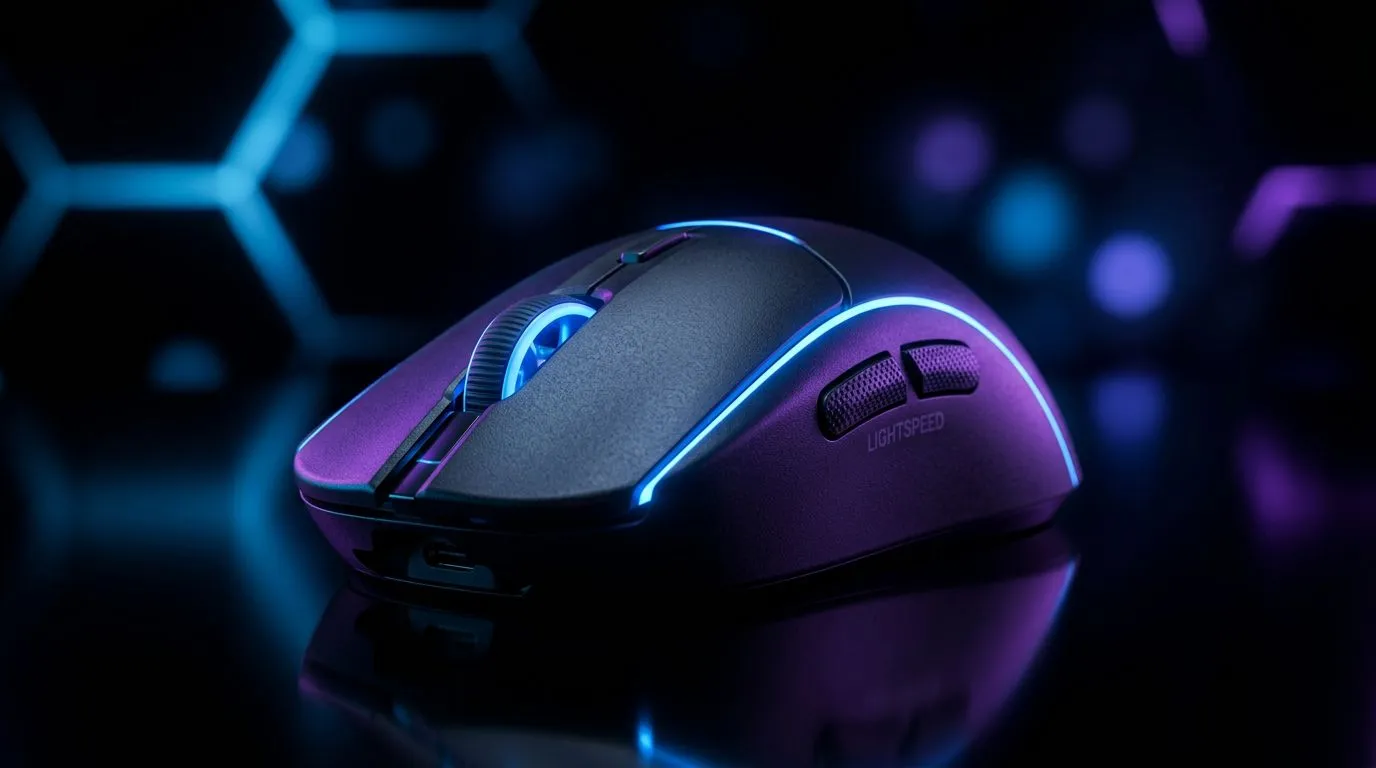
Juggling your high-performance gaming mouse between your PC and work laptop is a drag. Unplugging dongles, re-pairing Bluetooth... what a mission. But what if your top-tier Logitech peripheral could connect to both seamlessly? Learning how to pair a LIGHTSPEED wireless mouse with multiple devices can seriously declutter your desk and streamline your workflow. It’s easier than you think, and we’re here to show you how. 🚀
Understanding LIGHTSPEED Multi-Device Setups
Before we dive in, let's clear up a common misconception. Not all Logitech LIGHTSPEED mice can connect to multiple devices straight out of the box. This awesome feature typically relies on the mouse having dual connectivity: the ultra-low-latency LIGHTSPEED wireless via its USB dongle, and a secondary Bluetooth connection.
This dual-mode capability is what allows you to switch between, say, your gaming rig and your laptop with a simple button press. When choosing a new gaming mouse, check the specs for "LIGHTSPEED + Bluetooth" to ensure it supports this function.
A Step-by-Step Guide to Pairing Your Mouse
Ready to get connected? Here’s the typical process for getting your multi-device LIGHTSPEED setup running. We'll use a gaming PC as Device 1 and a laptop as Device 2.
### Step 1: Connect to Your Primary Device via LIGHTSPEED
This is the easy part. For your main gaming PC, you'll want the fastest connection possible.
- Plug It In: Insert the LIGHTSPEED USB receiver (the dongle) into a free USB port on your PC.
- Power On: Switch your mouse on.
- Connect: It should connect automatically within seconds. You're now running on the pro-grade, 1ms report rate connection perfect for gaming.
For fine-tuning DPI settings and customising buttons, be sure to download and install the Logitech G HUB software.
### Step 2: Connect to Your Second Device via Bluetooth
Now, let's get your laptop or secondary machine connected without needing another dongle.
- Activate Pairing Mode: Look for a connection or mode-switching button on your mouse, usually on the underside. Press and hold it until the indicator light starts blinking rapidly (often blue) to show it's in Bluetooth pairing mode.
- Open Bluetooth Settings: On your second device (e.g., your laptop), go to Bluetooth & other devices settings.
- Add Device: Click "Add device" and select "Bluetooth".
- Select Your Mouse: Your Logitech mouse should appear in the list of available devices. Click on it to complete the pairing process.
That's it! You now have a single high-performance wireless mouse paired with two separate systems.
Pro Tip for Power Users ⚡
Use Logitech's G HUB software to create distinct profiles for each connection. You can set your side buttons to trigger complex gaming macros when connected via LIGHTSPEED to your PC, and have them perform copy paste functions when connected via Bluetooth to your work laptop. The mouse intelligently switches profiles as you switch devices!
Switching Between Devices Like a Pro
Once both devices are paired, switching between them is incredibly simple. Just a quick press of that same connection/mode button will toggle your mouse's input between the LIGHTSPEED receiver and the Bluetooth connection. The LED indicator will usually change colour or pattern to show you which connection is active. ✨
This seamless switching is perfect for creators and professionals who game hard after a long day's work. To complete your setup, consider pairing it with quality mouse accessories like a large desk mat for smooth tracking across your entire workspace.
Is a Multi-Device Mouse Right for You?
So, should your next upgrade support multi-device pairing? If you use more than one computer at the same desk, the answer is a resounding yes. The convenience is unmatched.
However, if you're a purist esports competitor who only uses one dedicated gaming rig, the simplicity and zero-interference nature of a top-tier wired mouse might still be your best bet. It all comes down to your specific needs. For those who want the best of both worlds, keep an eye on the best gaming mouse deals to find a dual-connectivity model at a great price.
Ready to Unify Your Setup? A mouse that can keep up with both your work and play is a powerful tool. Ditch the clutter and embrace the convenience of a single, high-performance mouse for all your devices. Explore our massive range of gaming mice and find the perfect model to conquer your world.











