

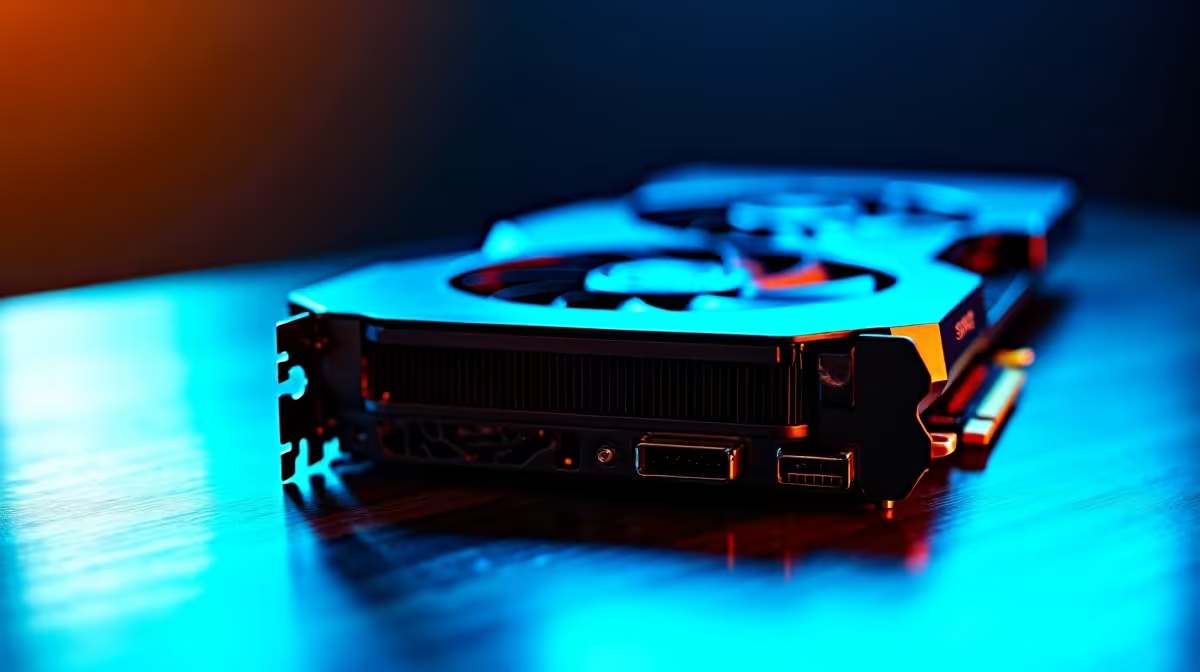
Summer in Mzansi is unforgiving. When the ambient temperature hits 35 degrees, your PC feels it too. If your fans sound like a jet engine taking off during a casual match of Warzone, you are not alone. Dealing with an RTX 5060 overheating is a common headache for local gamers. Let us dive into how to fix and troubleshoot your GPU temps in 2026.
Understanding RTX 5060 Overheating Causes ⚡
The RTX 5060 is a fantastic mid-range performer, but pushing modern AAA titles at high frame rates generates serious heat. Before you panic, check your baseline temperatures. Anything under 85 degrees Celsius under heavy load is generally safe. If you are hitting 90 degrees or experiencing thermal throttling, it is time to act.
Often, the culprit is not the card itself but poor case airflow. South African dust is notorious for clogging intake filters. If your room is 30 degrees on a blistering January afternoon, your components will naturally run hotter. Ensure your PC is not shoved into a tight desk cabinet. Give it room to breathe. If you are running an older rig with restricted airflow, it might be worth exploring some of the latest pre-built PC deals that feature modern, high-airflow chassis designs right out of the box.
How to Fix and Troubleshoot High GPU Temps 🔧
Let us get our hands dirty. First, power down and grab a can of compressed air. Carefully blow out the dust from your GPU heatsink and case fans. It sounds basic, but a clean system runs significantly cooler.
Cable management also plays a massive role in cooling. A rat's nest of power supply cables blocking your front intake fans will choke your system of fresh air. Take a Saturday morning to route your cables neatly behind the motherboard tray. It improves aesthetics and drops temperatures.
Next, look at your software configuration. Aggressive factory overclocks can push voltages too high. If your card is older, the factory thermal paste might have dried out. Spending a few hundred ZAR on premium thermal paste or new case fans is much cheaper than replacing a cooked component. Applying a high-quality thermal compound can drop temperatures by a massive 5 to 10 degrees. Just remember to check your warranty terms before unscrewing the cooler.
Airflow Pro Tip ✨
Download MSI Afterburner to set a custom fan curve. Ramping up your fan speed earlier can prevent the card from reaching thermal limits. Also, consider undervolting your GPU. It reduces power consumption and heat output without sacrificing performance.
When to Consider an Upgrade 🚀
Sometimes, troubleshooting is not enough... and that is perfectly okay. If you have repasted the GPU, maxed out your fan speeds, and your PC case is still a sauna, the hardware might just be showing its limits. When your entire system struggles to keep up, browsing the latest gaming PC deals could save you from endless tweaking.
Alternatively, you might just need a cooling upgrade or a different model with a beefier heatsink. You can easily browse our massive range of graphics cards to find options with triple-fan setups that handle the local summer heat much better.
For those who travel or deal with loadshedding, migrating to a mobile setup is a smart move. Modern cooling in portable machines has improved massively. Check out the latest gaming laptops if you want high performance without the bulky desktop footprint.
Finally, do not forget to keep an eye on our weekly tech specials for discounts on high-static pressure fans and premium AIO coolers to optimise your current rig's airflow.
Ready to Beat the Heat? Whether you need a high-airflow case, premium cooling fans, or a brand-new rig to keep your frame rates high and temperatures low, Evetech has you covered. Explore our massive range of PC components and find the perfect hardware to upgrade your setup today.











