

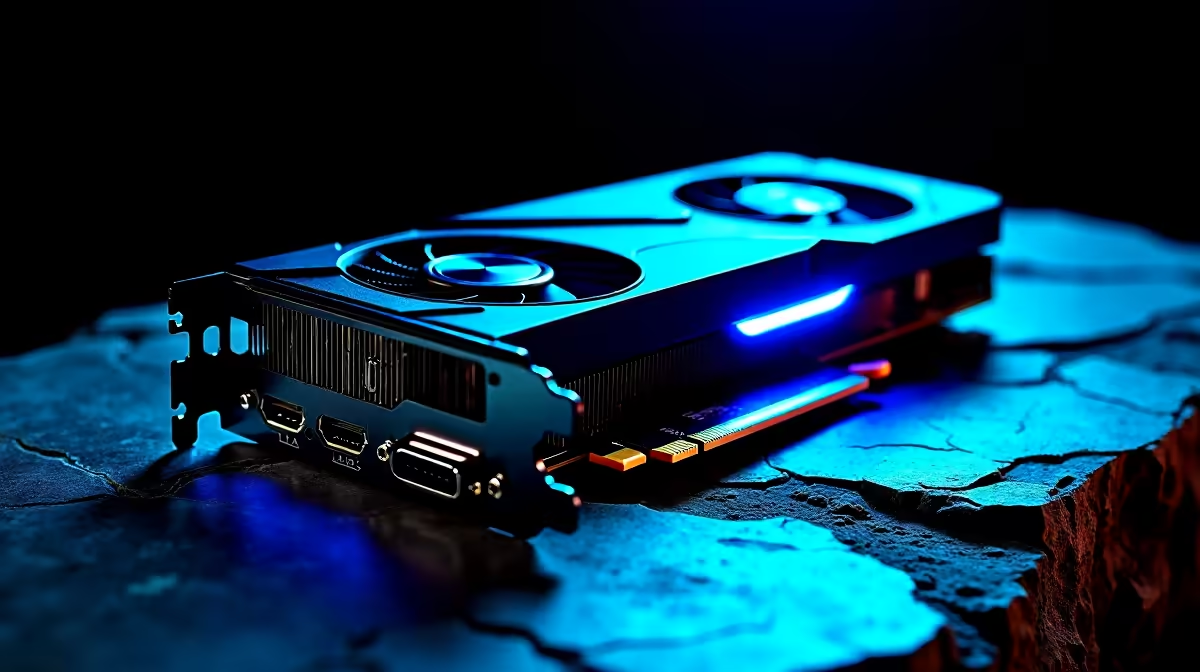
You just dropped a stack of hard-earned ZAR on a shiny new GPU. You slot it in, boot up, and... nothing. A frustrating blank screen or a basic display adapter warning stares back at you. There is nothing worse than eagerly unboxing top-tier hardware only to face a black monitor. If your RTX 5070 is not detected by your PC, do not panic. We have the exact troubleshooting steps to get your rig up and running without the headache.
Checking Power Connections and Seating 🔧
The most common reason an RTX 5070 is not detected by a PC comes down to power delivery. These next-generation cards demand a stable and high-wattage power supply. First, ensure the PCIe slot lock has physically clicked into place. A sagging card can easily lose connection with the motherboard pins.
Next, inspect your 12VHPWR connector. It needs to be fully flush with the port on the GPU. If you are upgrading from older graphics cards, verify that your power supply actually has the overhead to handle the new load. We generally recommend a high-quality 750W or 850W unit to keep things perfectly stable during heavy gaming sessions.
Motherboard Compatibility and BIOS Updates
Sometimes an older motherboard simply does not recognise the new hardware architecture. If your RTX 5070 is not detected by your PC after checking the cables, a BIOS update is your next logical step.
Head to your motherboard manufacturer's official website and download the latest stable release. This is a standard quality-control step we perform for all our best gaming PC deals before they leave the Evetech warehouse. Make sure you follow the flashing instructions carefully... an interrupted BIOS update can permanently damage your board. While in the BIOS, try forcing the PCIe slot to "Gen 4" instead of "Auto" to see if it forces a proper hardware handshake.
Software Conflicts and Driver Issues ⚡
Windows can be incredibly stubborn when swapping major hardware components. Old display drivers often clash with the new card, causing the system to default to basic Microsoft display adapters.
Clean Install Pro Tip 🚀
Always use Display Driver Uninstaller (DDU) in Windows Safe Mode before installing a new GPU. It wipes all leftover driver files and registry keys. This ensures your new hardware gets a completely clean slate to work from.
If you are tired of endless troubleshooting and just want a system that works straight out of the box, exploring our pre-built PC deals might save you hours of future frustration. Our technicians handle all the tedious setup and stress-testing for you.
Testing for Hardware Faults
Still having no luck? Test the GPU in another PCIe slot on your motherboard. If you have access to a friend's rig, try installing it there. This isolates whether the card itself is faulty or if your system has a deeper underlying issue. Sometimes gamers pivot entirely to portable power to avoid desktop maintenance... if you travel often, browsing our modern laptops for sale is a fantastic alternative.
Before you send the card back for a warranty claim, double-check your display cables. A faulty HDMI or DisplayPort cable can easily mimic a dead GPU. Monitors can also be tricky... ensure your screen is set to the correct input source manually rather than relying on auto-detect. If you do need replacement parts or just want to browse for an upgrade, keep an eye on our tech specials to save some ZAR on your next purchase.
Ready to Upgrade Your Setup? Troubleshooting hardware can be a headache, but finding the right gear shouldn't be. Whether you need a more powerful power supply, a new motherboard, or a completely fresh rig, Evetech offers the best value in South Africa. Explore our massive range of PC components and get back in the game today.











