

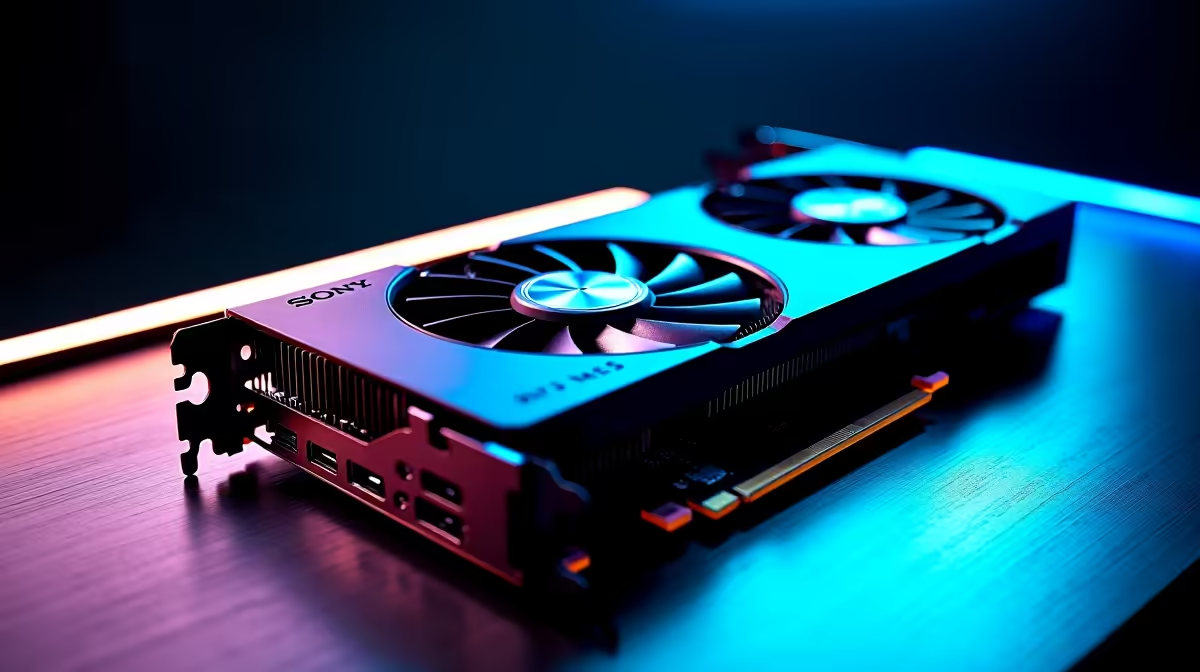
You just dropped a serious amount of ZAR on the ultimate upgrade... the mighty RTX 5080. You slot it in, boot up, and... nothing. A blank screen or a missing adapter in Device Manager. If your RTX 5080 is not detected by your PC, do not panic just yet. Troubleshooting this beast is usually straightforward. Let us get your rig back to pushing glorious frames 🚀.
Initial Hardware Checks for Your New GPU
Before assuming the worst, check the physical connections. The RTX 5080 is a massive card. Sometimes it sags or does not click fully into the PCIe slot. Power down, unclip the PCIe latch, and firmly reseat the card.
If you are upgrading from an older generation, ensure your power supply can actually handle the load. These next-gen graphics cards require proper ATX 3.0 power connectors. If you are using adapter cables, make sure every single 8-pin connector is seated perfectly. A loose power cable is the most common culprit for a blank screen ⚡.
Software and BIOS Fixes
If the physical installation is perfect but your RTX 5080 is not detected by your PC during troubleshooting, the motherboard might be the bottleneck. Older motherboards often need a BIOS update to recognise next-gen architecture. Grab a flash drive, head to your motherboard manufacturer's website, and flash the latest BIOS.
If you are tired of dealing with hardware conflicts, it might be time to look at fully optimised gaming PCs where the compatibility testing is already done for you.
Once into Windows, check Device Manager. If it shows a "Microsoft Basic Display Adapter", your hardware is fine. You just need a clean driver install.
Driver Cleanup Pro Tip 🔧
Before installing your new Nvidia drivers, download Display Driver Uninstaller (DDU). Run it in Windows Safe Mode to completely wipe old AMD or Nvidia files. This prevents annoying software conflicts and ensures your new GPU performs at its absolute peak.
Bottlenecks and System Upgrades
Sometimes a new GPU highlights the age of your current system. If your power supply is tripping or your CPU is severely bottlenecking your new 50-series card, you might need a broader upgrade. South African gamers know that balancing components is key to smooth performance. If upgrading individual parts feels overwhelming, exploring pre-built PCs offers a plug-and-play solution with guaranteed compatibility.
Alternatively, if you travel often for work or LANs, you might want to bypass the desktop upgrade hassle entirely. Modern laptops pack desktop-class power into portable chassis... perfect for loadshedding survival.
Before making any drastic decisions, test the GPU in a friend's rig if possible. If it works there, your motherboard or PSU is likely the issue.
Final Thoughts on GPU Troubleshooting
Getting a high-end component to work should not feel like a chore. If you have updated the BIOS, checked the 12VHPWR cables, and wiped your drivers but still have no display, the card might need an RMA. However, most of the time, the steps above will solve the issue. If you decide your old rig simply cannot support the new tech, keep an eye out for our latest specials to upgrade your core components without breaking the bank.
Ready for a Hassle-Free Upgrade? Troubleshooting old hardware can be frustrating. For maximum power, choice, and value in South Africa, starting fresh is sometimes the best option. Explore our massive range of PC specials and find the perfect machine to conquer your world.











