

Turning Your Desktop Into a Wireless Hub
We have all been there. You are at a LAN party or working from a home office where the router is tucked away in another room, and your phone or tablet just refuses to pick up the signal. If your PC is already connected via Ethernet, you have a powerful wireless hub sitting right on your desk. Learning how to share PC internet as a WiFi hotspot using a USB adapter is a simple, cost-effective way to extend your network coverage without buying an expensive range extender. 🚀
Why Use a USB Adapter for Hotspot Sharing?
While some modern motherboards come with built-in wireless cards, many gaming rigs rely on stable, wired connections for the lowest possible ping. By adding a dedicated network adapter, you gain the flexibility to broadcast your own signal. This is perfect for when you need to connect your mobile devices to your PC's connection, ensuring you stay online regardless of where you are in the house.
Signal Strength Hack ⚡
When setting up your hotspot, ensure your USB adapter is plugged into a rear-panel port rather than a front-panel hub. This provides a more stable power supply and reduces interference, resulting in a significantly more consistent wireless signal for your connected devices.
Setting Up Your Windows Hotspot
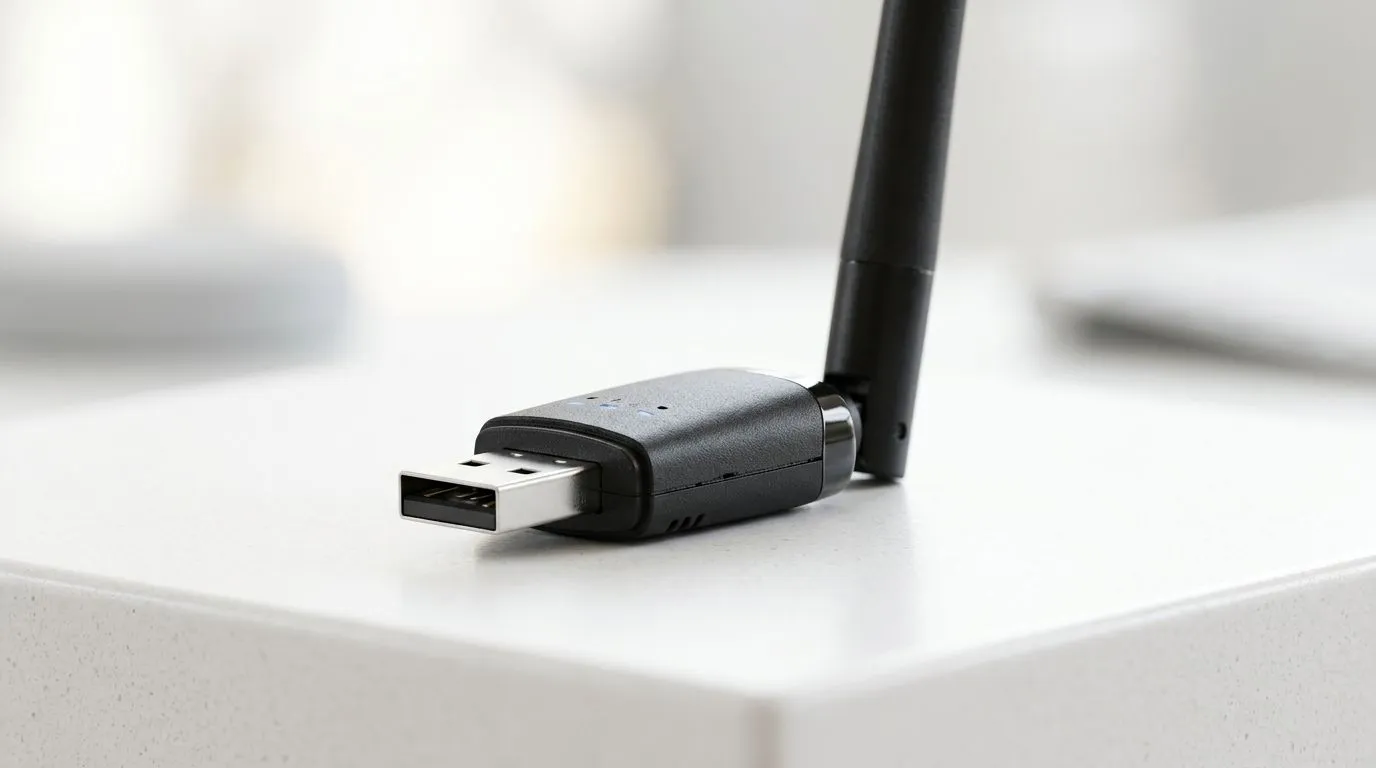
Windows makes the process surprisingly straightforward. Once you have installed your hardware—perhaps one of the reliable TP-LINK adapters available on our store—the software configuration takes less than a minute.
- Open Settings and head to Network & Internet.
- Select Mobile Hotspot.
- Choose to share your internet connection from Ethernet to Wi-Fi.
- Click Edit to set your own network name and a strong password.
If you are looking for high-performance options that won't break the bank, checking out the latest Cudy network adapters is a great place to start. These units are compact, efficient, and perfect for creating a secondary access point for your smartphone or laptop while you game. ✨
Troubleshooting Common Connection Issues
Sometimes, the connection might drop or the speed might feel throttled. Always check that your drivers are up to date via the manufacturer's website. If you are using your PC for competitive gaming while sharing the hotspot, keep in mind that high-bandwidth activities on your phone, like downloading app updates, will consume the same local bandwidth your game needs. 🔧
Ready to Upgrade Your Connectivity? Whether you are building a custom rig or just need better Wi-Fi, we have the gear to keep you connected at the best prices in South Africa. Explore our massive range of network adapters and find the perfect component to boost your home network today.











