

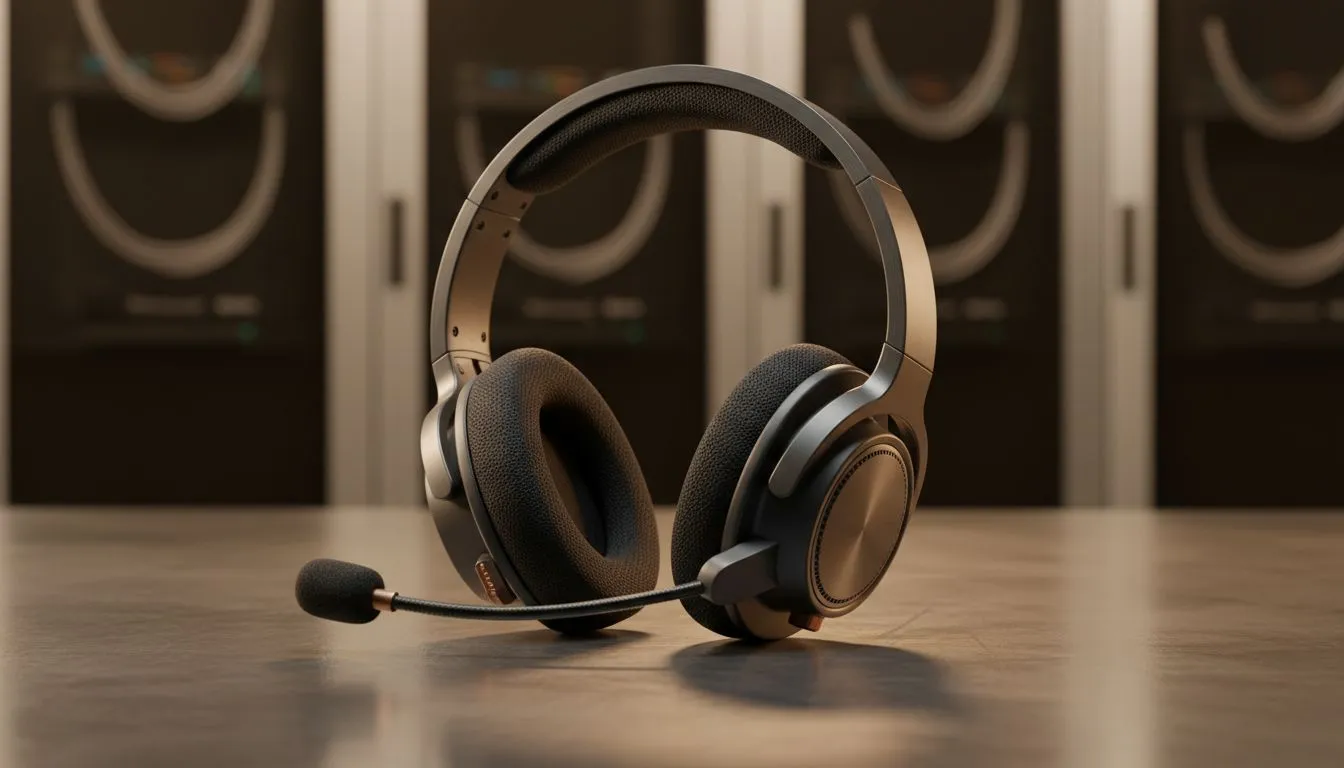
Stereo headset setup essentials for clear calls 🔧
Quick heads-up for South African gamers and hybrid workers: a proper stereo headset setup for Microsoft Teams and Zoom turns tinny meetings into clear, comfortable conversations. Nail the basics — mic position, stereo vs mono choices, and your OS audio settings — and you’ll avoid the “can you hear me now?” loop. This guide keeps things practical and Evetech-focused so you buy, set up, and sound great.
Stereo headset setup: choose the right gear
Start with a headset that matches your needs. For wireless versatility and solid microphone performance, the Razer Barracuda X Chroma is a popular pick — see full specs and features on Evetech’s product page. (Razer Barracuda X Chroma) https://www.evetech.co.za/razer-barracuda-x-chroma-wireless-headset-phantom-white/best-deal/24367
If you prefer browsing multiple models before deciding, check Razer’s headset range on Evetech to compare drivers, battery life, and connectivity options. (Razer headphones & headsets) https://www.evetech.co.za/PC-Components/razer-headphones-headsets-105
For budget or pro-grade wired headsets, Evetech’s headphones and headsets category helps you filter by connector type and mic quality. (Headphone & headsets category) https://www.evetech.co.za/components/headphone-headsets-100
Stereo headset setup: configuration for Teams and Zoom
- Pick stereo output in your OS sound settings. Stereo gives a natural spatial feel, which helps when multiple voices are active.
- In Microsoft Teams, select your headset under Devices > Audio devices. Enable noise suppression only if background noise is an issue; aggressive suppression can clip quieter speakers. For official guidance, refer to Microsoft Teams support documentation.
- In Zoom, choose the headset under Settings > Audio. Test speakers and microphone using Zoom’s built-in test call to check levels. Zoom’s support pages explain echo and audio troubleshooting.
Voice Leveling Tip ⚡
Keep your mic 2–3 cm from your mouth at a 45-degree angle to reduce plosives and keep levels steady. If you’re on Windows, use the system’s “Microphone Boost” sparingly; too much adds hiss.
Practical tweaks that make a difference ✨
- Use a boom mic or well-placed inline mic; omnidirectional laptop mics hear everything.
- For USB headsets, set the device as default in both OS and app to avoid accidental switch to laptop speakers.
- If pairing Bluetooth, keep firmware updated — manufacturers publish updates on product pages and Evetech lists firmware notes when available.
Micro-story: I once helped a small Cape Town dev team eliminate constant requeues during sprint calls. Swapping a shared mono headset for individual stereo headsets and standardising Teams settings cut connection complaints by half... and meetings ended earlier.
Quick troubleshooting checklist
- No audio: confirm stereo device is selected in both OS and app.
- Muffled voice: reposition mic and check noise suppression settings.
- Latency or dropouts: switch from Bluetooth to wired or USB dongle.
Ready to Find Your Perfect Match? The Mac vs Windows debate is complex, but for maximum power, choice, and value in South Africa, Windows is hard to beat. Explore our massive range of laptop specials and find the perfect machine to conquer your world.











