

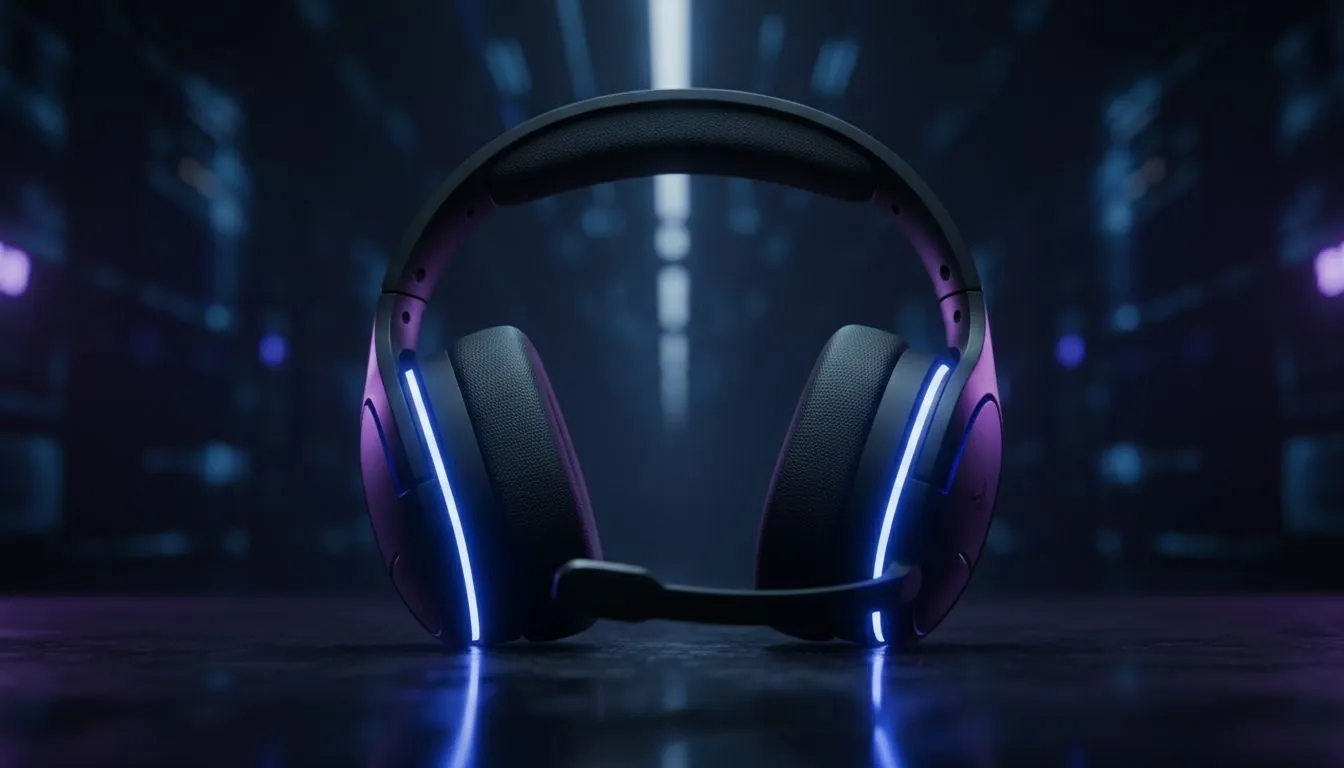
Nothing ruins a clutch Warzone moment like hearing your own voice echo back. It is distracting, annoying, and makes party chat feel like a laggy long-distance call. If you want to stop headset echo on PlayStation and get back to the game, you are in the right place. Let us fix your audio issues so you can focus on the win. 🔧
Adjust Your PlayStation Mic Sensitivity
The most common cause of echo is a mic that is too sensitive. If your headset volume is high, the mic picks up the sound from the earcups. This creates a loop for everyone else in the party. To fix this, navigate to your PlayStation settings. Go to Sound, then Microphone, and select Adjust Microphone Level. Lower the slider until your voice stays in the "Good" zone. This simple change can help stop headset echo on PlayStation instantly.
Party Chat Pro Tip ⚡
If you are using a wired headset, try cleaning the 3.5mm jack with a dry cloth. Dust buildup often causes static or loopback issues that lead to echoing in the party chat.
Hardware Checks and Volume Control
Sometimes the problem is the hardware itself. If you are using an older pair of buds, it might be time for an upgrade. You can browse through our gaming headsets to find a model with better noise isolation. High-quality drivers help prevent sound leakage into the microphone. Also, try lowering your overall headset volume slightly. If your friends can hear your game audio, your mic is definitely too close to the speakers. 🚀
Upgrading to Premium Audio Gear
If software fixes do not work, your current gear might have poor shielding. Many South African gamers are switching to wireless options to avoid cable interference. For example, the Razer Barracuda X Chroma Wireless Headset offers incredible isolation and a dedicated cardioid mic. This mic pattern focuses on your voice and ignores background noise. You can also view more Razer headphones and headsets to find a style that fits your budget and setup. ✨
Optimise Your Controller Settings
Your DualSense or DualShock 4 controller has a built-in speaker. If this volume is too high, it can bleed into your microphone. Go to the Controller settings in your PlayStation menu. Turn down the controller speaker volume to zero if you use a headset. This prevents any stray audio from being picked up by your mic. It is a quick way to stop headset echo on PlayStation without buying new gear. ⚡
Ready to Silence the Echo for Good? Don't let poor audio ruin your gaming sessions. Whether you need a budget-friendly fix or a high-end wireless upgrade, we have the best deals in South Africa. Explore our massive range of gaming headsets and find the perfect pair to keep your party chat crystal clear.











