

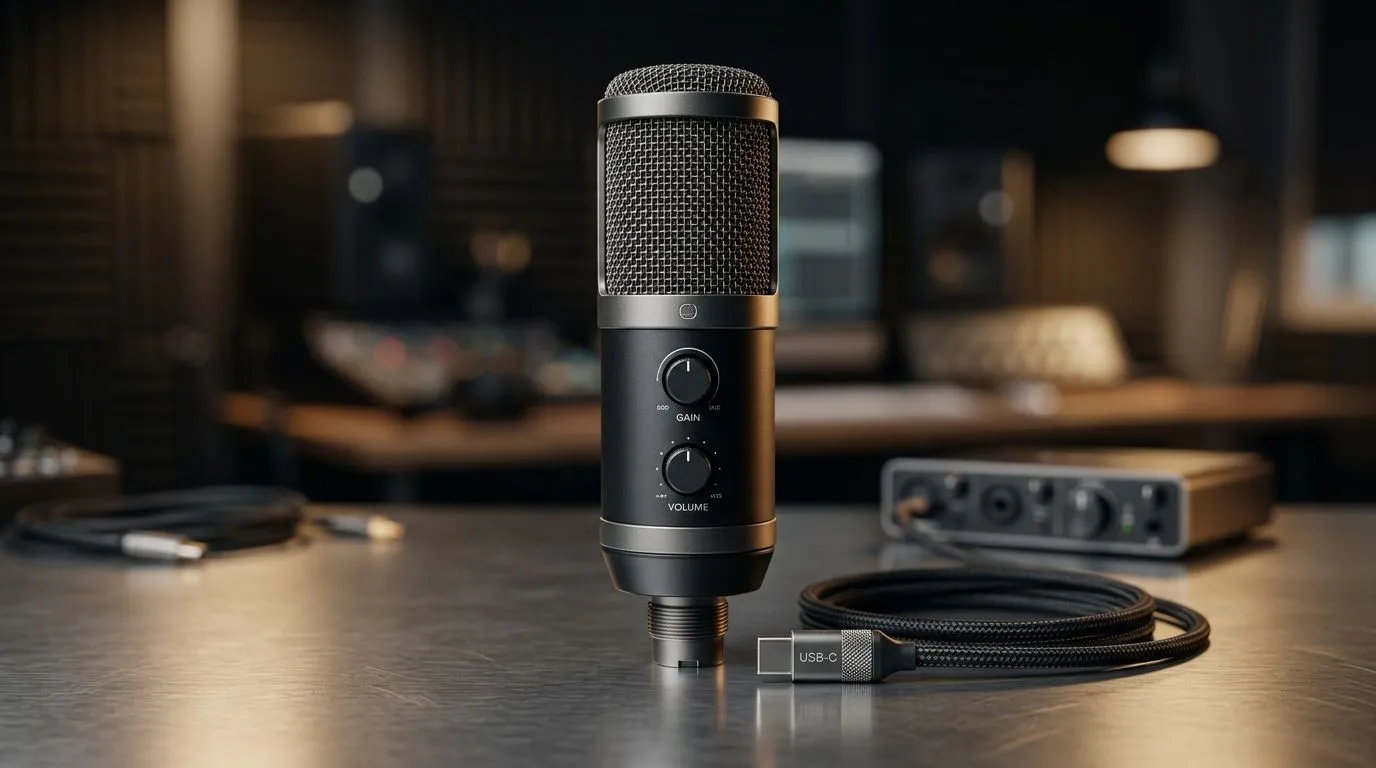
USB-C microphone not detected? Start with the basics 🔧
Nothing kills a stream, Discord call, or console party faster than a mic that vanishes without warning. If your USB-C microphone not detected on PC or console problem just popped up, don’t panic. Most fixes are simple. In many cases, the issue is a loose port, a bad cable, the wrong input selected, or a power/driver hiccup.
The good news? You can usually sort it out in minutes, not hours. Before you buy anything new, work through the checks below in order. It saves time, money, and a lot of frustration.
USB-C microphone not detected on PC or console: check the obvious first ⚡
Start with the physical stuff. It sounds basic, but it’s the most common cause.
Try a different port
Plug the mic into another USB-C port on your PC, laptop, dock, or console setup. Some ports are charge-only, while others support data. If the mic works elsewhere, the first port may be the issue.
Swap the cable
USB-C cables are not all equal. Some carry power only, while others support data and audio properly. If your mic came with a short bundled cable, test a known-good USB-C data cable.
Reboot everything
Unplug the microphone, restart the PC or console, then reconnect it after boot. This clears temporary device detection glitches more often than people expect.
Check the mic’s own controls
Some USB mics have mute buttons, gain dials, or mode switches. A muted mic can look “undetected” when it’s actually just silent.
USB-C microphone not detected on PC or console: fix Windows or console settings
If the hardware looks fine, move to software settings.
On Windows
Open Sound settings and make sure the USB microphone is selected as the input device. In some cases, Windows picks your laptop’s built-in mic instead. Also check Privacy settings to confirm microphone access is allowed for apps and desktop programs.
On consoles
If you’re using a mic with PS5 or another compatible console, confirm that the correct input device is selected in the audio or accessories menu. Console firmware updates can also help when a device stops being recognised after a system change.
For streamers building a cleaner setup, Evetech’s streaming essentials range is a solid place to compare add-ons that improve audio and desk organisation.
USB-C microphone not detected on PC or console: rule out driver and compatibility issues
A mic that works on one machine may fail on another because of drivers or compatibility.
Update audio and USB drivers
On Windows, open Device Manager and check for warnings on USB controllers or audio devices. Update chipset and audio drivers from the motherboard or laptop support page if needed. This often fixes stubborn detection problems.
Test the mic on another device
If possible, plug it into a different PC, laptop, or compatible console. If it works there, the microphone is likely fine. The issue is probably the original device’s settings, ports, or drivers.
Watch for adapter problems
If you are using a USB-C to USB-A adapter, dock, or hub, it may be the weak point. Some low-cost hubs don’t pass audio devices reliably. Direct connection is always the cleaner test.
Quick Audio Check ⚡
A USB-C mic should appear in your sound input list within seconds. If it doesn’t, disconnect it, change ports, and test without a hub first. That simple three-step check solves more ‘dead mic’ complaints than most people realise.
USB-C microphone not detected on PC or console: when the mic works, but not well
Sometimes detection is not the real problem. The device appears, but audio is crackly, too quiet, or cuts out.
USB power can matter
Some microphones need stable power. A front-panel port or cheap hub may not provide enough. Try a rear motherboard port on a desktop PC.
Keep firmware and software current
If your mic has companion software, check for firmware updates. These can improve compatibility and fix recognition bugs.
Reduce interference
Long, low-quality cables and crowded USB setups can cause issues. Keep the mic cable away from power bricks and heavy cable clusters where possible.
For users upgrading their desk setup, Corsair streaming gear can be worth a look when you want a more polished creator workspace.
USB-C microphone not detected on PC or console: think about the whole setup
A microphone doesn’t exist in isolation. Webcams, capture devices, headsets, and lighting all share the same desk environment. If your setup is already crowded, the problem may be signal clutter or port overuse.
That’s why it helps to simplify the chain first, then build back up. A clean connection into a direct port is the fastest way to isolate the fault. If you’re also shopping for better camera quality for calls or content, Evetech’s webcams selection is a practical companion browse.
If you’re planning a full creator corner, even small visual touches help. Cololight accessories can add atmosphere without complicating your audio chain.
USB-C microphone not detected on PC or console: when to replace instead of repair
If you’ve tested the cable, port, drivers, and device settings, the mic itself may be the problem. Physical port wear, internal cable damage, or faulty USB controllers do happen. At that point, replacement is usually cheaper than repeated troubleshooting, especially if you rely on the mic for work, gaming, or streaming.
A good rule: if the mic fails on multiple devices with multiple cables, it’s likely the mic, not your system.
USB-C microphone not detected on PC or console: final quick checklist
Before you give up, run this fast list:
- Try a different USB-C port
- Use a known-good data cable
- Reboot the device
- Check input selection in sound settings
- Allow microphone permissions
- Update drivers or firmware
- Test without a hub or adapter
- Confirm the mic works on another device
Most detection issues disappear somewhere in that list.
Ready to Find Your Perfect Match? The Mac vs Windows debate is complex, but for maximum power, choice, and value in South Africa, Windows is hard to beat. Explore our massive range of laptop specials and find the perfect machine to conquer your world.











