

Can Your PC Run Kingdom Come: Deliverance 2? Quick Spec Check Guide
Can Your PC Run Kingdom Come: Deliverance 2?. Everything you need to know with SA pricing, step-by-step instructions & expert recommendations.
Read moreIs your USB WiFi adapter keeps dropping connection? 🌐 Don't let lag ruin your game. Discover the top reasons for unstable signals and follow our expert guide to restore a rock-solid, high-speed connection to your PC today. 🚀
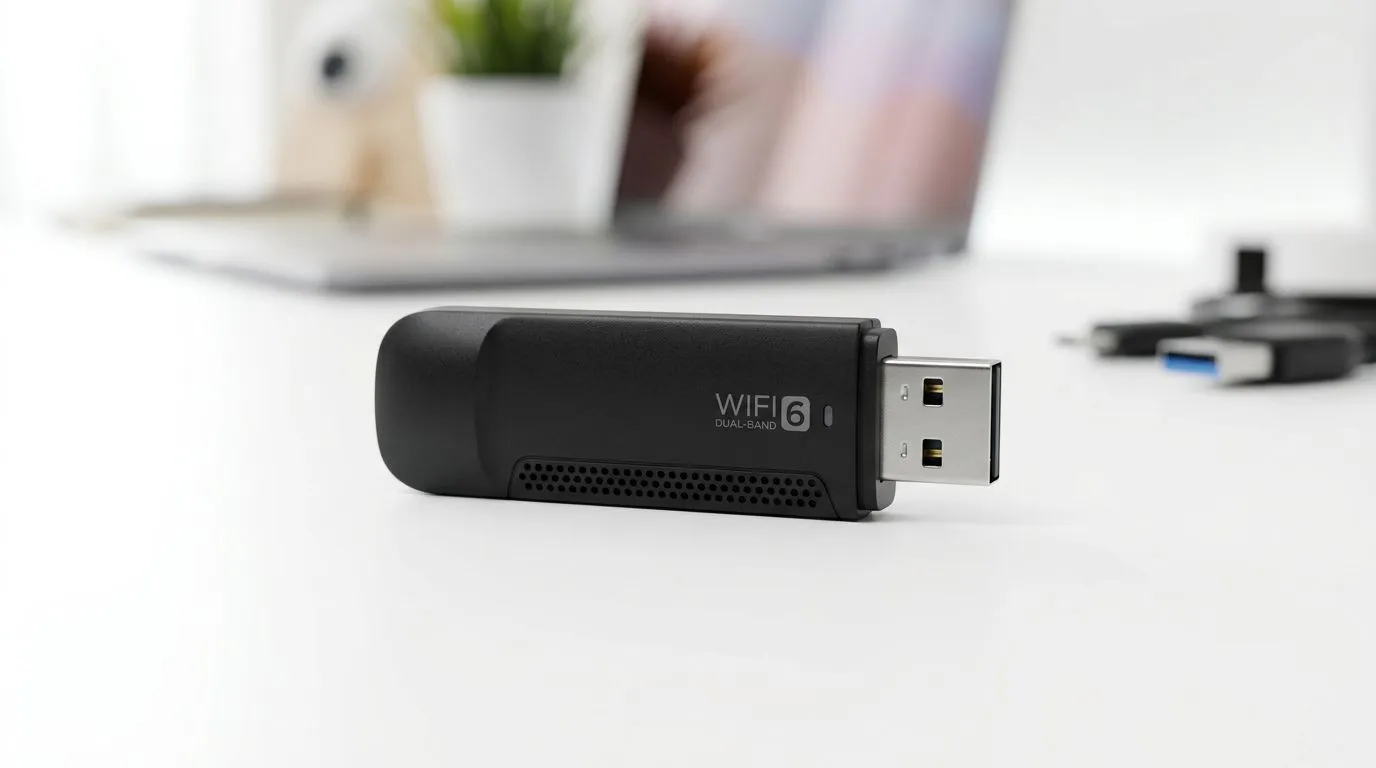
There is nothing worse than being in a heated ranked match, only for your ping to spike or your connection to drop entirely. If your USB WiFi adapter keeps dropping connection, you are likely dealing with a power management issue or driver conflict. We know the frustration of losing a match because of a dodgy signal... so let’s get your rig back online and stable.
Windows often puts USB devices to sleep to save power, which is the leading cause of intermittent drops. Open Device Manager, find your wireless adapter under Network Adapters, and right-click to access Properties. Under the Power Management tab, ensure "Allow the computer to turn off this device to save power" is unchecked. This simple tweak keeps your network adapters fully powered during intense gaming sessions.
Sometimes, the latest driver isn't the greatest. If your connection started dropping after an update, try rolling back the driver. If that fails, visit the manufacturer's website for the latest firmware. For those running high-performance setups, brands like TP-LINK offer robust driver support that usually resolves stability issues out of the box.
USB 3.0 ports can actually cause radio frequency interference with 2.4GHz WiFi signals. If your adapter is plugged directly into a port next to a USB 3.0 external drive, move it to a different port or use a short USB extension cable. This moves the adapter away from the electromagnetic noise generated by high-speed data transfers.
If you are struggling with a crowded 2.4GHz band in an apartment complex, switch your adapter and router to the 5GHz frequency. It offers significantly less interference and faster speeds, which is essential for low-latency gaming.
If you have tried every software fix and your connection is still failing, your hardware might be reaching the end of its lifespan. Older USB adapters often struggle with modern high-speed fibre connections. Upgrading to a modern Cudy adapter can provide a massive boost in reliability and range for your home network. 🚀
Check if other applications are hogging your bandwidth or causing system stutters. Background downloads or cloud syncing services can sometimes overwhelm a struggling adapter. Keep your system clean, your drivers updated, and your signal clear to ensure you stay connected when it matters most. ✨
Ready to Find Your Perfect Match? A stable connection is the backbone of any great gaming experience. Don't let a faulty adapter hold you back—Explore our massive range of network adapters and get back to winning today.
Connection drops are often caused by outdated drivers, aggressive power management settings, USB port power limitations, or signal interference from other devices.
Start by disabling 'Allow the computer to turn off this device to save power' in Device Manager and ensure your WiFi adapter drivers are fully updated.
Yes, poorly shielded USB 3.0 ports can emit radio frequency interference that disrupts 2.4GHz WiFi signals. Try using a USB extension cable to move the adapter.
Yes, if your USB WiFi adapter is overheating due to heavy traffic or poor ventilation, it may drop the connection to protect its internal components.
Absolutely. Outdated drivers are a leading cause of instability. Download the latest drivers directly from the manufacturer’s website for the best performance.
If you have tried all software fixes and the device still drops connection across multiple PCs, it is likely a hardware failure indicating a need for an upgrade.
Can Your PC Run Kingdom Come: Deliverance 2?. Everything you need to know with SA pricing, step-by-step instructions & expert recommendations.
Read more
60FPS Unstable: Achieve. Step-by-step instructions with SA-specific tips, common pitfalls to avoid & expert recommendations.
Read more
Quantisation in AI? How It Lets You Run Models. Plain-English explanation of what it means, why it matters & how it affects your buying decisions in SA.
Read more
Protect Your 1TB SSD During Load Shedding. Step-by-step instructions with SA-specific tips, common pitfalls to avoid & expert recommendations.
Read more
What Import Duties Apply to PC Hardware. Practical breakdown of costs, regulations & whether it makes financial sense for SA buyers.
Read more
the MacBook Notch and Does It Affect Usage. Plain-English explanation of what it means, why it matters & how it affects your buying decisions in SA.
Read more
AMD RX 9050 XT: Rumoured Specs, Price & Release. SA-focused analysis with local pricing data, real-world insights & actionable buying advice.

Can RTX 4080 Super Run AI Workloads for SA Developers Detailed answer with SA data, expert analysis & practical recommendations for local buyers.

Can RTX 4090 Run AI Workloads for SA Developers Detailed answer with SA data, expert analysis & practical recommendations for local buyers.

Top Settings for Intel Arc B580 at Ultrawide 1440p picks evaluated on performance, value & SA availability with current Rand pricing from Evetech.

RTX 4060 CS2 Low Settings at 1080p: FPS Results. Real-world benchmark data, FPS numbers & performance analysis. What SA gamers can actually expect.

Visual Artifacts: Possible GPU Issue Issue #1. Diagnosis steps, proven fixes & when to seek professional help. SA-specific support info included.

Can the RTX 4090 Handle 1440p 144Hz Gaming. Performance testing verdict with real data & practical recommendations for SA buyers.

Top ASUS GPU Under R15000 picks evaluated on performance, value & SA availability with current Rand pricing from Evetech.

GTA 6 Max Settings on RTX 5070. Tested & verified settings for best FPS and visual quality on SA hardware budgets.

Cyberpunk 2077 Max Settings on RTX 5080. Tested & verified settings for best FPS and visual quality on SA hardware budgets.

Starfield Max Settings on RTX 5070 Ti. Tested & verified settings for best FPS and visual quality on SA hardware budgets.

Top RTX 5090 Under R5000 picks evaluated on performance, value & SA availability with current Rand pricing from Evetech.