

Bandwidth Explained: What SA Buyers Need to Know
Bandwidth Explained: What Buyers Need to Know. Plain-English explanation of what it means, why it matters & how it affects your buying decisions in SA.
Read moreIdeal RPM range for quiet case fan operation in SA homes and offices. Balancing thermal performance with acceptable noise levels.
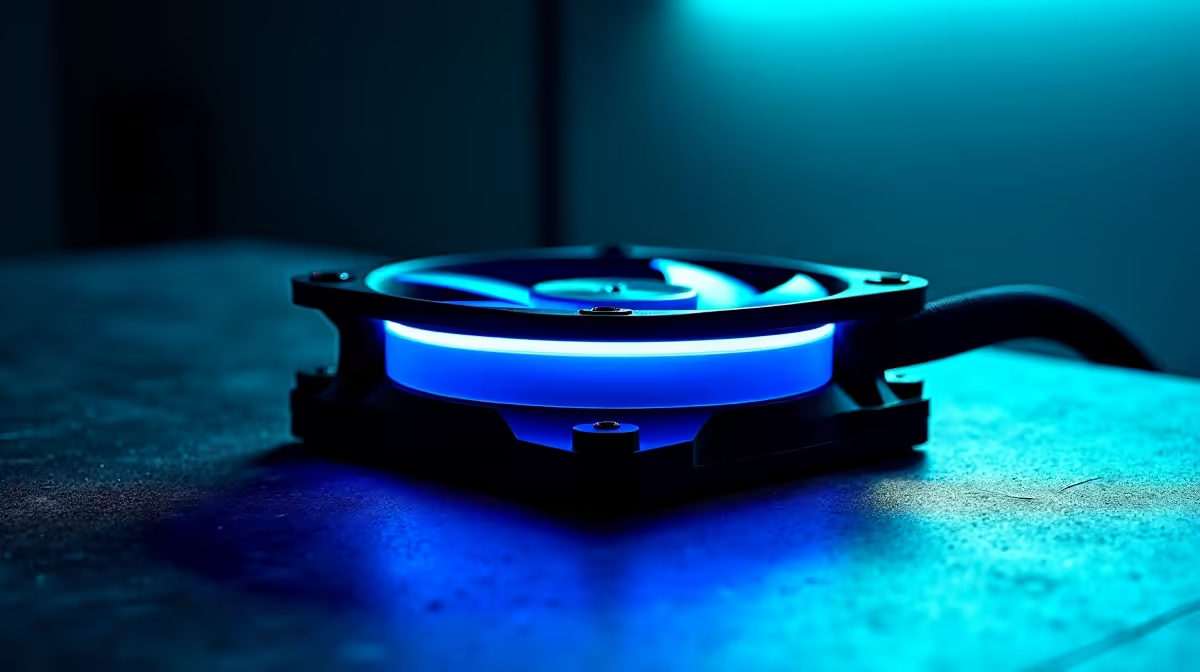
Case fans should run at 800–1400 RPM for quiet office operation and 1400–2000 RPM for moderate gaming, keeping noise under 30 dB during work and 35 dB during play. Above 2200 RPM, even quality fans become noticeably intrusive; below 600 RPM, some fans fail to establish proper airflow. The ideal range depends on your case design, ambient temperature, and noise tolerance.
Before diving into RPM ranges, understand that decibels are logarithmic. A 35 dB fan is not twice as loud as a 30 dB fan—it's roughly 32% louder (because 10 dB roughly doubles perceived loudness). This matters because small RPM adjustments can create noticeable noise changes.
Common reference points:
Most South African office workers and students find 30–35 dB acceptable during work. Gamers tolerate 35–40 dB during active gameplay but want silence during browsing.
This is your baseline. When your PC is browsing the web, working on documents, or running light tasks, fans should be in this range.
800–1000 RPM: Barely audible. High-quality fans stay under 25 dB. Cheap fans might reach 28 dB. Use this range for office PCs, productivity machines, and late-night browsing.
1000–1200 RPM: Subtle background hum, around 28–30 dB with quality fans. This is the sweet spot for most users—you can hear the fans if you listen for them, but they don't intrude on conversations or gaming.
Why not lower? Some cheap fans don't spin smoothly below 800 RPM. Bearing friction becomes noticeable, or airflow becomes inconsistent. Quality fans (ball/fluid dynamic bearing) run smoothly down to 600 RPM, but there's diminishing cooling benefit.
When you choose case fans on Evetech, prioritise fans with good low-RPM performance specs. A fan that runs quietly at 1000 RPM is more valuable than one that's slightly quieter at 1200 RPM but noisier below 1000 RPM.
During casual gaming (esports titles, older games, or games running at high frame rates), your system generates moderate heat. CPU temps hit 55–65°C, GPU temps stay 50–65°C. Your fans should ramp up slightly but not reach maximum.
1200–1400 RPM: Still quite quiet, 30–32 dB range. Noticeable but not annoying. This is the operating point for many gaming builds during lighter loads.
1400–1600 RPM: Moderate fan noise, 32–36 dB. You can hear the fans clearly, but they're not drowning out game audio (assuming headphones or moderate speaker volume).
At this range, quality fans maintain smooth operation and consistent noise. Cheap fans start showing bearing noise (grinding, inconsistency). The difference between a R400 fan and a R700 fan becomes apparent here.
Intensive games (AAA titles at high settings, rendering, streaming) push your system harder. CPU hits 70–80°C, GPU hits 70–85°C. Fans ramp to moderate-high speeds.
1600–1800 RPM: Still manageable, 34–38 dB. Audible but not excessive. Most gaming setups operate in this range under load.
1800–2200 RPM: Clearly audible, 38–42 dB. You're aware of the fans. Some gamers with good headphones barely notice; others find it distracting. This is the threshold where quality matters—a well-designed R700 fan at 2000 RPM is tolerable; a budget fan at the same speed is annoying.
Above 2200 RPM, most fans become noticeably loud regardless of quality. This is acceptable for brief periods (a 5-minute gaming spike) but not sustainable for hours.
Extreme gaming (Cyberpunk 2077 ultra, rendering, mining) or thermal emergencies push fans to 2500–3000 RPM.
2200–2500 RPM: 40–45 dB. Definitely loud. Acceptable during intense gaming but you'll appreciate audio isolation (headphones, quiet room).
2500–3000 RPM: 45–50 dB. Very loud, like a small air compressor. Only acceptable during brief intense work. Sustained operation at this speed indicates a cooling problem—either your system is too hot, or your fan curve is too aggressive.
Well-designed builds rarely sustain 2500+ RPM during normal gaming. If your fans are constantly above 2200 RPM, diagnose:
SA ambient temperature varies significantly:
Winter (June–August, ~15–20°C ambient):
Summer (November–February, ~28–35°C ambient):
During summer months, your absolute RPM ranges shift 400–600 RPM higher just due to ambient temperature. This is why quality fans with smooth low-RPM performance matter more in South Africa than in cooler climates.
When you shop for CPU coolers on Evetech, consider SA summer ambient. A cooler adequate for European testing (20°C ambient) might struggle in JNB summer (35°C ambient).
Modern motherboards let you configure a custom fan curve—RPM vs. temperature mapping. Here's a reasonable approach for quiet South African builds:
Conservative/Quiet Curve:
With this curve, your office PC is nearly silent (sub-1000 RPM during browsing), and even gaming keeps fans around 1400–1800 RPM—noticeable but not intrusive.
Standard/Balanced Curve:
Aggressive/Cool Curve:
Your BIOS fan curve editor lets you adjust these points. Experiment and find your comfort zone. Many builders start conservative and adjust if they see temperature creep.
Fan bearing type dramatically affects noise consistency:
Sleeve bearing: Cheap, rough sound across all speeds. At 1200 RPM, you hear grinding/friction. Avoid for quiet builds.
Ball bearing: Smooth, consistent noise. Scales well from 800–2500 RPM. Standard for quality fans.
Fluid dynamic bearing: Silky smooth, minimal noise even at 2000 RPM. Best choice for quiet operation but costs 10–15% more.
Hybrid ceramic bearing: Premium option, extremely smooth. Rarely necessary for consumer gaming builds.
When comparing two fans at the same listed RPM and noise level, the bearing type determines perceived quality. A ball-bearing R600 fan sounds better than a sleeve-bearing R400 fan.
A fan's listed noise in dB (measured in anechoic chamber) doesn't match real-world perception in your case. Two confounding factors:
Case resonance: Some cases amplify fan noise due to internal resonance frequencies. A fan quieter in testing might sound louder in your specific case due to vibration amplification. Use rubber grommets and damping pads to reduce this.
Case insulation: Thick case walls and acoustic foam absorb fan noise. Budget cases with thin steel amplify it. When shopping for cases on Evetech's selection, note that premium cases are quieter at the same fan RPM due to better construction.
Use HWiNFO64 (free) or similar monitoring software to see actual fan RPM during use. Don't rely on BIOS percentages—PWM 50% in one BIOS setting might be 1200 RPM, in another 1400 RPM depending on fan model.
Monitor real RPM, cross-reference against the fan's noise specifications (your manual should list dB at various RPM), and validate that your system matches expectations.
Example: If 1800 RPM feels too loud, cap your curve at 1700 RPM max. Accept that summer gaming temperatures might be 2–3°C higher—that trade-off is worth the silence.
Scenario 1: Student in a Dorm (Shared Space) Noise sensitivity is very high—neighbours will hear your PC at night. Target max 1500 RPM during gaming (around 32 dB). Accept that summer brings thermal challenges. Build with efficient cooling (good case, quality coolers, positive pressure airflow) to keep RPM low despite ambient heat.
Scenario 2: Home Office (Solo Environment) Balance is key. 1200 RPM baseline during work, 1800 RPM during gaming. Acceptable noise profile with headphones on. Investment in quality fans (R600–800) pays off by keeping speeds lower for same thermals.
Scenario 3: Gaming Cave (Dedicated Room) Noise is less critical. Can tolerate 2200 RPM during intense gaming. Use this freedom to optimise for thermals over silence—accept higher fan speeds in exchange for peak performance during competitive gaming.
Some high-end BIOS implementations let you adjust how quickly fans respond to temperature changes. A slower ramp (fans increase by 100 RPM per 5°C temperature rise) creates less jarring noise transitions than fast ramps (500 RPM per 1°C).
If your motherboard supports ramp rate adjustment, use a conservative ramp. Your thermals won't suffer (fans still reach their setpoints), and the subjective noise experience is significantly improved.
For maximum quiet operation, balance three factors:
Investing in all three multiplies benefits—your cooler efficiency + good fan curve + quality fans can result in a gaming PC running at 1400–1600 RPM during heavy gaming in summer heat, where a cheaply-built equivalent needs 2000+ RPM.
Build your quiet gaming PC with quality components from Evetech. Browse high-efficiency coolers and quiet case fans designed to keep RPM ranges low and noise minimal. Smart thermal design means enjoying your build without the noise penalty.
Bandwidth Explained: What Buyers Need to Know. Plain-English explanation of what it means, why it matters & how it affects your buying decisions in SA.
Read more
Set Up RX 7800 XT for Competitive Gaming. Step-by-step instructions with SA-specific tips, common pitfalls to avoid & expert recommendations.
Read more
Can the Ryzen 5 9600X Handle 4K Gaming Without Bottlenecking Detailed answer with SA data, expert analysis & practical recommendations for local buyers.
Read more
Why Is Ping So High in South Africa for Gaming Detailed answer with SA data, expert analysis & practical recommendations for local buyers.
Read more
Can a 1200W PSU Handle the RX 9070 XT? Power. Plain-English explanation of what it means, why it matters & how it affects your buying decisions in SA.
Read more
How Does Altitude Affect PC Cooling in Gauteng Detailed answer with SA data, expert analysis & practical recommendations for local buyers.
Read more
AMD RX 9050 XT: Rumoured Specs, Price & Release. SA-focused analysis with local pricing data, real-world insights & actionable buying advice.

Can RTX 4080 Super Run AI Workloads for SA Developers Detailed answer with SA data, expert analysis & practical recommendations for local buyers.

Can RTX 4090 Run AI Workloads for SA Developers Detailed answer with SA data, expert analysis & practical recommendations for local buyers.

Top Settings for Intel Arc B580 at Ultrawide 1440p picks evaluated on performance, value & SA availability with current Rand pricing from Evetech.

RTX 4060 CS2 Low Settings at 1080p: FPS Results. Real-world benchmark data, FPS numbers & performance analysis. What SA gamers can actually expect.

Visual Artifacts: Possible GPU Issue Issue #1. Diagnosis steps, proven fixes & when to seek professional help. SA-specific support info included.

Can the RTX 4090 Handle 1440p 144Hz Gaming. Performance testing verdict with real data & practical recommendations for SA buyers.

Top ASUS GPU Under R15000 picks evaluated on performance, value & SA availability with current Rand pricing from Evetech.

GTA 6 Max Settings on RTX 5070. Tested & verified settings for best FPS and visual quality on SA hardware budgets.

Cyberpunk 2077 Max Settings on RTX 5080. Tested & verified settings for best FPS and visual quality on SA hardware budgets.

Starfield Max Settings on RTX 5070 Ti. Tested & verified settings for best FPS and visual quality on SA hardware budgets.

Top RTX 5090 Under R5000 picks evaluated on performance, value & SA availability with current Rand pricing from Evetech.