

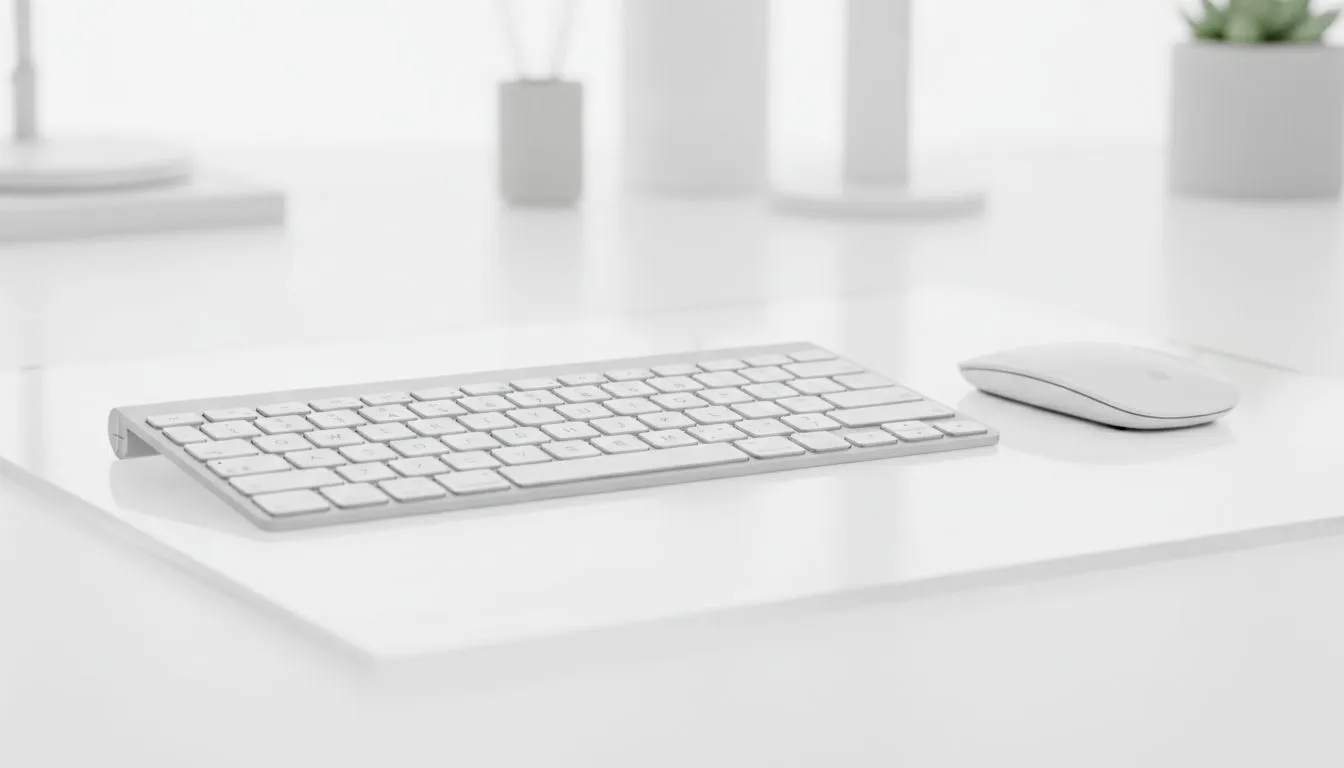
Fast start for wireless keyboard and mouse setup 🔧
South African gamers: want a fuss-free way to go wireless? Whether you're swapping in a low-latency combo for ranked play or ditching cable clutter on your home desk, this quick guide gets your wireless keyboard and mouse setup for plug-and-play on Windows & Mac in minutes. Read on for pairing tips, battery hacks, and shop links to compare ZAR prices. ⚡
Wireless keyboard and mouse setup: first steps
Start by deciding connection type: Bluetooth or a 2.4 GHz USB dongle. Bluetooth saves a USB port. A dedicated dongle usually gives lower latency for gaming. If you want to browse current deals and ZAR prices, check Evetech’s best gaming keyboard deals page for options and specials: best gaming keyboard deals.
Plug-and-play on Windows: quick checklist
- Charge or insert batteries.
- For dongle devices, plug the receiver into a free USB port. Windows should auto-recognise the devices.
- For Bluetooth, open Settings > Bluetooth & devices and add the keyboard and mouse. If pairing fails, remove old pairings and retry. For combo options in one purchase, see our keyboard + mouse combos page and compare bundles priced in ZAR: keyboard + mouse combos. 🚀
Setup Pro Tip ⚡
When using a dongle, plug into a USB 2.0 or 3.0 port directly on the PC. If you get interference, use a short USB extension to bring the receiver closer to your keyboard and mouse. For Windows, toggle Airplane Mode off before pairing to avoid Bluetooth conflicts.
Plug-and-play on Mac: what to watch
On macOS, turn on Bluetooth in System Settings > Bluetooth, then put both devices into pairing mode. Macs prefer single-peripheral pairing, so pair one device at a time. If you prefer wired or want to compare wired and wireless keyboards, browse wired options here: wired keyboards. For wireless-specific models, see this Evetech listing: wireless keyboards.
Troubleshooting and pro tips
- If keys double-register, update firmware via the manufacturer's tool. Evetech stock pages often link to vendor support.
- To reduce latency, pick 2.4 GHz dongle kits for competitive play. Compare local pricing and stock before buying by visiting our cheapest keyboard listing: cheapest gaming keyboards.
- Keep spare AA/AAA or a USB-C cable handy. Many modern combos use rechargeable batteries; some let you game while charging.
Final thought
A clean wireless setup frees your desk and gives you flexibility across devices. Small steps—like using the right port for the dongle—make the experience feel truly plug-and-play on Windows & Mac. ✨
Ready to Find Your Perfect Match? The Mac vs Windows debate is complex, but for maximum power, choice, and value in South Africa, Windows is hard to beat. Explore our massive range of laptop specials and find the perfect machine to conquer your world.











