

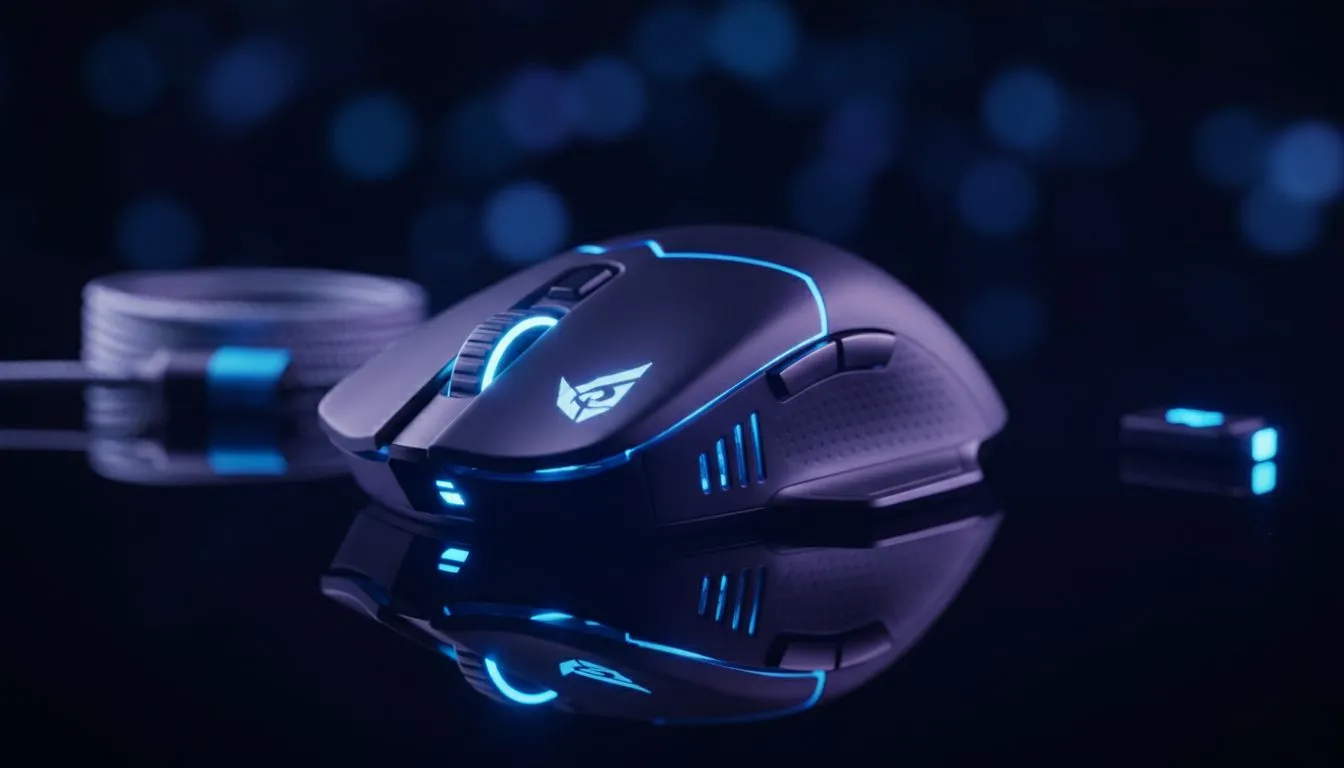
Nothing kills a clutch moment in Apex Legends or Warzone faster than a stuttering cursor. You’re mid-flick, and suddenly, your aim freezes. Dealing with wireless mouse connection issues is a frustration every South African gamer knows too well. Whether it’s interference from your router or a dying battery, we’ve got the fixes to get you back in the lobby without the lag.
Quick Fixes for Wireless Mouse Connection Issues
Before you assume your sensor is toast, check the basics. Most connectivity drops happen because of low power. Even if your software says you have 20% left, voltage can drop during intense movements. If you decide to buy wireless mouse hardware from the latest generation, you will notice improved power management. Always try a fresh set of batteries or a different charging cable first.
Sometimes, the issue is physical. Dust in the sensor or a worn-out surface can mimic connection drops. Ensure your desk setup is clean... a small piece of lint can cause havoc with your tracking.
Managing Signal Interference and Range
South African homes are often filled with signal-blocking brick walls and crowded 2.4GHz bands. Your WiFi router, microwave, and even your smartphone can interfere with your mouse signal. To fix this, try to keep your USB dongle as close to your mouse as possible. Many users buy mouse accessories like USB extenders to bring the receiver right to the edge of the mousepad. This reduces the distance the signal needs to travel and cuts through the "noise" of other devices 🔧.
Signal Strength Pro Tip ⚡
USB 3.0 ports are known to emit radio frequency interference that can hamper 2.4GHz wireless devices. If your mouse is stuttering, try plugging the receiver into a USB 2.0 port instead. It sounds counter-intuitive, but the older ports often provide a cleaner signal for peripherals.
Software and Driver Stability
Your hardware is only as good as the code running it. Corrupted drivers are a leading cause of wireless mouse connection issues. Windows updates can sometimes overwrite your specialised peripheral software. It is always worth visiting our extensive gaming mouse range page to see which brands offer the most stable software suites. Reinstalling your manufacturer's programme (like Razer Synapse or Logitech G Hub) can often reset the pairing and solve "ghost" disconnects 🚀.
When to Upgrade or Switch to Wired
If you have tried every step in this troubleshooting guide and still face lag, the internal radio or capacitor might be failing. Hardware does not last forever... especially after years of competitive clicking. You might want to browse the best gaming mouse deals to find a modern replacement with better polling rates.
For those who never want to worry about interference again, many local pros choose to buy wired mouse options for total peace of mind. With modern "paracord" cables, you get the reliability of a wire with the freedom of wireless ✨.
Ready to Find Your Perfect Match? Wireless issues shouldn't hold your K/D ratio hostage. Whether you need a high-performance wireless upgrade or a rock-solid wired backup, Evetech has the best tech at the best prices in SA. Explore our massive range of gaming mice and find the perfect tool to conquer your next match.











