

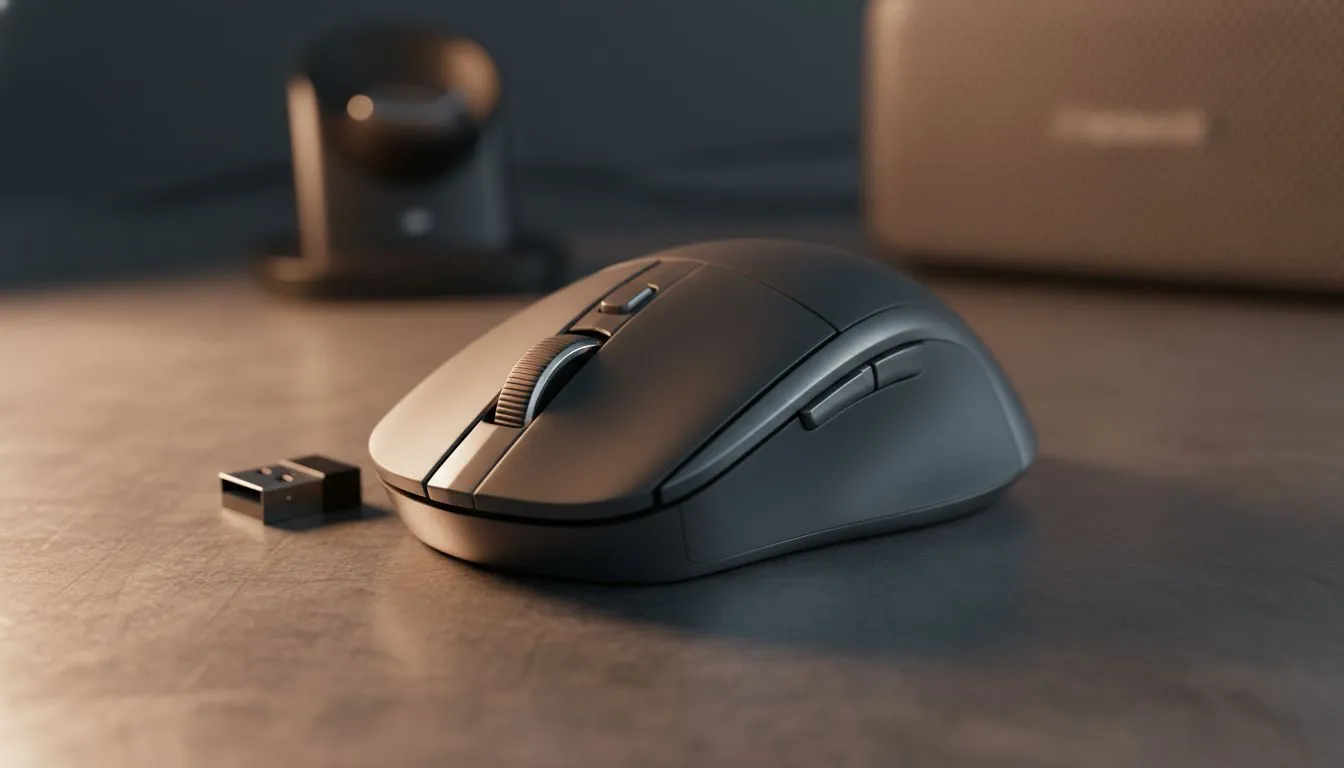
There is nothing more frustrating than your cursor freezing mid-clutch. You are lining up a perfect headshot on a local Cape Town server... then nothing. If your wireless mouse is not connecting, do not panic just yet. Most connectivity issues take less than a minute to resolve. Whether it is Bluetooth lag or 2.4GHz interference, we have the expert fixes to get you back in the game 🔧.
Quick Checks for a Wireless Mouse Not Connecting
Before diving into complex settings, start with the basics. Ensure your device is actually switched on. It sounds simple, but many modern peripherals have tiny power-save toggles. If the sensor light is off, your batteries might be flat. High-performance gaming mouse models often drain power faster than standard office variants. Swap in a fresh pair of batteries or plug in the charging cable for ten minutes to see if the connection returns.
Troubleshooting Bluetooth and 2.4GHz Issues
Most South African gamers use either Bluetooth or a 2.4GHz USB dongle. If you chose to buy wireless mouse hardware recently, it likely supports both. For 2.4GHz, try moving the USB receiver to a different port. Avoid using USB hubs, as they can cause power fluctuations. For Bluetooth, toggle the "Bluetooth" setting in Windows off and back on again. Sometimes the pairing handshake simply fails and needs a quick reset to find the signal.
Signal Strength Pro Tip ⚡
USB 3.0 ports can sometimes emit radio frequency interference that affects 2.4GHz wireless receivers. If your mouse feels jittery, use a short USB extension cable to move the dongle away from the PC chassis. This small gap often clears up the signal and eliminates annoying cursor skipping instantly.
Managing Wireless Interference and Range
Signal interference is a common culprit in busy households. Your Wi-Fi router, microwave, and even your smartphone can disrupt the 2.4GHz band. Try to keep your router at least one metre away from your desktop setup. If your PC is under a heavy desk, the signal might struggle to penetrate the wood or metal. Using specific mouse accessories like a weighted USB dock can bring the receiver right next to your mousepad for a flawless link 🚀.
Driver Updates and Software Resets
If the hardware seems fine, the problem might be your software. Windows updates can occasionally break peripheral drivers. Open your Device Manager and look for any yellow warning icons. Right-click your mouse and select "Uninstall device," then unplug and replug the receiver. Windows will automatically reinstall the correct driver. If your mouse still refuses to behave, it might be time to browse the best gaming mouse deals for a replacement. Sometimes internal components simply wear out after years of clicking. If you are tired of wireless headaches, you can always buy wired mouse options to ensure you never lose a connection again ✨.
Ready to Find Your Perfect Match? A reliable connection is the difference between a win and a loss. Whether you need the latest low-latency wireless tech or a rock-solid wired setup, we have the gear to keep you moving. Explore our massive range of gaming mouse deals and find the perfect tool to dominate your next match.











