

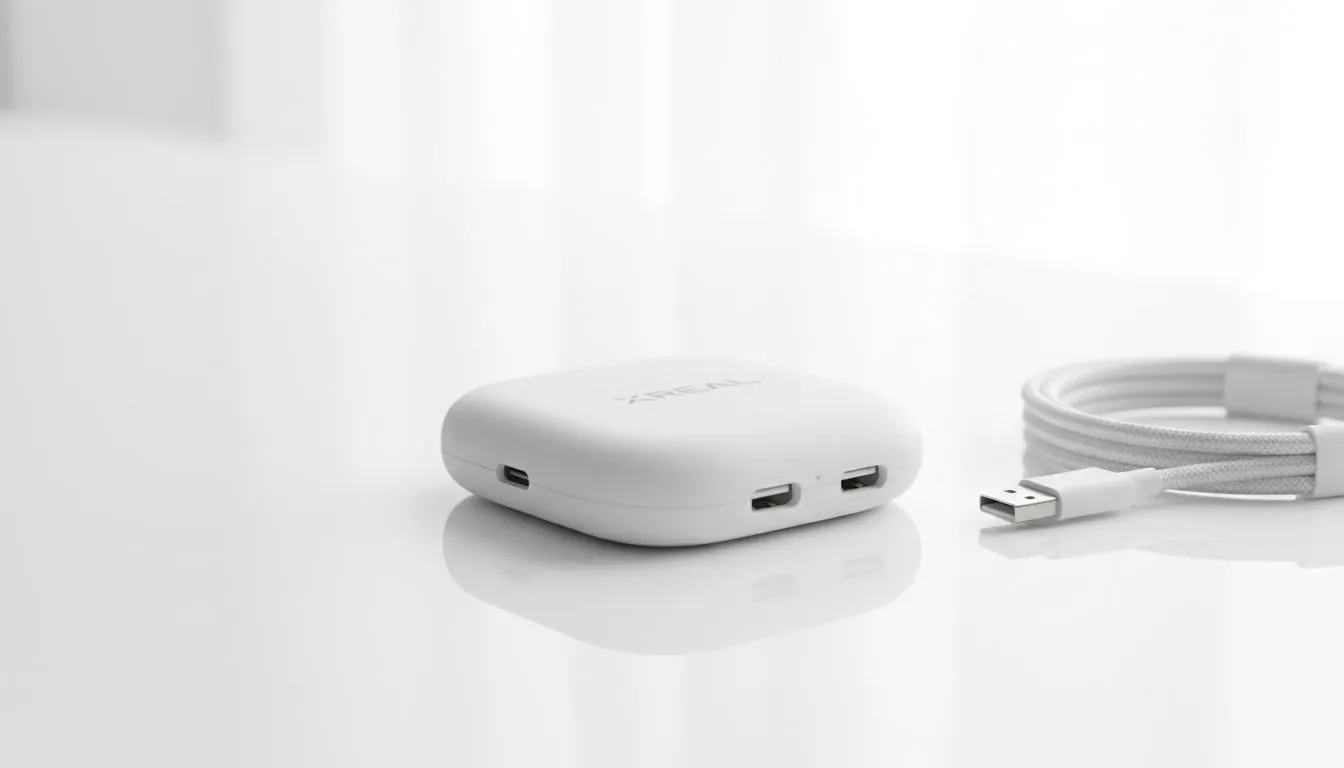
If you have ever tried to game on your phone or handheld while using AR glasses, you know the struggle. Your battery drains faster than a Cheetahs winger on a break. That is where the XREAL Hub setup: 5-minute plug-and-play guide comes in. It is the ultimate solution for South Africans who want to keep their gear charged while staying immersed in a massive virtual screen.
Streamlining your XREAL Hub setup
First, grab your hub. It is a compact bit of kit... designed to split your single USB-C port into two. This allows you to charge your device while outputting video to your AR glasses. It is compatible with most modern smartphones and gaming handhelds. The build quality feels sturdy, which is great for those of us who tend to be a bit rough with our travel gear 🔧.
The 5-minute plug-and-play guide sequence
Start by plugging the hub’s main USB-C cable into your host device. This could be your Samsung Galaxy, Steam Deck, or Nintendo Switch. Next, plug your charging cable into the port marked with the lightning bolt icon. Finally, connect your glasses to the remaining port. If you are still looking for the perfect pair, you can search for AR glasses on our store to see what fits your budget. Your device should recognise the external display immediately. There is no need for complex drivers or software updates. It is a true plug-and-play experience that respects your time 🚀.
Power Management Pro Tip ⚡
Always use a high-wattage wall charger with your XREAL Hub. If you are using a Steam Deck or ROG Ally, a 65W PD charger ensures that both the console and the glasses receive enough power to run without draining the internal battery during intense gameplay sessions.
Optimising your mobile gaming experience
The beauty of this hub is the Power Delivery support. It ensures your handheld stays topped up even during long sessions. For those looking at higher-end setups, checking out premium AR glasses options will reveal displays with better refresh rates and colour accuracy. No more choosing between a dead battery and a big screen. This setup is particularly useful during load-shedding... just plug into a power bank and keep the entertainment going in full HD 🕶️.
Ready to Upgrade Your Reality? The XREAL Hub is the best way to ensure your portable gaming never hits a dead end. For the latest tech and the best value in South Africa, Evetech is your home for augmented reality. Explore our massive range of AR glasses and find the perfect setup to conquer your virtual world.











