

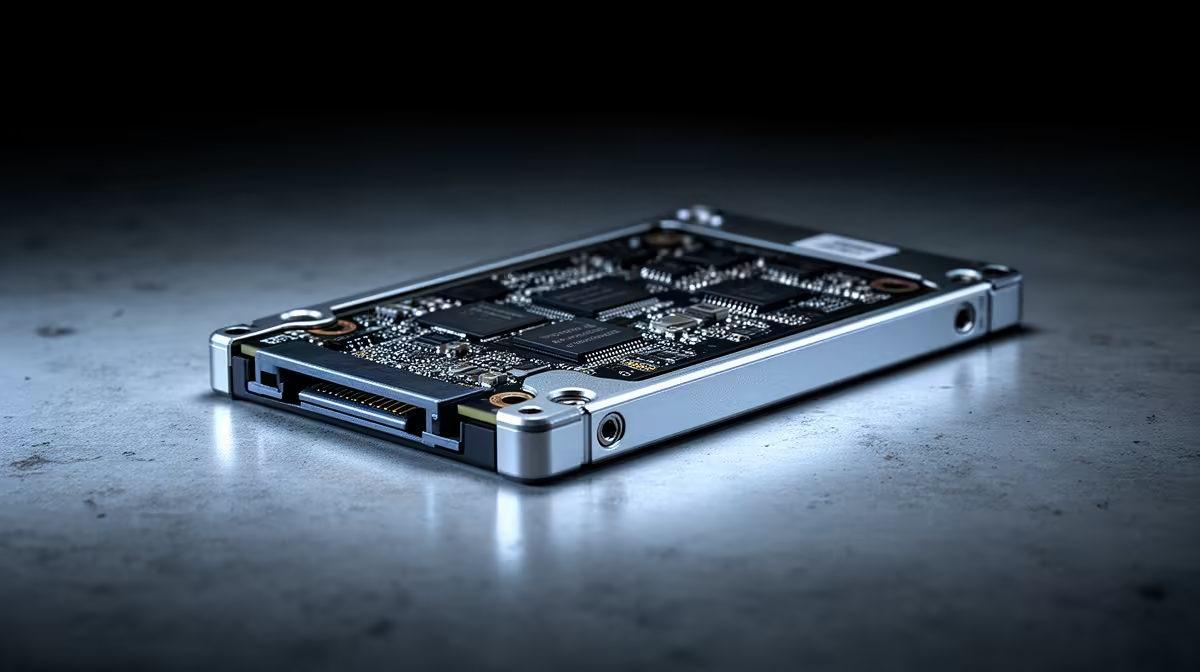
2.5 Inch SATA SSD Compatibility: laptop and desktop guide for SA gamers
If your PC feels slow when launching games, it’s usually not your imagination… it’s often storage. A 2.5-inch SATA SSD can make Windows boot faster and level load times feel less painful. But compatibility is where buyers get caught out. 🔧
Before you spend your hard-earned ZAR, you need to confirm your laptop or desktop supports a 2.5-inch SATA drive slot and the right connector. Let’s walk through the checks, with a few practical tips for South African upgrades.
What “2.5 inch SATA SSD compatibility” actually means
A “2.5-inch SATA SSD” is the drive form factor (size) plus the interface (how it connects).
- 2.5-inch refers to the physical size that typically fits laptop bays and 2.5-inch drive caddies in desktops.
- SATA means it uses the SATA data connection (and SATA power in desktops). Most older laptops and many desktops support it.
- You’re not dealing with the faster M.2 NVMe world here. SATA SSDs are still a big upgrade over HDDs, especially for everyday use and gaming load screens.
For a good range of options, start with Evetech’s SSD selection here: 2.5 inch SATA SSD options at Evetech
Compatibility checklist for laptops (the common SA scenario)
Most upgrades come from budget-to-midrange laptops with an existing 2.5-inch bay. Still, don’t assume.
1) Confirm your laptop has a 2.5-inch bay or bracket
Look for:
- An existing 2.5-inch drive installed
- A slot for a 2.5-inch caddy under the bottom cover
- Space for a SATA connection
If you currently have an HDD, this is usually a straight swap. If you have an M.2 drive only, a 2.5-inch SATA SSD may require extra mounting hardware and may not be possible.
2) Check SATA support (it’s usually “yes”)
If the laptop originally shipped with a 2.5-inch HDD, SATA support is almost certainly there.
3) Plan your cloning or fresh install
Cloning saves time, but if you’re fighting Windows issues, a clean install can be healthier.
Productivity Pro Tip ⚡
On Windows, create a bootable USB installer (using Microsoft’s media tool) before you open your laptop. That way, if cloning fails or you discover the drive isn’t detected, you can install clean and get gaming again fast.
Compatibility checklist for desktops (simple, but not always)
Desktops are typically easier, but there are still gotchas.
1) Drive bay + SATA cables
You need:
- A 2.5-inch mounting point (often in a 3.5-inch-to-2.5-inch adapter bracket)
- A SATA data cable
- SATA power if the PSU provides it (most do)
Many people forget to check what cables are included with their older case or PSU.
2) BIOS detection and boot order
After installing:
- Enter BIOS/UEFI
- Confirm the SSD appears
- Set the SSD as the boot device
If it doesn’t show up, don’t panic. Reseat the connections and double-check the cable ends.
Picking the right SSD for your use (and your budget in ZAR)
Speed matters, but so does reliability and the warranty.
If you want to filter by brand, Evetech makes it easy. For example:
And if you’re actually planning an NVMe upgrade instead of SATA, don’t mix product families. For reference:
- If your system supports M.2 2280, check M.2 2280 options
- If you’re comparing newer generations, review Gen 5 (NVM…) options
Those pages are useful even if you ultimately choose SATA. They help you avoid ordering the wrong connector type by accident. 🚀
What to do next before you buy (quick action steps)
- Write down your current drive type: HDD, SATA SSD, or M.2.
- Measure or inspect your drive bay. If you see a 2.5-inch HDD, you’re in great shape.
- Decide: clone for speed or fresh install for stability.
- Confirm your budget in ZAR… then buy from a reputable supplier with clear product info.
If you get stuck at the compatibility stage, that’s where a quick chat saves money and time.
Ready to Find Your Perfect Match? The Mac vs Windows debate is complex, but for maximum power, choice, and value in South Africa, Windows is hard to beat. Explore our massive range of laptop specials and find the perfect machine to conquer your world.











