

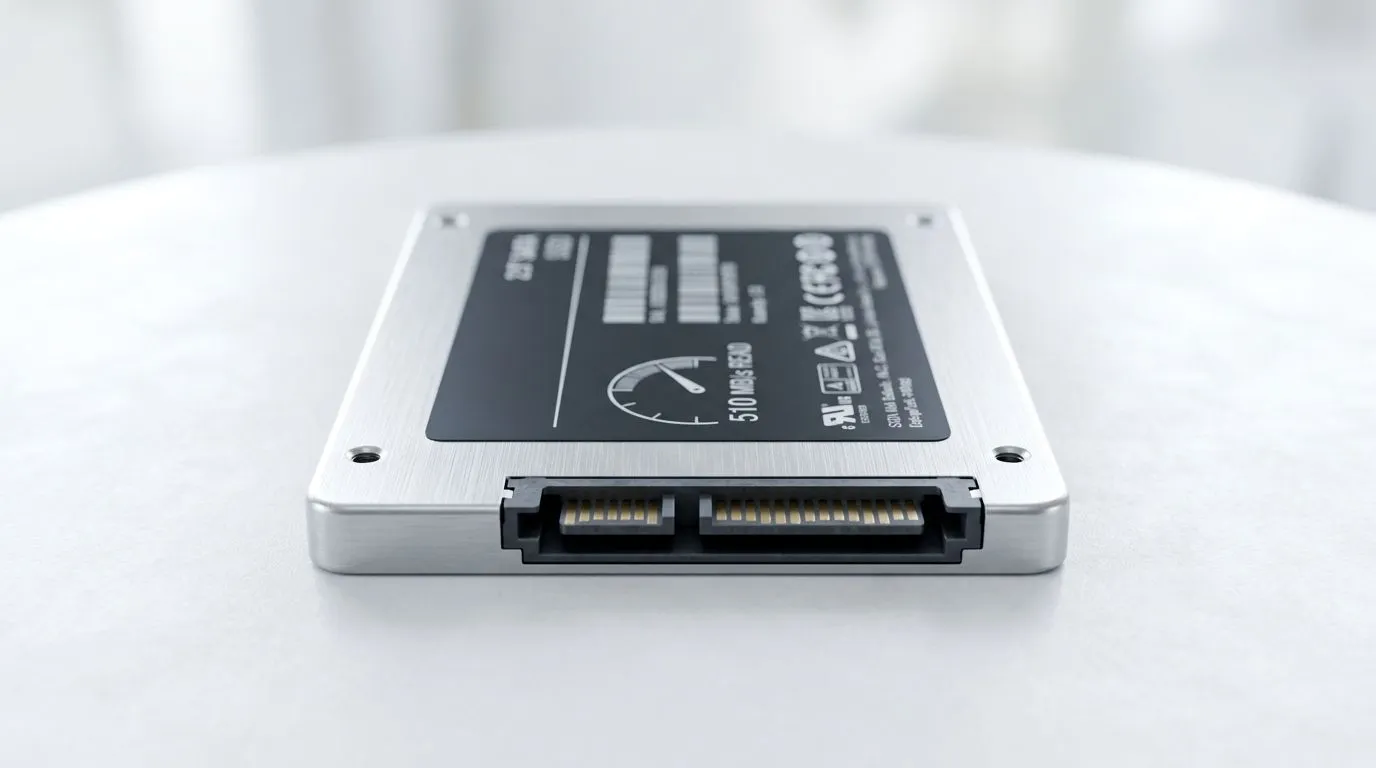
2.5" SATA SSD vs HDD: the real difference you feel every day
If your PC feels sluggish right after you click “Play”, you’re not imagining it. In South Africa, where we often stretch budgets across multiple parts, storage upgrades are one of the most noticeable fixes. 🔧 A 2.5" SATA SSD can deliver around 510 MB/s sequential reads, while a traditional HDD often moves far less and has higher seek delays. The result? Faster boot, quicker load screens, and smoother day-to-day use... especially after you install a few big games.
Why 2.5" SATA SSD vs HDD feels faster in games and Windows
Here’s the micro-story many local gamers recognise. You’re in the lobby… you alt-tab to check Discord… then your browser takes ages to open. On an HDD, reads and seeks fight for time. On a 2.5" SATA SSD, data access is quicker and more consistent, so Windows responds sooner and game assets stream in with less waiting. ⚡
Even if both drives are “working”, the experience differs because of latency. SSDs reduce the time it takes to locate and fetch files. That means fewer stutters when a map loads, fewer delays when you patch, and faster application switching.
What to expect from the 510 MB/s spec
Sequential throughput like ~510 MB/s is typical of mainstream 2.5" SATA SSDs. It’s not the only factor that matters, but it’s a strong indicator of the performance jump versus HDDs. For the best overview of buying options, see Evetech’s solid state drive range here:
Choosing your drive: SATA SSD now, HDD later (or never)
If you’re on a tight budget, you don’t have to replace everything at once. A common upgrade path is:
- Install your OS on a 2.5" SATA SSD
- Keep your HDD for bulk storage (media, archives, non-critical games)
- Move your “main” games to SSD over time
That approach gets you the responsiveness first, and it fits South Africa’s “upgrade in steps” reality. 🚀
Brand and form-factor tips before you buy
Not every SSD is the same, and not every system accepts every drive. Stick to the right form factor and interface.
- If you prefer specific brands, browse ADATA SSD options at Evetech
- Want Kingston? Check Kingston SSDs here
- For classic laptop/desktop upgrades, ensure the drive matches your bay: 2.5" / M.2 2280 options at Evetech
Note: M.2 NVMe models use different interfaces than SATA SSDs. If you’re staying with a SATA slot, don’t accidentally buy an NVMe drive you can’t use.
Gen 5 vs SATA: don’t mix up interfaces
Some tech shoppers get excited by “Gen 5” numbers and forget compatibility. If your motherboard supports NVMe, you may have faster options, but that’s a different upgrade path than a 2.5" SATA drive.
- See interface-specific selections like Gen 5 (NVM…) at Evetech
Productivity Pro Tip ✨
your Windows PC after installing a 2.5" SATA SSD, move your game libraries intentionally: keep the OS and launcher on the SSD, then copy 1–2 frequently played games first. You’ll feel the difference quickly, and you can migrate the rest later without redoing everything at once.
Upgrade checklist that saves money (and frustration)
Before you order anything, do a quick check:
- Your bay size: 2.5" SATA drives fit typical laptop/desktop SATA bays with the right bracket if needed.
- Your connection type: SATA SSDs use SATA data and power connections.
- Your current system: If you’re upgrading a pre-built PC, confirm the model supports a 2.5" SATA install.
If you can, plan your move around your usage. If you mostly play one or two games, SSD-first is the smartest ROI. If you also do study, streaming, or content creation, faster app launches matter even more than raw FPS.
Ready to feel your PC “snap” into action again? The drive you pick today will shape every boot, every patch, and every time you launch into your next match. 🔧
2.5" SATA SSD vs HDD: what to do next
Ready to Find Your Perfect Match? The Mac vs Windows debate is complex, but for maximum power, choice, and value in South Africa, Windows is hard to beat. Explore our massive range of laptop specials and find the perfect machine to conquer your world.











